
How to Prevent Spam Orders in WooCommerce: Signs, Causes and Safe Fixes
Bursts of fake or failed orders can mean bots or card testing. Learn the signs, what to tell your payment provider and…
A store can lose sales quietly when an update breaks checkout. Use this monthly WooCommerce maintenance checklist to test what matters before customers do.
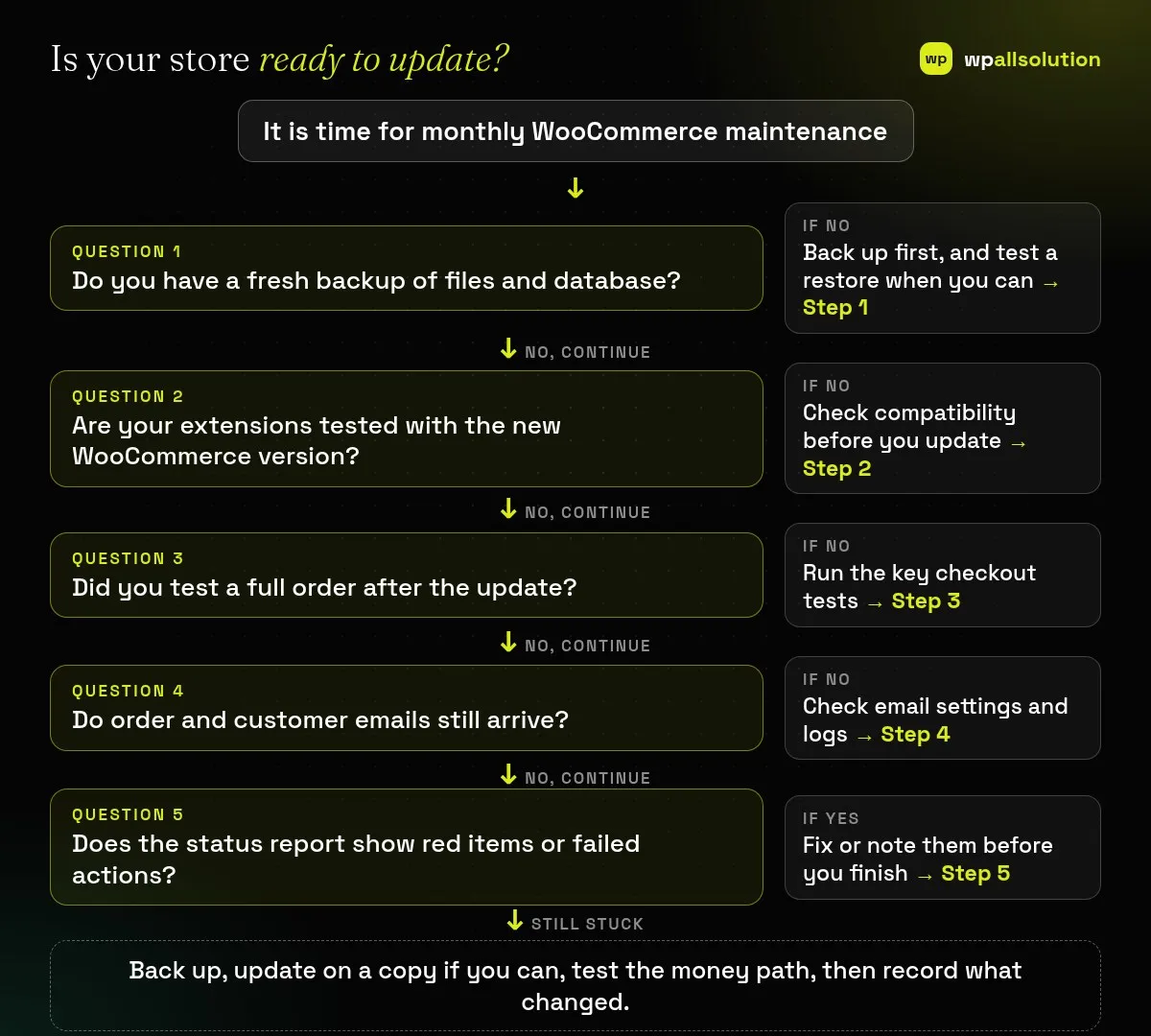
A WooCommerce maintenance checklist keeps an online store from losing sales quietly. A WooCommerce update, a plugin update or a change at your payment provider can break checkout without any visible error on the home page, and you may only notice when orders stop. This guide gives you a monthly routine: back up, check compatibility, update, test the path a customer takes to pay, check emails and the status report, and write down what changed.
Each month, take a backup, check that your extensions are tested with the version you plan to install, update on a staging copy if you can, then place a test order and check the emails. After that, review WooCommerce → Status for red items and failed scheduled actions, and keep a short record of what you changed. A store is more fragile than a brochure site, so test before and after.
How this guide was prepared: it is research-based. We used the official WooCommerce documentation listed under Sources, checked on October 23, 2026. The schedule (weekly, monthly, quarterly) is our own suggestion, not a WooCommerce rule, and we did not test your store.
A WooCommerce store depends on a theme, WooCommerce itself, payment and shipping extensions, tax settings, emails and background tasks, all working together. The WooCommerce update guide says to test updates on a copy of your live site, checking workflows such as checkout, payments, shipping, taxes and emails, before applying the same updates to production. The checklist below turns that advice into a routine. For general WordPress care, see what WordPress maintenance includes.
| How often | What to do |
|---|---|
| Weekly | Check that orders and emails are coming in, glance at the status report and any failed scheduled actions |
| Monthly | Back up, check compatibility, update on staging, test checkout and emails, record changes |
| Quarterly | Test a backup restore, review user accounts, review plugins you no longer use |
WooCommerce’s guide says a manual backup needs both the database and the wp-content folder, which holds themes, extensions and uploads. A backup that was never restored is unproven, so test a restore on a copy now and then; see is your WordPress backup really safe.
For each WooCommerce.com extension, compare its “Tested up to WooCommerce version” with the version you plan to install, and look for newer releases from the developer if it is older. Read the WooCommerce changelog and advisories for security fixes. For third-party plugins, check the developer’s notes. WooCommerce also suggests turning on coming soon mode during the update so customers cannot check out halfway through.
Apply updates to a copy first when you can, then to the live store. Test as a customer: add a product, change quantity, apply a coupon, choose shipping, pay (in test mode or with a very small real order, as your gateway allows) and see the order in WooCommerce → Orders. If something fails, WooCommerce checkout not working shows how to find the cause, and checkout block vs classic explains a common compatibility difference. After a plugin update WooCommerce may ask to update its database; take a backup first and watch progress under Scheduled Actions.
Confirm that new order, processing and customer emails arrive in a real inbox and not in spam. See WooCommerce emails not sending for the usual causes.
Open WooCommerce → Status and the System Status report. The report lists WordPress and server versions, the database, active plugins, template overrides and whether any are outdated, and the counts of pending and failed background tasks. Check the Logs tab for a fatal-errors log, and the Scheduled Actions tab for failed items. If a page misbehaves, WooCommerce suggests testing with the Storefront theme, and for a conflict, a default theme with only WooCommerce active; our plugin conflict guide shows a safe way.
Write down the date, what you updated and what you tested. When something breaks later, that note tells you what changed last, which saves hours.
Check orders and emails weekly, and run the full routine monthly. Do extra checks after any major update.
WooCommerce recommends testing on a copy first. If you must update live, do it at a quiet time with a backup ready.
It shows versions, active plugins, template overrides and the state of background tasks, which helps you spot problems early.
Yes, if you have the time and the skills to restore a backup. Otherwise ask a provider; see how to choose a WordPress maintenance provider.
Related guide: WooCommerce Coupons Not Applying? Diagnose Discount Errors
Related guide: WooCommerce Product Variations Not Working? Fix Dropdowns and Prices
Run the six steps on a copy of your store this month, and keep the record. wpallsolution offers a WooCommerce checkout service and WordPress maintenance packages, including WooCommerce care in the higher tiers. We cannot promise outcomes without seeing your store.
Bursts of fake or failed orders can mean bots or card testing. Learn the signs, what to tell your payment provider and…
An Indian store has to charge, show and record GST correctly. See how WooCommerce tax settings, classes and rates fit together, and…
Product imports fail for a few predictable reasons. Check the file format, column names, SKU matching, variations, images and server limits one…
Black FridayCyber Monday sale
Before you go,
Our biggest discount of the year on the first payment of every maintenance plan.
BF2026 at checkout