
How to Prevent Spam Orders in WooCommerce: Signs, Causes and Safe Fixes
Bursts of fake or failed orders can mean bots or card testing. Learn the signs, what to tell your payment provider and…
When a WooCommerce coupon is not working, WooCommerce shows a message that says why. Check expiry, usage limits, spend range, exclusions, sale items, email restrictions and stacking.
WooCommerce coupon not working is almost always a rule doing exactly what it was set to do. A coupon can have an expiry date, usage limits, a minimum or maximum spend, product and category restrictions, an email restriction and a setting that excludes sale items. WooCommerce displays a message explaining why a coupon cannot be applied, so the fastest route is to read it and match it to a rule. This guide shows how.
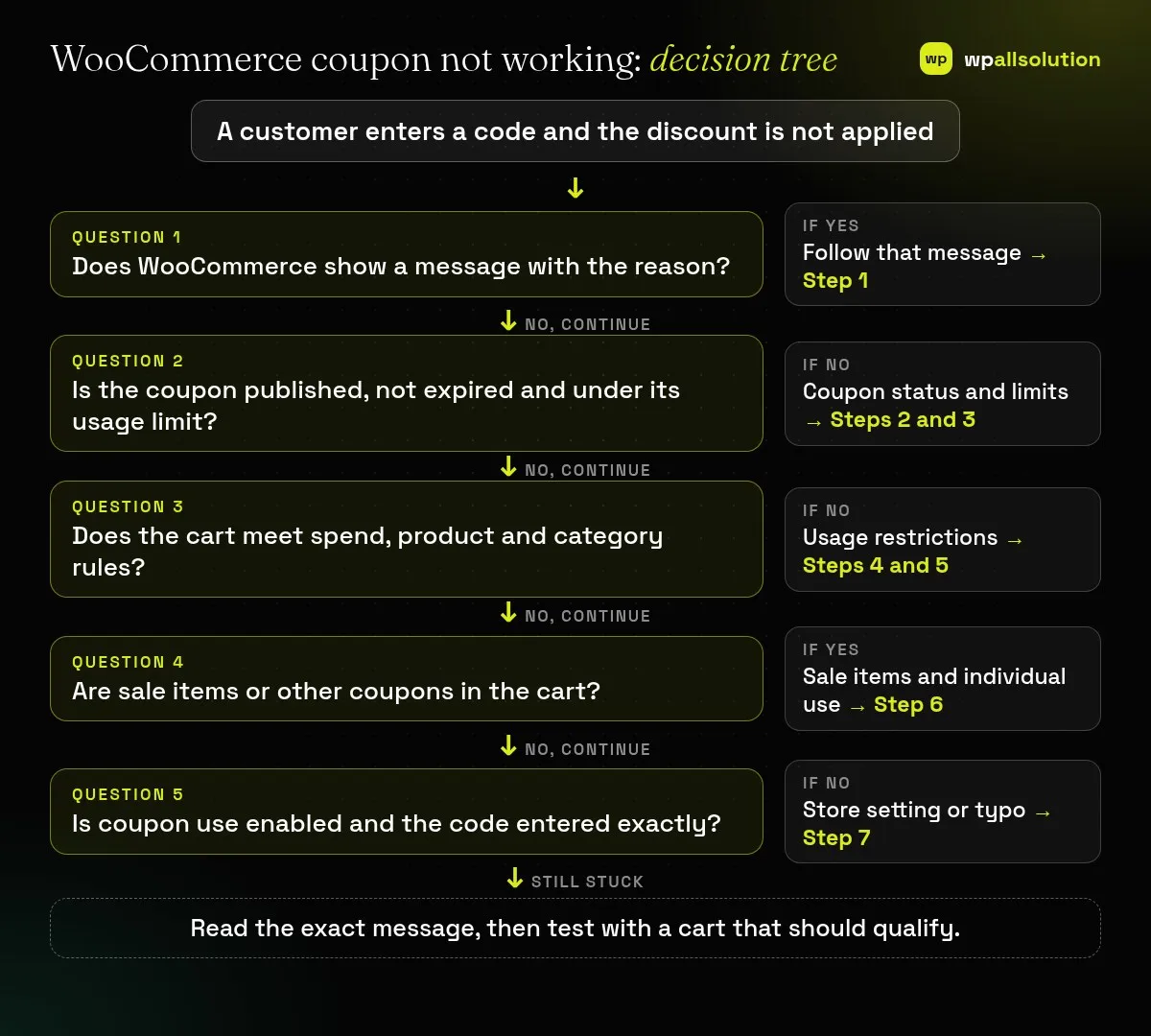
Apply the code in a private window with a cart that should qualify, and read the exact message. Then open the coupon (Marketing → Coupons) and check, in order: that it is published, the expiry date, the usage limits, the minimum and maximum spend, the products, categories and brands, the sale-items exclusion, any allowed email addresses and whether it can be used with other coupons. Remember WooCommerce does not apply coupon codes automatically, so customers must enter them at cart or checkout.
How this guide was prepared: the steps follow the WooCommerce documentation listed under Sources, read on October 19, 2026. We did not reproduce this problem on a live store for this guide, so the steps are research-based. Coupon behaviour can change with newer versions and with discount or loyalty extensions, which have their own rules.
| What you see | Likely cause | Start with |
|---|---|---|
| “Coupon does not exist” type message | Draft status, wrong code or coupons disabled | Steps 2 and 7 |
| Coupon has expired | Expiry date passed | Step 2 |
| Usage limit reached | Per-coupon or per-customer limit | Step 3 |
| Minimum spend not met | Spend range or subtotal calculation | Step 4 |
| Not valid for these products | Product, category or brand restriction | Step 5 |
| Discount only on some items | Sale items excluded, or item limit | Step 6 |
WooCommerce says that if a coupon cannot be applied, it displays a message explaining why, and suggests checking the code, expiry date, spend range, product restrictions, billing email and usage limits. Reproduce it with a simple cart in a private window. Then test a second cart that is clearly outside any restriction, because WooCommerce suggests confirming that the coupon is rejected there too. That tells you whether the coupon works at all or only fails for one cart.
Open Marketing → Coupons and check the coupon is Published, not Draft, Pending or scheduled for later. WooCommerce notes that coupon codes are not case-sensitive, so SAVE10 and save10 both work, but spaces and similar-looking characters still matter. Check the expiry date: WooCommerce says coupons cannot be used on the date that is set as the expiry.
WooCommerce lists three limits: usage per coupon (all customers together), usage per user, and the maximum number of items that receive a percentage or fixed-product discount. If the first or second is reached, the coupon becomes invalid. Check the usage count shown in the coupon list against the limit, and raise the limit if that is what you intend.
WooCommerce says minimum spend uses the displayed cart subtotal, including tax when your cart displays prices with tax. A cart can therefore fall short of a minimum even though the total looks higher. If you set both minimum and maximum spend, WooCommerce says that in newer versions the minimum must not exceed the maximum, so check that the range makes sense, for example a minimum of 50 and a maximum of 100.
Under Usage restrictions, the Products and Product categories settings limit the coupon to those items, or require them in the cart. Exclude products and Exclude categories do the opposite, and brand options exist too. WooCommerce says that leaving Products and Exclude products empty removes only those product-specific restrictions, and the other restrictions still apply. Allowed emails are checked against the customer’s billing email, and a wildcard such as *@example.com can allow a whole domain. A customer who types a different email will be refused.
If Exclude sale items is ticked, sale items get no discount, although WooCommerce notes a fixed cart discount can still apply when the cart has eligible items that are not on sale. Individual use only stops the coupon from being combined with other coupons, so a second coupon can be rejected for that reason. Also check the discount type. A percentage applies to eligible products, a fixed cart discount applies once to the cart, and a fixed product discount applies per eligible item. Customers can think a coupon “did not work” when the type is not what they expected.
WooCommerce says you must enable coupon use in your store before creating coupons, under the General settings. If a free shipping coupon is the problem, the Allow free shipping box must be ticked and the Free shipping method must require a coupon. If everything checks out and the coupon still fails, test for a conflict on staging with a default theme and only WooCommerce active, as in How to find the plugin that broke your site. Discount, membership and pricing plugins are common causes.
No. WooCommerce says SAVE10 and save10 both work.
No. Core WooCommerce does not apply coupon codes automatically. Customers enter them at cart or checkout.
Probably because Exclude sale items is ticked.
One of the coupons may be set to individual use only.
Read the message, match it to the rule and test with one qualifying cart. If your WooCommerce coupon is still not working, note the coupon settings, the cart contents and the exact message, then ask your theme or discount plugin developer. If you would like a person to look, wpallsolution offers independent plugin support, and our WooCommerce customization page explains what we build. We cannot promise a fix without seeing your setup.
Last reviewed: October 19, 2026. WooCommerce is a trademark of its owner. wpallsolution is not affiliated with or endorsed by WooCommerce or Automattic.
Bursts of fake or failed orders can mean bots or card testing. Learn the signs, what to tell your payment provider and…
An Indian store has to charge, show and record GST correctly. See how WooCommerce tax settings, classes and rates fit together, and…
Product imports fail for a few predictable reasons. Check the file format, column names, SKU matching, variations, images and server limits one…
Black FridayCyber Monday sale
Before you go,
Our biggest discount of the year on the first payment of every maintenance plan.
BF2026 at checkout