Is Your WordPress Backup Really Safe?
Having a backup is not the same as being able to restore. What a safe WordPress backup looks like and how to…
A calm, step-by-step way to track down a plugin or theme conflict after a white screen, a critical error or a broken page.
Your site worked a minute ago. Then you updated something, and the plugin that broke your site has left you with a white screen, a “critical error” message or a layout that has fallen apart. Most of the time the cause is a single plugin or theme. Here is a calm way to find it.
.maintenance in your site’s root folder.Turn on logging (without showing errors to visitors) by adding these lines to wp-config.php:
define( 'WP_DEBUG', true );
define( 'WP_DEBUG_LOG', true );
define( 'WP_DEBUG_DISPLAY', false );
Reload the broken page, then open wp-content/debug.log. Find the last line that starts with Fatal error. The file path in that line usually names the guilty plugin or theme, for example /wp-content/plugins/some-plugin/…. When you are done, turn debugging off and make sure the log file is not publicly readable.
Pick whichever option you can reach:
wp plugin deactivate some-pluginwp-content/plugins/some-plugin to some-plugin.off. WordPress will deactivate it automatically.If the site comes back, you have found the cause.
wp plugin deactivate --all (or rename the whole plugins folder).Do this on a staging copy if you can, because a live shop with every plugin off may behave oddly for visitors.
wp theme activate twentytwentyfive.If you ask anyone for help, including us, never send your admin password by email, chat or a web form. Share the error message and what changed. If access is needed, set it up securely and remove it afterwards.
To find the plugin that broke your site, stay calm and change one thing at a time.
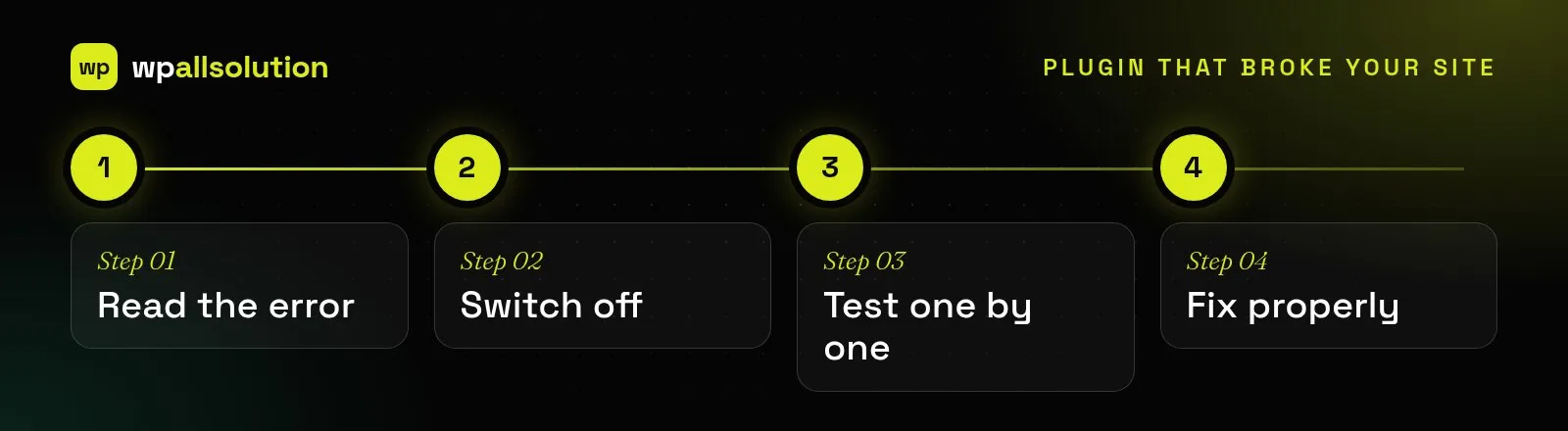
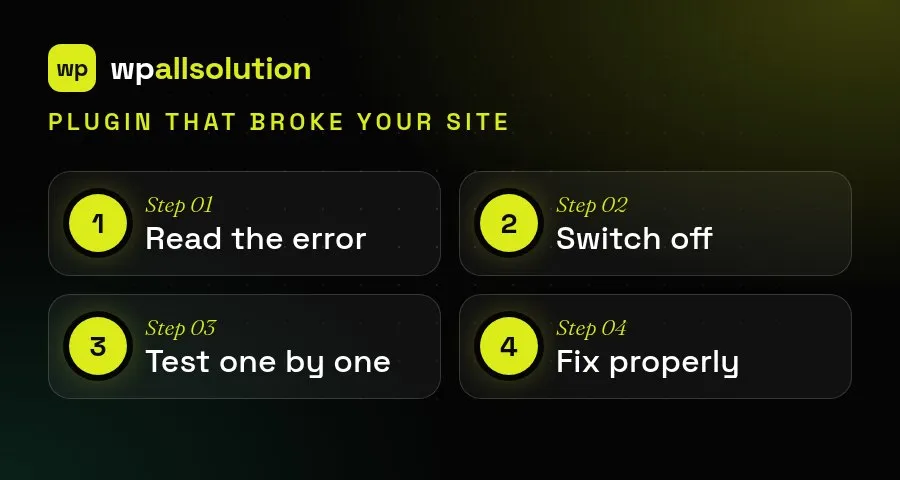
The most important habit is to change one thing at a time and to write down what you did. If you deactivate five plugins at once and the site recovers, you still do not know which one caused it. If the dashboard is not reachable, ask your host for the error log or use the recovery link WordPress emails to the administrator. Once you know the culprit, check for an update, look for a known issue and contact the plugin author before deciding to remove it.
For more detail, see the WordPress troubleshooting FAQ.
If your site is down right now, read about emergency WordPress fixes. If you suspect a third-party plugin, our plugin support can diagnose it and suggest an update-safe fix.
Having a backup is not the same as being able to restore. What a safe WordPress backup looks like and how to…
What a good WordPress maintenance plan covers, what it usually does not, and the questions to ask before you choose one.
Where AI genuinely helps a WordPress site, where it does not, and how to add it safely: keys, privacy, cost limits and…