
How to Prevent Spam Orders in WooCommerce: Signs, Causes and Safe Fixes
Bursts of fake or failed orders can mean bots or card testing. Learn the signs, what to tell your payment provider and…
Product imports fail for a few predictable reasons. Check the file format, column names, SKU matching, variations, images and server limits one by one.
WooCommerce CSV import not working usually means the product file does not match what the importer expects, or the server cannot finish the job. The importer reads a spreadsheet saved as CSV, matches its columns to product fields and creates or updates products. When rows fail, products duplicate, variations are missing or the import stops halfway, the cause is usually one of a handful of things. This guide checks them in order, starting with the import report.
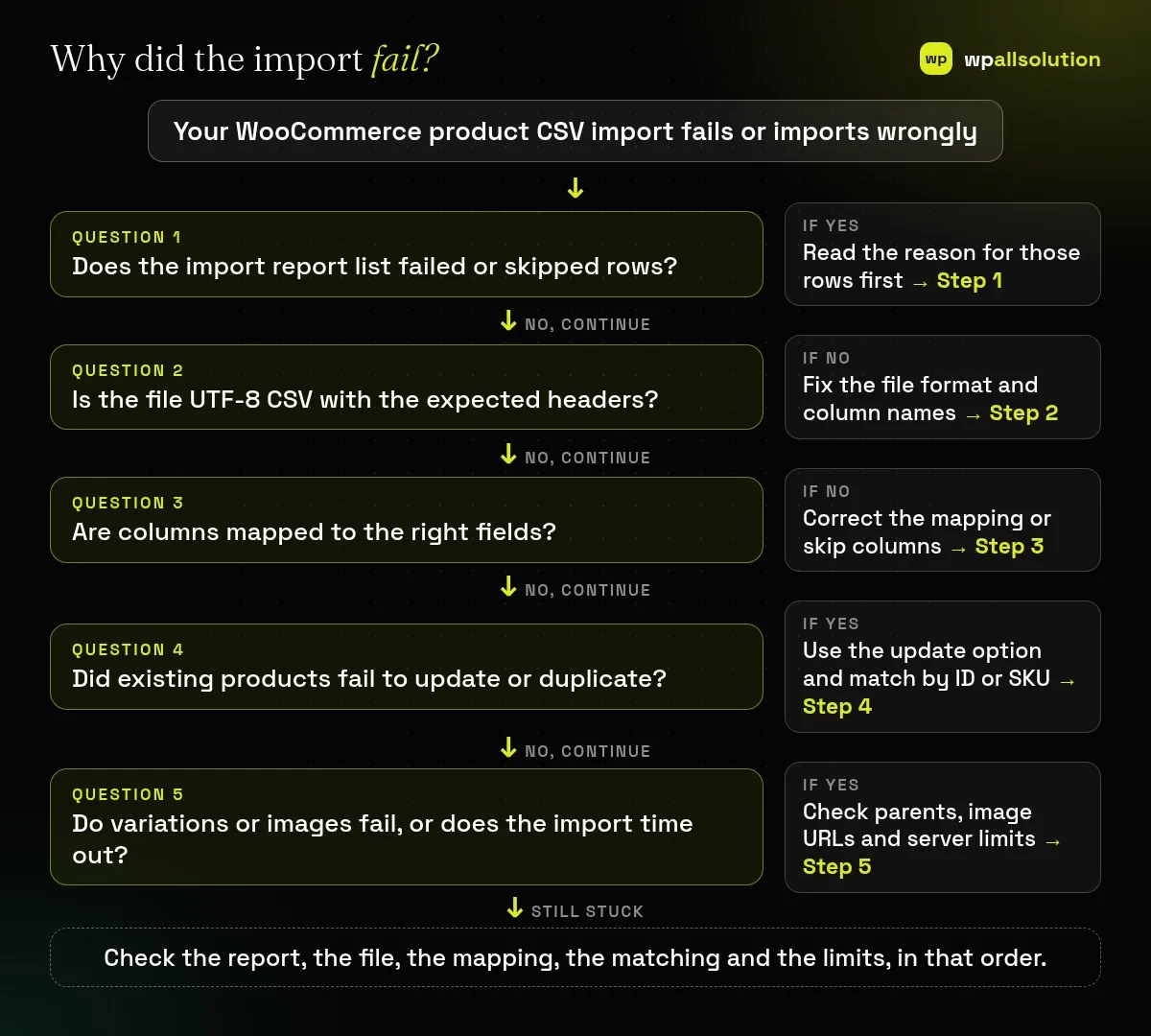
Read the import report for failed or skipped rows first. Then check the file: UTF-8 CSV, headers that match WooCommerce’s product schema, boolean values as 1 or 0. Check the column mapping on the mapping screen. If products duplicate or do not update, use the “Update existing products” option and match by ID or SKU. For variable products, set the parent and variation rows correctly. If images fail or the import stops, check image URLs and your server’s time, memory and upload limits, and split large files.
How this guide was prepared: it is research-based. We used the official WooCommerce product CSV importer documentation listed under Sources, checked on October 23, 2026. We did not test your file or store. Importers differ between WooCommerce versions, so follow the screens you see.
You start it from Products → All Products by choosing Import. It reads a CSV file, maps each column to a product field (WooCommerce maps recognised columns automatically and skips unrecognised ones by default), and creates products or, if you choose, updates existing ones by ID or SKU. According to the documentation, the file should be saved as UTF-8 CSV with headers that match the product schema, dates use the store’s local time zone and boolean fields use 1 or 0. Values that hold several items are separated by commas, categories use > for hierarchy, and a comma inside a single value is escaped with a backslash.
| What you see | Likely cause | Start with |
|---|---|---|
| Garbled characters or odd symbols | The file was not saved as UTF-8 | Step 2 |
| Columns are ignored or in the wrong field | Headers do not match the schema, or the mapping is wrong | Steps 2 and 3 |
| Products appear twice, or old ones do not change | Update existing products was not selected, or IDs and SKUs do not match | Step 4 |
| Variations missing or detached | Parent or type values are wrong | Step 5 |
| Import stops, or images are missing | Server limits, large file or blocked image downloads | Step 5 |
| Imported products show an unexpected status | The Published value set the status | Step 3 |
After the import, check the log, the import report or the failed and skipped rows report that WooCommerce provides. It tells you which rows failed and often why, such as a missing required value or a duplicate SKU. Fix those rows and re-import only them instead of the whole file.
Save the spreadsheet as CSV with UTF-8 encoding from your spreadsheet program; other encodings turn accents and symbols into garbage. Make sure the first row holds the headers and that the headers match WooCommerce’s product CSV schema; the easiest way to get exact headers is to export an existing product and use that file as the template. Use 1 or 0 for yes and no fields, and check dates and separators. If WordPress blocks the upload with the message “Sorry, this file type is not permitted for security reasons”, the documentation suggests uploading the file by SFTP or your host’s file manager and using the importer’s server file path option.
On the mapping screen check that each column goes to the field you intend, or set it to Do not import. A wrong mapping can put prices into the wrong field. Pay attention to the Published column: the documentation lists an unexpected status as a common cause of products that seem missing, so check whether the products came in as drafts or private.
To update products instead of creating duplicates, tick Update existing products. WooCommerce then matches rows by ID or SKU. A row that supplies an ID or SKU that does not match will not fall back to another identifier. The documentation lists importing existing SKUs or IDs without selecting the update option as a common problem. SKUs must be unique, so duplicates in your file will also fail.
For variable products, the parent row must have Type set to variable and each child row Type variation, with the child’s Parent set to the parent’s SKU or id:123. Each variation needs its own unique SKU, and its attribute values must match the parent’s; see WooCommerce variations not working. For images, WooCommerce downloads each image URL into the Media Library; hosts that block requests, or require a login, can make this fail, and then you can upload the images yourself. If the import times out or stops, split a large file into smaller batches and check your server limits: memory, execution time and upload size. A plugin or theme conflict can also interfere; see how to find the plugin that broke your site.
The Published value in your file sets the status. Check that column.
You did not select Update existing products, or the IDs and SKUs did not match.
The parent, type or SKU values are wrong. Check the variation rows and attributes.
Yes, with image URLs that your server can download. If your host blocks it, upload the images manually.
Read the report, fix the file and test with a small batch. If you need help with a large or complex import, wpallsolution offers a WooCommerce checkout service and plugin support. We cannot promise a result without seeing your file.
Bursts of fake or failed orders can mean bots or card testing. Learn the signs, what to tell your payment provider and…
An Indian store has to charge, show and record GST correctly. See how WooCommerce tax settings, classes and rates fit together, and…
If some customers cannot finish checkout, you lose sales. Use this WCAG 2.2 based checklist to test keyboard use, labels, errors, focus…
Black FridayCyber Monday sale
Before you go,
Our biggest discount of the year on the first payment of every maintenance plan.
BF2026 at checkout