
How to Prevent Spam Orders in WooCommerce: Signs, Causes and Safe Fixes
Bursts of fake or failed orders can mean bots or card testing. Learn the signs, what to tell your payment provider and…
When WooCommerce variations are not working, the dropdown may be empty, options may be greyed out or the price may not change. Check attributes, variation data, stock, JavaScript and templates.
WooCommerce variations not working can look like an empty dropdown, options that are greyed out, a price that never updates, or an Add to cart button that stays disabled. Most of these come from the product’s own data: attributes, variation prices and stock. A smaller number come from the theme, a script error or a template override. This guide checks the data first, because it is the quickest to fix.
Open the product and check that each attribute is saved and marked for variations, that variations were generated, and that every variation has a regular price and sensible stock. Variations without prices do not show in your store. If you changed attributes after creating variations, you may need to redefine the variations. If the data is correct and the dropdown still does nothing, look for JavaScript errors in the browser console and test with a default theme and only WooCommerce active, because the theme or another plugin may be changing the product template.
How this guide was prepared: the steps follow the WooCommerce documentation listed under Sources, read on October 19, 2026. We did not reproduce this problem on a live store for this guide, so the steps are research-based. Themes and extensions that restyle variations behave differently, and their documentation comes first for their own features.
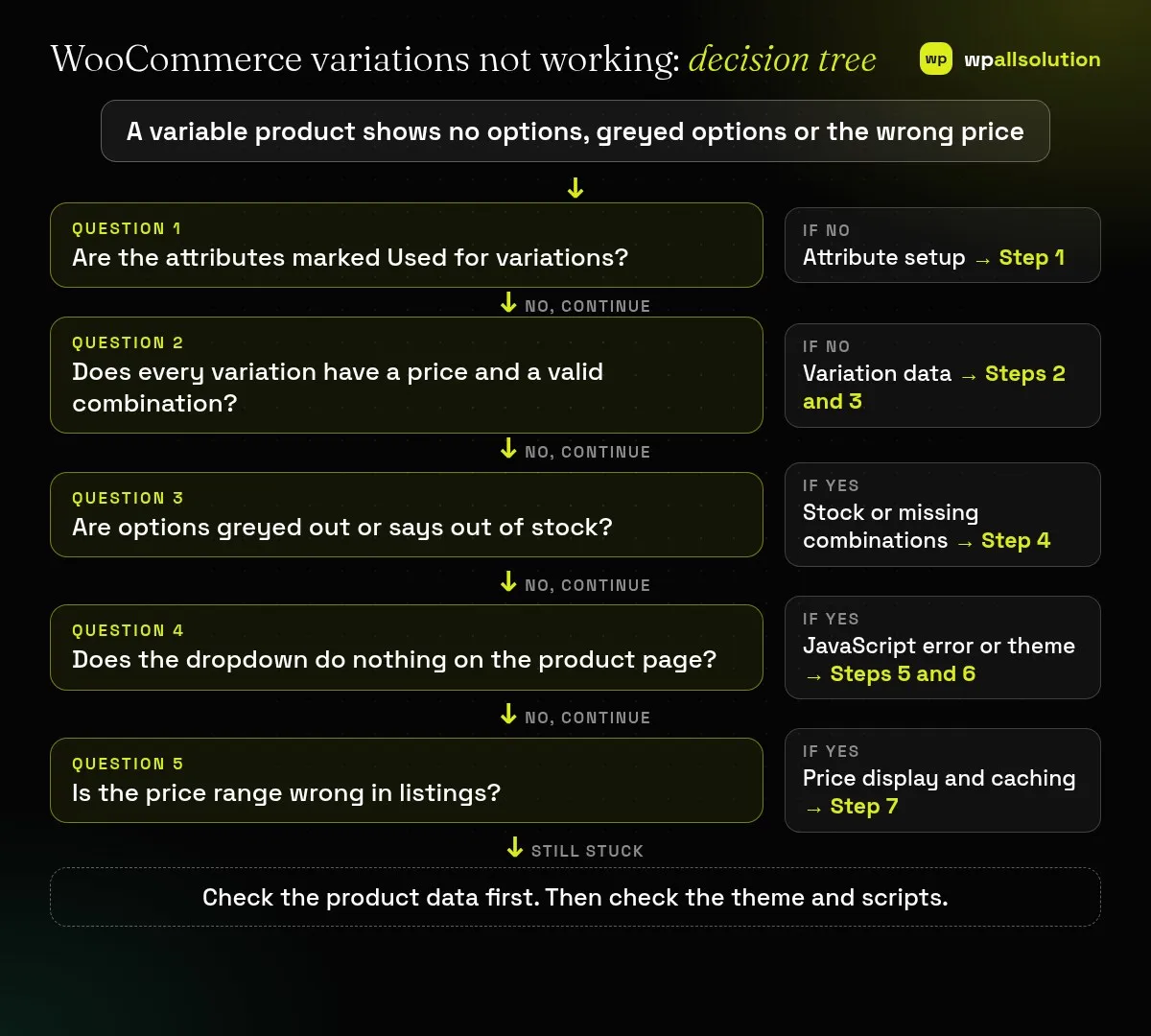
| What you see | Likely cause | Start with |
|---|---|---|
| No dropdown on the product page | Attributes not used for variations, or no variations | Steps 1 and 2 |
| A variation is missing from the dropdown | No regular price, or not enabled | Step 3 |
| Options greyed out | Combination missing or out of stock | Step 4 |
| Price or image does not change | JavaScript error or theme override | Steps 5 and 6 |
| Wrong price range in the shop | Variation prices, sale prices or cache | Step 7 |
| Behaviour changed with many variations | Large products handled differently | Step 2 |
WooCommerce describes the setup: choose Variable product in the Product data dropdown, open the Attributes tab, add a global attribute or create one for this product, and add the values. Custom values are separated with a vertical bar, for example Medium | Large | XL. Make sure the values are saved and that the attribute is set to be used for variations. If an attribute is saved only for display, it will not create a dropdown.
In the Variations tab you can generate all possible combinations or add them manually. WooCommerce warns that if you alter product attributes after creating variations, you may need to redefine the variations for the combinations to work correctly. It also notes that the dynamic product dropdowns behave differently for products with more than 30 variations. After any attribute change, regenerate or edit the variations, save, and test.
WooCommerce states that the regular price is required for a variation and that variations without prices don’t show in your store. Open each variation and check the price, the sale price (if any), the stock status and whether it is enabled. Use the Bulk actions dropdown at the top of the Variations tab to set price or stock for all variations at once, then review the result.
If a combination does not exist as a variation, the dropdown greys it out or shows it as unavailable. If a variation is out of stock, it is unavailable too. WooCommerce lists inventory options for variable products at product and variation level, so check where stock is managed and whether a variation has quantity zero. Also check the Any option: a variation set to “Any” for an attribute matches every value of that attribute.
If the data is right but nothing changes when you pick an option, open the browser’s developer tools on the product page and check the Console. An error from a theme or plugin script can stop the variation form from working, and it can also stop the price from updating. Try a private window without extensions, and note which file the error names. A minify or combine setting in your cache plugin can also break scripts, so try excluding that file or switching the setting off for a test.
Many themes and add-ons replace the product page or add swatches. Follow WooCommerce’s conflict test on staging: update everything, switch to a default theme such as Twenty Twenty-Five or Storefront, deactivate all plugins except WooCommerce, and test. Reactivate plugins one at a time, testing after each. If a theme overrides WooCommerce templates, compare them with the current WooCommerce version. Our guide How to find the plugin that broke your site explains the method.
For a variable product, shop pages normally show a price range from the lowest to the highest variation price. If the range looks wrong, check the variations’ regular and sale prices, and clear all caches, including the host and CDN cache. Check that prices entered inclusive or exclusive of tax match your tax settings. If the single product page is right but listings are old, the problem is a cache, not the variation.
According to the WooCommerce documentation on variable products, dropdowns are dynamic by default for up to 30 variations; if a product has more than 30, the dropdowns are static. The documentation says this improves site performance. In practice this means that a product with many combinations can behave differently from a small one: choices may not narrow down as you select them, and a combination that does not exist can still be picked. If your product has more than 30 variations, test it as a visitor before assuming something is broken, and consider splitting it into several products or reducing the options.
The same page notes two other points worth checking. Variations without prices do not show in your store, and when you use “Any” attributes, duplicate variations resolve to the first match in the sorted list, so the documentation recommends defining all attributes. If the dropdown looks right in the admin but wrong on the store, compare these three things first: price set on every variation, no accidental duplicates, and the number of variations.
Related guides: WooCommerce checkout not working, WooCommerce cart empty after adding products and WooCommerce coupon not working.
PHP Max Input Vars, which can matter when saving many variations.Most often it has no regular price, is not enabled, or does not exist as a combination.
You may need to redefine them, as WooCommerce warns. Back up first.
The store page uses your theme and scripts. A script error or template override is the usual cause.
WooCommerce notes that the dropdown behaves differently with more than 30 variations.
Check the data, then the script, then the theme. If WooCommerce variations are still not working, send the product’s attribute and variation settings, the console error and your theme name to your theme or plugin developer. If you would like a person to look, wpallsolution offers independent plugin support, and our WooCommerce development page explains what we build. We cannot promise a fix without seeing your setup.
Last reviewed: October 19, 2026. WooCommerce is a trademark of its owner. wpallsolution is not affiliated with or endorsed by WooCommerce or Automattic.
Bursts of fake or failed orders can mean bots or card testing. Learn the signs, what to tell your payment provider and…
An Indian store has to charge, show and record GST correctly. See how WooCommerce tax settings, classes and rates fit together, and…
Product imports fail for a few predictable reasons. Check the file format, column names, SKU matching, variations, images and server limits one…
Black FridayCyber Monday sale
Before you go,
Our biggest discount of the year on the first payment of every maintenance plan.
BF2026 at checkout