
How to Prevent Spam Orders in WooCommerce: Signs, Causes and Safe Fixes
Bursts of fake or failed orders can mean bots or card testing. Learn the signs, what to tell your payment provider and…
When WooCommerce shipping is not calculating, the cause is usually the zone setup, zone order, the address, shipping classes, weights, free-shipping rules or an extension. Check them in order.
WooCommerce shipping not calculating can mean no shipping options at all, a cost of zero, or a price that does not match your rules. The cause is usually in how shipping zones, methods and classes are set up, or in which address the customer enters. This guide explains how WooCommerce chooses a zone and a rate, so you can work out why a particular cart gets the wrong result.
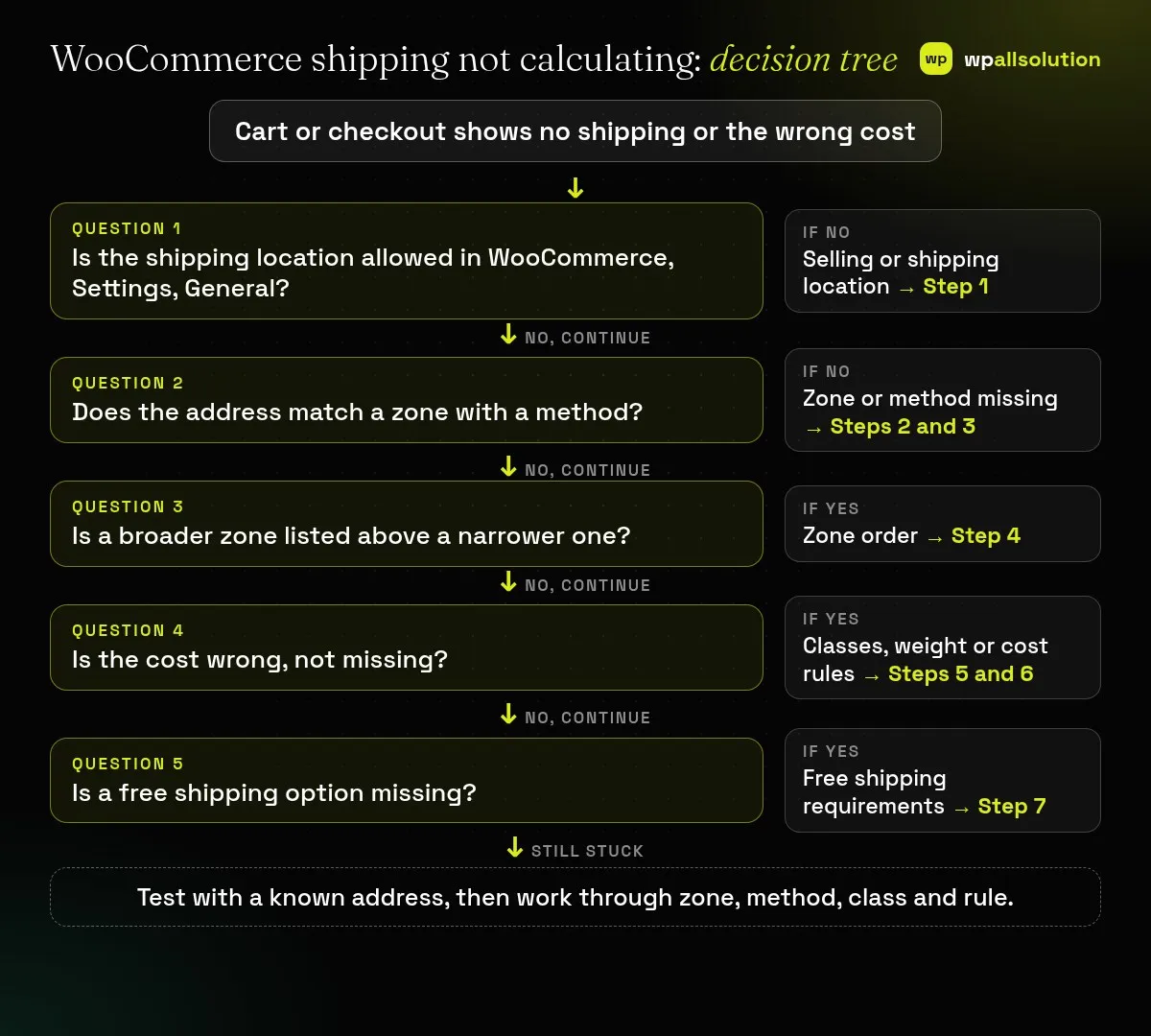
Pick a test address and a test cart. Check that you ship to that country in WooCommerce → Settings → General. Then open WooCommerce → Settings → Shipping and check which zone the address matches. Zones are matched from the top of the list down, and a customer matches only one, so order them from the smallest area to the largest. The matching zone must have at least one method. If the cost is wrong, check shipping classes, product weights and dimensions, and free shipping conditions. If all of that is right, test for an extension conflict on staging.
How this guide was prepared: the steps follow the WooCommerce documentation listed under Sources, read on October 19, 2026. We did not reproduce this problem on a live store for this guide, so the steps are research-based. Real rates can come from carrier extensions that this guide does not cover, and each extension has its own documentation.
| What you see | Likely cause | Start with |
|---|---|---|
| “No shipping options available” | Zone has no method, or location not allowed | Steps 1 to 3 |
| Wrong methods for an address | Zones in the wrong order | Step 4 |
| Shipping shows only after entering a full address | Rates depend on the address entered | Step 2 |
| Cost is the same for heavy and light items | Shipping classes not assigned or costed | Step 5 |
| Cost is zero | Free method, or a cost formula returns zero | Steps 6 and 7 |
| Free shipping never appears | Requirement not met | Step 7 |
WooCommerce lists this as a prerequisite: go to WooCommerce → Settings → General and check that your Shipping location(s) setting is configured properly. If the customer’s country is not allowed there, no zone can offer shipping to it.
WooCommerce says customers only see the methods available for their address and its corresponding zone, and that zones are assigned based on the first one the customer matches. A zone can be a country, a state or province, or a continent, and you can limit it to specific postcodes: one per line, numeric ranges such as 90210…99000, and wildcards. Check that your test address falls inside a zone by region and by postcode.
WooCommerce says that if a customer enters an address in a zone that has no shipping methods, they are told that no shipping is available. The “Rest of the world” zone covers customers who match no other zone, and adding methods to it is optional. If you want to block a region while using Rest of the world, add a zone for that region without any methods. Open the zone and add a method such as Flat rate, Free shipping or Local pickup.
WooCommerce explains that each customer matches only one zone, and the first match from the top of the list wins. Order zones from the smallest area to the largest. For example, put a city zone above a state zone and a state zone above a country zone. If customers see the wrong methods, the zones are most likely in the wrong order. Drag a zone by its handle to move it. Newer WooCommerce versions also show a warning when an earlier, broader zone already covers a narrower one, so look for that message.
WooCommerce says shipping classes group products and cannot offer rates by themselves. You set the rates by adding class costs to a method such as Flat rate inside a zone. Each product can have only one shipping class. Check that the product has the class you expect (the Shipping tab for a simple product, and the variation’s own class for variations), and that the method has a cost for that class.
If a method’s cost uses weight or a formula, a product with no weight can return a result you do not expect. For variable products, WooCommerce says a variation’s weight and dimensions fall back to the main product’s value if left blank. Look at the product’s Shipping tab and each variation. Then recheck the method’s cost fields for typos, because a blank or invalid cost can look like “not calculating”.
WooCommerce says Free shipping is added to a zone as a method, and it can require nothing, a valid free shipping coupon, a minimum order amount, or a combination. If you use a minimum amount, the checkbox “Apply minimum order rule before coupon discount” decides whether the amount is checked before or after a coupon discount. A cart of 30 with a coupon of 10 might therefore fail a minimum of 25 or not, depending on that box.
If the settings look right but rates are still wrong, test for a conflict as WooCommerce describes: back up, update, switch to a default theme, deactivate all plugins except WooCommerce, test, and reactivate one by one. Carrier-rate and checkout plugins are frequent suspects. Our guide How to find the plugin that broke your site explains the method. If checkout itself fails, see WooCommerce checkout not working.
Rates depend on the zone, and the zone depends on the address, so WooCommerce needs enough of the address to match a zone.
No. WooCommerce uses the first zone the customer matches from the top of the list.
No. They group products. The price comes from the method inside a zone.
Check that the Free shipping method requires a coupon, and that the coupon has Allow free shipping ticked.
Choose a test address, find its zone, then check the method, class and rule. If WooCommerce shipping is still not calculating, send your host or the carrier extension’s support the zone list, the test address and the product settings, without customer data. If you would like a person to look, wpallsolution offers independent plugin support, and our WooCommerce customization page explains what we build. We cannot promise a fix without seeing your setup.
Last reviewed: October 19, 2026. WooCommerce is a trademark of its owner. wpallsolution is not affiliated with or endorsed by WooCommerce or Automattic.
Bursts of fake or failed orders can mean bots or card testing. Learn the signs, what to tell your payment provider and…
An Indian store has to charge, show and record GST correctly. See how WooCommerce tax settings, classes and rates fit together, and…
Product imports fail for a few predictable reasons. Check the file format, column names, SKU matching, variations, images and server limits one…
Black FridayCyber Monday sale
Before you go,
Our biggest discount of the year on the first payment of every maintenance plan.
BF2026 at checkout