
GST in WooCommerce: How to Set Up Tax for an Indian Store
An Indian store has to charge, show and record GST correctly. See how WooCommerce tax settings, classes and rates fit together, and…
Bursts of fake or failed orders can mean bots or card testing. Learn the signs, what to tell your payment provider and how to slow bots without blocking customers.
WooCommerce spam orders are fake, empty or failed orders created by bots, and the worst version is card testing, where criminals use a store’s checkout to try stolen card numbers with small payments. You may see dozens or thousands of failed orders in minutes, a flood of notification emails and, in bad cases, warnings from your payment provider. This guide explains how to recognise the pattern, what to do first, and how to add protection in layers without blocking real customers.
First, tell the two cases apart: random spam orders or accounts, or bursts of tiny failed payments that look like card testing. If a payment provider has warned you or limited your account, contact them first. Then protect checkout in layers: a challenge such as a CAPTCHA or Cloudflare Turnstile that works with your checkout, rate limiting of checkout requests, and the fraud settings your gateway or an anti-fraud extension offers. Test with a real order after each change, because aggressive rules can also block customers.
How this guide was prepared: it is research-based. We used the WooCommerce developer documentation for Store API rate limiting and the WooCommerce.com documentation on card testing, linked under Sources, checked on October 23, 2026. We did not examine your store, and no protection stops every attack.
WooCommerce.com’s documentation on velocity attacks, which are automated bursts of checkout attempts, lists the signs: hundreds or thousands of fake or failed orders within minutes, repeated attempts from the same sources, floods of duplicate order and fraud notification emails, and chargebacks, fraud flags or restrictions from a payment provider. Spam can also be simpler, such as junk orders with fake names created by bots that fill forms. The cost is real: noise in your orders, wasted time, and a risk to your payment account.
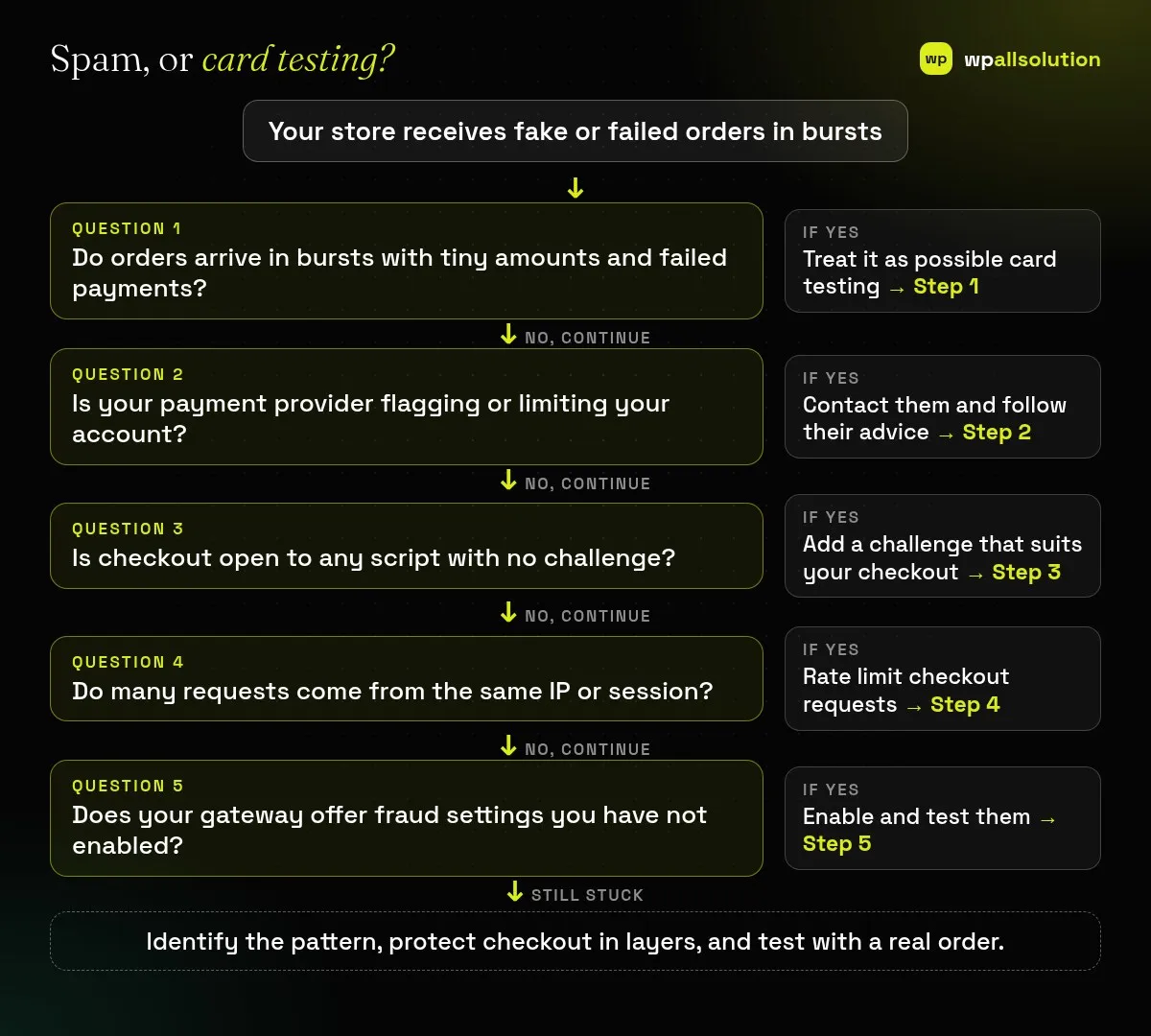
Open WooCommerce → Orders and look at the times, amounts, names, emails and the payment status. Check your payment gateway’s dashboard and logs for repeated failed attempts and the same IP addresses or email patterns. Write down the first time it started and what you changed around then, such as a new plugin, a new gateway or a store launch, because attackers often find newly exposed checkouts.
If failed payments come in bursts, your provider may see them as fraud, and WooCommerce.com’s documentation warns of restrictions from providers such as PayPal. Contact your provider early and follow their advice. Do not ignore a warning, and keep records of what you did.
Bots that submit checkout forms without a browser are stopped by a challenge such as reCAPTCHA or Cloudflare Turnstile. WooCommerce.com’s documentation recommends enabling reCAPTCHA on checkout and login pages with valid keys, testing in a private window, and removing duplicate CAPTCHA plugins and caching or firewall rules that block the checkout endpoint. Make sure the tool you pick supports your checkout type (the checkout block or the classic shortcode); see checkout block vs classic.
WooCommerce’s Store API has optional rate limiting, off by default. According to the developer documentation, it covers POST requests to the checkout, including the Place Order action of the Checkout block, and it is enabled through the woocommerce_store_api_rate_limit_options filter, with options for enabling it, proxy support, the request limit (default 25) and the time window in seconds (default 10). It tracks logged-in users by ID and others by IP address, so if your site is behind a proxy or CDN, set proxy support correctly or every visitor may look like one IP. This is developer work: ask a developer to add it, test it with real orders, and consider additional limits at the firewall or host level.
Many payment providers offer fraud tools, such as card verification checks, velocity limits and blocking rules. WooCommerce.com’s Anti-Fraud extension documentation also describes limits on payment attempts in a time window, order and payment attempt limits, order-time restrictions and IP or email blocklists. Configure these with care, fill in all required fields so they are actually active, and test that a normal customer can still pay.
Cancel or trash the spam orders after you have kept the evidence you need, review new customer accounts, and keep your site secure: the same documentation notes that weak hosting, vulnerable plugins or malware can undermine protection. Keep WordPress, WooCommerce and your gateway extension updated; see our WooCommerce maintenance checklist. If real orders are not appearing, read WooCommerce orders missing after payment.
Spam itself is a nuisance, but card testing can lead to chargebacks and payment provider restrictions.
No. It stops many simple bots. Use it together with rate limiting and gateway protections.
Some firewalls can, but it may block real customers, so use it only when your sales are local.
Not by itself, but weak hosting or vulnerable plugins make protection harder.
Identify the pattern, warn your payment provider if needed and add layered protection. wpallsolution offers a WooCommerce checkout service and WordPress maintenance packages; we are not a cybersecurity firm, and we cannot promise to stop every attack.
An Indian store has to charge, show and record GST correctly. See how WooCommerce tax settings, classes and rates fit together, and…
Product imports fail for a few predictable reasons. Check the file format, column names, SKU matching, variations, images and server limits one…
If some customers cannot finish checkout, you lose sales. Use this WCAG 2.2 based checklist to test keyboard use, labels, errors, focus…
Black FridayCyber Monday sale
Before you go,
Our biggest discount of the year on the first payment of every maintenance plan.
BF2026 at checkout