
How to Prevent Spam Orders in WooCommerce: Signs, Causes and Safe Fixes
Bursts of fake or failed orders can mean bots or card testing. Learn the signs, what to tell your payment provider and…
When WooCommerce orders are missing after payment, the customer was charged but no order exists. Check the redirect, the webhook, the gateway log, order creation and the checkout session, without exposing data.
WooCommerce orders missing after payment is the case where the customer was charged, the gateway shows the transaction, but your store has no matching order. It is stressful because money and a customer are involved, so it is best handled calmly, in order: first confirm the payment, then look for a hidden order, then trace where the message from the gateway to your store stopped. This guide does that without exposing payment or customer data.
Confirm the payment in the gateway’s own dashboard, and keep its transaction ID. Then search WooCommerce → Orders for that ID, the customer’s email and the amount, and check the Draft tab, filters and the trash, because the order may exist but be hidden. If it truly does not exist, check whether the customer reached the thank-you page, whether the gateway’s webhook was delivered to your site, and what WooCommerce → Status → Logs and the gateway’s log say. Only after verifying the payment should you create the order manually, and record the transaction ID in a note.
How this guide was prepared: the steps follow the WooCommerce documentation listed under Sources, read on October 19, 2026. We did not reproduce this problem on a live store for this guide, so the steps are research-based. Every gateway handles redirects and webhooks differently, so its own documentation comes first. Do all testing in the gateway’s test mode on staging.
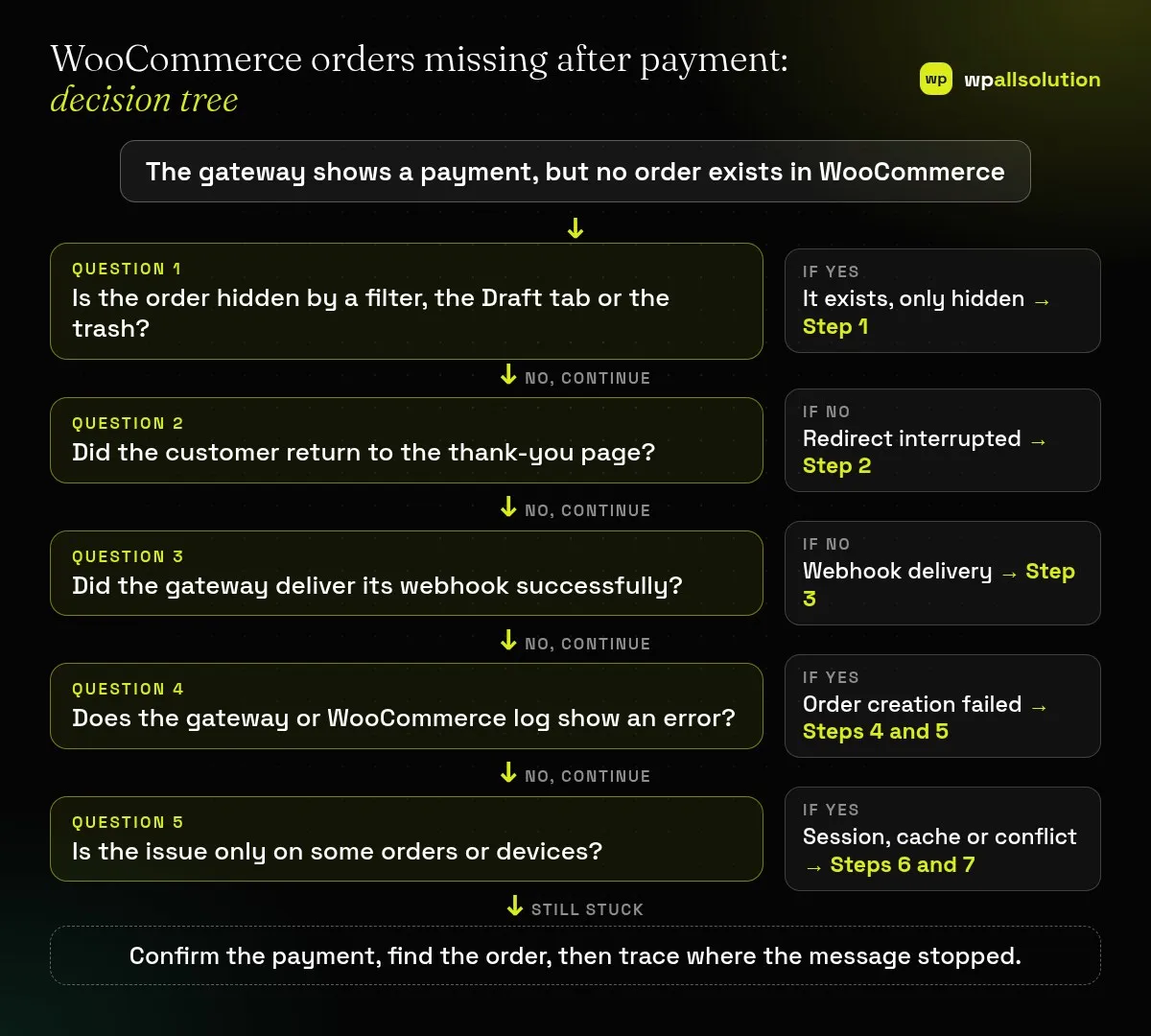
| What you see | Likely cause | Start with |
|---|---|---|
| Order cannot be found in the list | Filter, Draft tab, trash or a search mismatch | Step 1 |
| Customer never saw a confirmation page | Redirect after payment was interrupted | Step 2 |
| Gateway shows webhook errors | Endpoint wrong, blocked or failing | Step 3 |
| Log shows an error at the time | Order creation failed | Steps 4 and 5 |
| Happens on some devices only | Session or cookie lost during payment | Step 6 |
| Started after a change | Conflict, firewall or cache rule | Step 7 |
Search the Orders screen for the gateway’s transaction ID, the customer’s email and the amount. WooCommerce explains that with the block-based checkout the Draft status is used for temporary checkout records, visible only on the Draft sub-tab, and that a daily cleanup deletes draft orders that are no longer active. Also check the other tabs, any active filters and the trash. If the order is there with Pending payment or Failed, see WooCommerce payment successful but order pending.
Many gateways send the customer to an external page and then back to your thank-you page. If the customer closes the tab, loses the connection or is sent to a wrong address on the way back, your site may never get the confirmation through the browser. That is why a webhook matters: it is the gateway’s own message that does not depend on the customer. Ask the customer whether they saw a confirmation, but do not rely on the browser alone.
WooCommerce describes a webhook as a real-time notification that lets the gateway tell your store when a payment status changes, and notes that some gateways need manual setup while others do it automatically. In the gateway dashboard, look at the webhook endpoint: does it match your current site address and HTTPS, is it enabled, and does its delivery log show successes or errors? Many gateways retry failed webhooks for a while, so check for retries and, if the gateway allows it, resend the event for the missing payment. A firewall, a maintenance page, a login wall or a redirect in front of the endpoint can block the delivery.
Go to WooCommerce → Status → Logs and open the log for the gateway used. WooCommerce says gateway logs exist when logging is enabled in the gateway settings, that only new transactions are captured once you enable it, and that a log showing a payment started but not completed means the process was interrupted or failed silently. Turn logging on, run a sandbox payment, and compare. Remove personal data and secrets from anything you share.
If the gateway reported success to your site but no order appeared, an error may have stopped order creation. WooCommerce says its Logs screen records PHP fatal errors and recommends it as the first place to look before the server’s PHP error log. Find entries around the payment time. Ask your host for the server logs if needed, and note the exact time and time zone of the payment.
The checkout depends on the customer’s session. If cookies are lost on the way to and from the payment page, for example by an address that switches between www and non-www or between http and https, or if a cache serves the checkout, the order may not be completed correctly. WooCommerce says Cart, Checkout and My Account must stay out of the cache. See WooCommerce cart empty after adding products for the checks.
On staging, follow WooCommerce’s conflict test: update, switch to a default theme, deactivate everything except WooCommerce and the gateway, and repeat a sandbox payment, then reactivate one at a time. See How to find the plugin that broke your site. Once the cause is fixed, reconcile: list the gateway’s payments for the affected period, match them to orders, and handle each unmatched payment individually. Create a missing order manually only for a verified payment, and add the transaction ID as an order note.
Not by default. If the gateway shows a captured payment, it exists there. Reconcile it with an order or refund it through the gateway.
Yes, but only for a verified payment, and with the transaction ID in a note.
A wrong endpoint, a firewall, a redirect, a maintenance page or a server error are common reasons.
Yes, with their support, after removing secrets and personal data.
Related guide: WooCommerce HPOS: What High-Performance Order Storage Is and How to Enable It Safely
Verify the payment, find or recreate the order carefully and trace where the message stopped. If WooCommerce orders are still missing after payment, send your gateway’s support the transaction IDs, times and the webhook delivery log, without secrets. If you would like a person to look, wpallsolution offers independent plugin support and payment gateway integration. We cannot promise a fix without seeing your setup.
Related guides: WooCommerce checkout not working.
Last reviewed: October 19, 2026. WooCommerce is a trademark of its owner. wpallsolution is not affiliated with or endorsed by WooCommerce or Automattic.
Bursts of fake or failed orders can mean bots or card testing. Learn the signs, what to tell your payment provider and…
An Indian store has to charge, show and record GST correctly. See how WooCommerce tax settings, classes and rates fit together, and…
Product imports fail for a few predictable reasons. Check the file format, column names, SKU matching, variations, images and server limits one…
Black FridayCyber Monday sale
Before you go,
Our biggest discount of the year on the first payment of every maintenance plan.
BF2026 at checkout