
How to Prevent Spam Orders in WooCommerce: Signs, Causes and Safe Fixes
Bursts of fake or failed orders can mean bots or card testing. Learn the signs, what to tell your payment provider and…
WooCommerce can store orders in dedicated tables instead of the posts table. Learn what HPOS is, when it is on by default and how to enable it safely.
WooCommerce HPOS stands for High-Performance Order Storage. It changes where WooCommerce keeps order data: in dedicated tables built for orders instead of in the general WordPress posts tables. New stores use it by default, while older stores can still run on the old storage until their owners choose to move. This guide explains what changes, how to check what your store uses, and how to enable HPOS in a careful order.
According to the WooCommerce documentation, HPOS is enabled by default for new installations from WooCommerce 8.2 onward, and existing stores are not migrated automatically. To enable it, go to WooCommerce → Settings → Advanced → Features, turn on compatibility mode so orders are synchronised between the two storage types, let the background sync finish, then select High-performance order storage. Before you do this, back up, check extension compatibility and test on a staging copy.
How this guide was prepared: it is research-based. We used the official WooCommerce documentation listed under Sources, checked on October 23, 2026. We did not change the storage of a live store for this article. Menu names can differ slightly by version, so follow the screen in your own store.
Historically WooCommerce stored orders as a special post type in the WordPress posts and post meta tables, which are shared with all other content. HPOS (formerly called Custom Order Tables) stores order data in dedicated tables for orders, addresses, operational data and order meta, which the documentation describes as optimised for WooCommerce queries. In daily use, you still manage orders under WooCommerce → Orders. The change is under the surface, but extensions and custom code that read orders directly from the posts tables need to support the new storage.
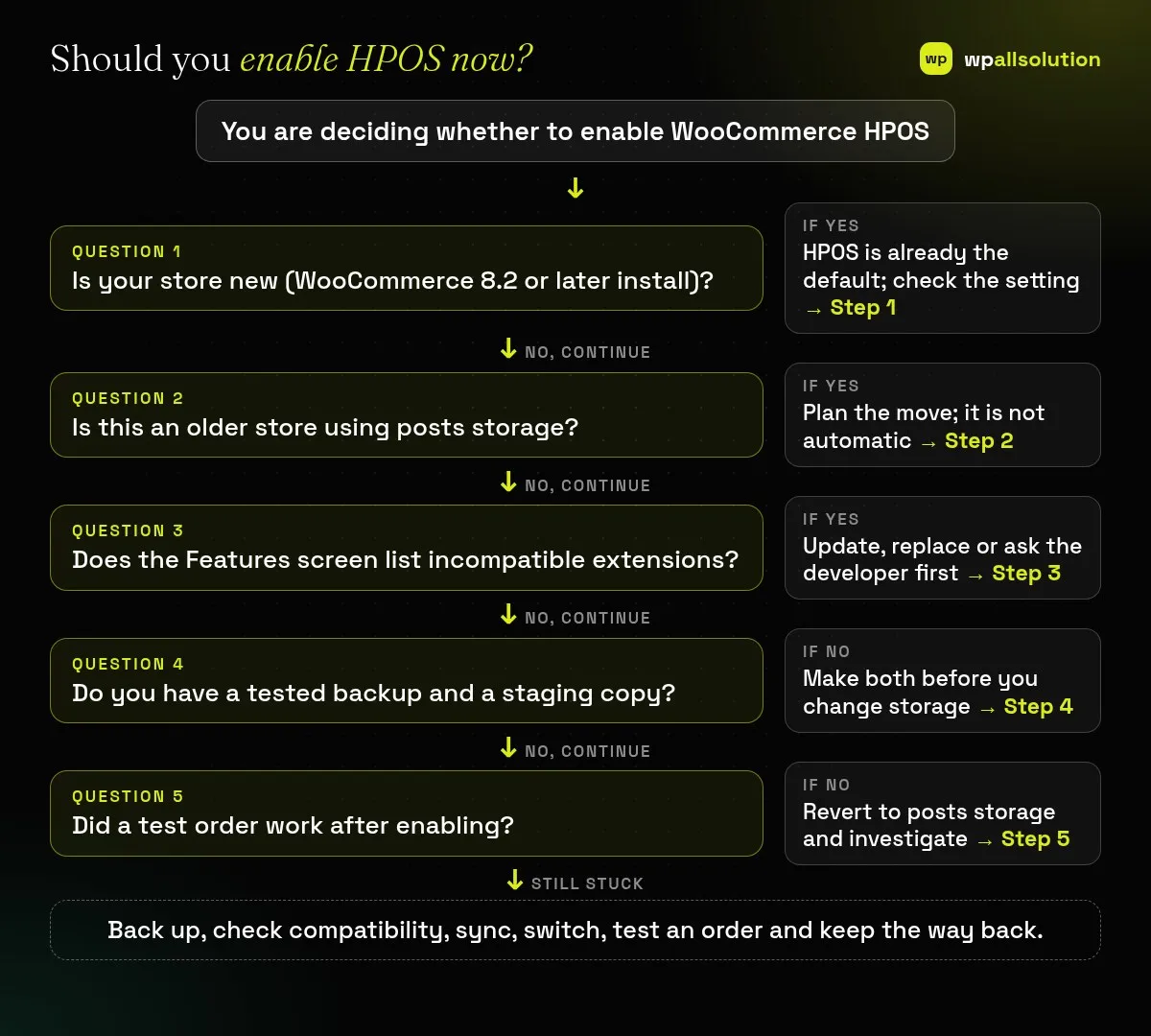
Open WooCommerce → Settings → Advanced → Features and look at the order data storage setting. If High-performance order storage is already selected, you are done; check that compatibility mode is off or on as you intend. If WordPress posts storage is selected, your store still uses the older method.
Back up the database and files, and try the change on a copy of the store first. If you are unsure that your backups would restore, read is your WordPress backup really safe. The general routine for store updates is in our WooCommerce maintenance checklist.
If an incompatible extension is active, WooCommerce disables the HPOS option under order data storage. Use View and manage to see which extensions are flagged, or open the plugin list filtered for plugins incompatible with the feature. Update them, replace them or ask the developer to add HPOS support. The documentation also advises keeping extensions that use custom post types, such as subscriptions and bookings, active during migration so data stays consistent.
Tick Enable compatibility mode (synchronizes orders to the posts table). WooCommerce then copies orders between the two storage types through background actions, 25 at a time, and you can run them manually from WooCommerce → Status → Scheduled Actions. Wait until the sync has finished. On a large store this can take a while, so do it at a quiet time.
When both storages are in sync, select High-performance order storage (recommended) and save. Keeping compatibility mode on for a while lets you go back easily, because with compatibility mode on you can switch back to posts storage if problems appear.
Place a test order, check that it appears in WooCommerce → Orders, test a refund, a coupon, order emails and any extension that touches orders. If checkout misbehaves, see WooCommerce checkout not working, and if orders do not appear after payment, see WooCommerce orders missing after payment. If something is wrong, switch back to posts storage and investigate on staging.
It is the default for new stores, but older stores can stay on posts storage until they choose to move. Check the WooCommerce documentation for your version.
Not in daily use. You still use WooCommerce → Orders; the storage underneath is different.
The documentation says you can revert to posts storage if compatibility mode is on, which is why it is worth keeping it on at first.
An active extension may be flagged as incompatible. Use View and manage to see which one.
Related guide: WooCommerce Product Variations Not Working? Fix Dropdowns and Prices
Check your current setting, back up, review extensions and test on a copy. If your store needs help with the move, wpallsolution offers a WooCommerce checkout service and WordPress maintenance packages. We cannot promise outcomes without seeing your store.
Bursts of fake or failed orders can mean bots or card testing. Learn the signs, what to tell your payment provider and…
An Indian store has to charge, show and record GST correctly. See how WooCommerce tax settings, classes and rates fit together, and…
Product imports fail for a few predictable reasons. Check the file format, column names, SKU matching, variations, images and server limits one…
Black FridayCyber Monday sale
Before you go,
Our biggest discount of the year on the first payment of every maintenance plan.
BF2026 at checkout