
How to Prevent Spam Orders in WooCommerce: Signs, Causes and Safe Fixes
Bursts of fake or failed orders can mean bots or card testing. Learn the signs, what to tell your payment provider and…
Your checkout is the page that earns the money. Compare the WooCommerce checkout block and the classic shortcode, see what decides the choice, and test a switch safely.
WooCommerce checkout block vs classic is a choice that sounds technical and quietly decides how many customers finish paying. Both versions can take an order. The difference is how they are built, what they support, and what happens when one of your plugins does not understand the one you picked. This guide explains the two in plain language, shows what should decide your choice, and gives you a safe way to test a switch before customers see it.
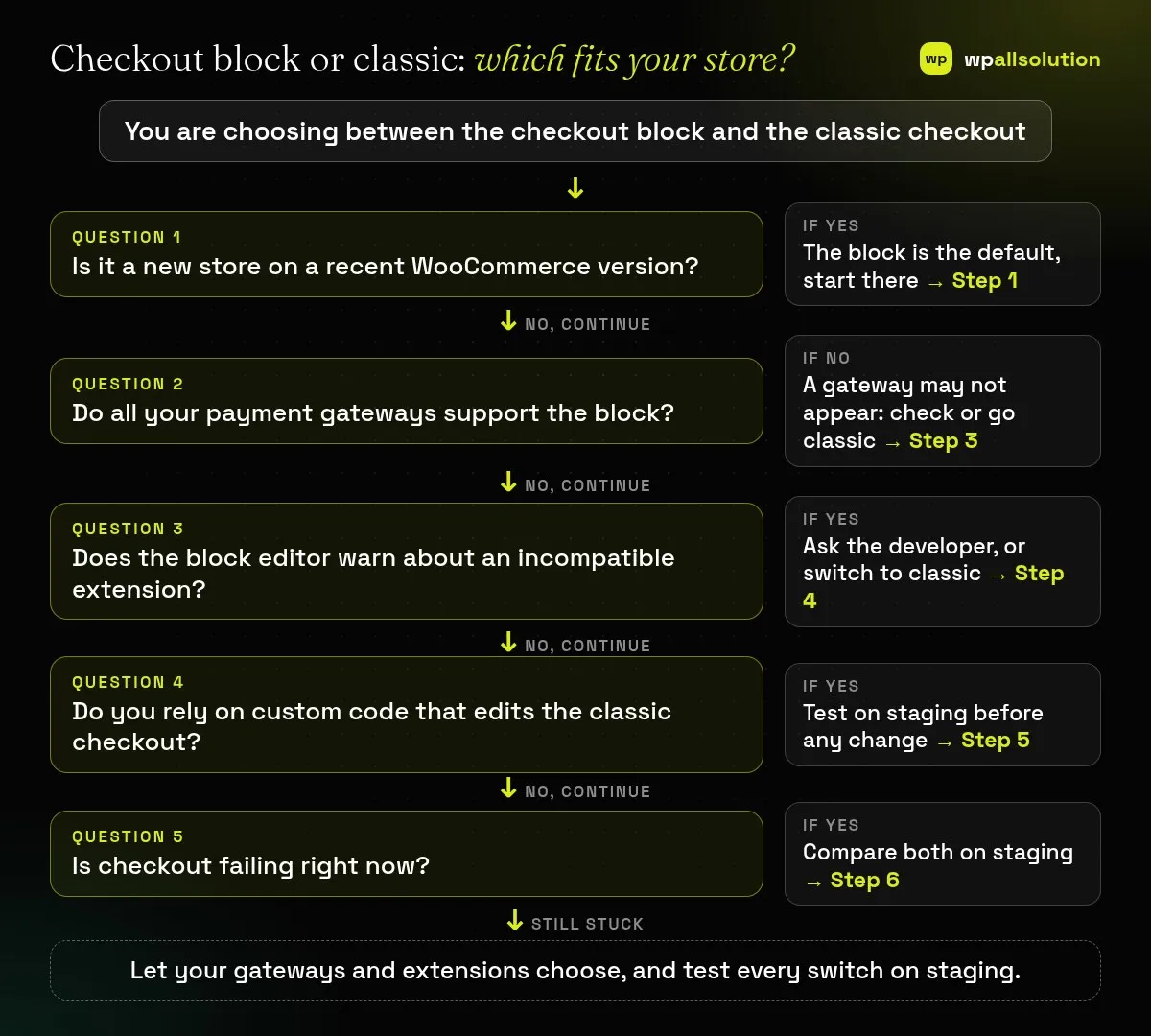
WooCommerce documents that stores started after version 8.3 (November 2023) use the Cart and Checkout blocks by default, and that you can switch to the classic checkout by transforming the block into a Classic Shortcode block. The right choice depends on your payment gateways and extensions: if a gateway does not support the block checkout, it may not appear as a payment option at all. If everything you use supports the block, the block is the current default. If something important does not, switching to classic, or replacing that extension, may be better. Test either way on staging with a test payment.
How this guide was prepared: the facts follow the WooCommerce documentation listed under Sources, read on October 21, 2026. We did not benchmark the speed or conversion of either checkout, so we make no such claims. We also did not test your gateways or extensions. Statements marked as our advice are practical suggestions, not quotes.
| What you see | Likely cause | Start with |
|---|---|---|
| A payment method is missing at checkout | The gateway does not support the checkout block | Step 3 |
| “No payment methods” warning on checkout | Only incompatible gateways are active | Step 3 |
| Editor shows a warning about an extension | An extension declared itself incompatible | Step 4 |
| A custom field or code snippet stopped working | It was written for the classic checkout | Step 5 |
| Local pickup option does not show | Block local pickup is not enabled or configured | Step 2 |
| Cart and checkout behave differently | One is a block and the other is classic | Step 6 |
Open the Checkout page in the editor. If you see the Checkout block with Checkout Fields and Checkout Totals inside it, you are on the block. If you see a “Classic Shortcode” placeholder, you are on the classic checkout. WooCommerce says the page must also be designated under WooCommerce → Settings → Advanced, so check that the page you edit is the one WooCommerce uses. The documentation adds that stores started after WooCommerce 8.3 use the blocks by default, and that you can still upgrade an older store to the blocks or go back.
The Checkout block collects contact, delivery and payment information in one flow. According to the documentation, it has inner blocks you can reposition or rename, settings for address fields (such as showing the company or phone fields and whether they are required), an Express Checkout block that appears only when a supporting gateway is active, a Delivery block that can offer shipping or local pickup, and a Terms and Conditions block with an optional required checkbox. Local pickup in the Delivery block needs the block version of Local Pickup to be enabled and configured under WooCommerce → Settings → Shipping → Local Pickup. In the block editor you also get options such as form step numbers and dark-mode inputs.
This is the step that decides most stores. WooCommerce explains that the payment methods available in the block checkout depend on your active gateways and whether they support the block. In the editor, the Payment Options list shows active integrations and marks those identified as incompatible. If a gateway is not compatible, it may not appear as a payment option on the checkout page, and if only incompatible gateways are active, there are no payment methods and a warning is shown. Check your gateway’s documentation for block support, and test a real flow in the gateway’s test mode.
WooCommerce says compatibility for extensions on WooCommerce.com is shown in the Compatibility section of each product page. If an extension has declared itself incompatible, the Checkout block’s settings sidebar shows a warning and a button to switch to the classic checkout in one click. Incompatible extensions can make parts of the checkout unavailable. For third-party plugins, WooCommerce suggests contacting the developer. Our advice: if the extension is important and its developer has no block support plan, weigh staying on classic against replacing it.
Custom fields, code snippets and theme overrides that were written for the classic checkout may not carry over to the block, because the block is built differently. This is general practice rather than a WooCommerce quote, so test it: list your customizations and check each one on a staging copy in both versions. If you are not sure what your site relies on, our WooCommerce checkout service can audit it, and a slow page is a separate problem covered in why WooCommerce checkout is slow.
WooCommerce documents the switch to classic: edit the Cart or Checkout page (Appearance → Editor → Pages for a block theme, or Pages → All Pages for a classic theme), open the List View, select the block, use the Transform button in the block toolbar, choose Classic Shortcode, and save. Do this for both Cart and Checkout. To go back, you add the block again following the same documentation. After each change, run a full test order: guest and logged in, with a coupon, with each shipping method and each payment method, on phone and desktop, and check the emails. Only then repeat on the live site, at a quiet time. If anything fails, see WooCommerce checkout not working.
WooCommerce documents it as the default experience for stores started after version 8.3 (November 2023). Older stores can be upgraded.
Yes. The block toolbar has a Transform option to a Classic Shortcode block, and you should switch Cart and Checkout together.
The gateway may not support the checkout block. Check the Payment Options list in the editor and the gateway’s documentation.
We have not measured it and will not guess. Test your own store with a tool like PageSpeed Insights and compare.
Related guide: WooCommerce HPOS: What High-Performance Order Storage Is and How to Enable It Safely
List your gateways and extensions, check each for block support and test both versions on staging. If your WooCommerce checkout is failing, or you are unsure what your store relies on, wpallsolution offers a WooCommerce checkout service and independent plugin support. We cannot promise results without seeing your setup.
Last reviewed: October 21, 2026. WooCommerce is a trademark of its owner. wpallsolution is not affiliated with or endorsed by WooCommerce or Automattic.
Bursts of fake or failed orders can mean bots or card testing. Learn the signs, what to tell your payment provider and…
An Indian store has to charge, show and record GST correctly. See how WooCommerce tax settings, classes and rates fit together, and…
Product imports fail for a few predictable reasons. Check the file format, column names, SKU matching, variations, images and server limits one…
Black FridayCyber Monday sale
Before you go,
Our biggest discount of the year on the first payment of every maintenance plan.
BF2026 at checkout