
Elementor Popup Not Working? Check Conditions, Triggers and Advanced Rules
An Elementor popup needs conditions, a trigger and passing rules before it shows. Check each in order, plus the multiple-popup option and…
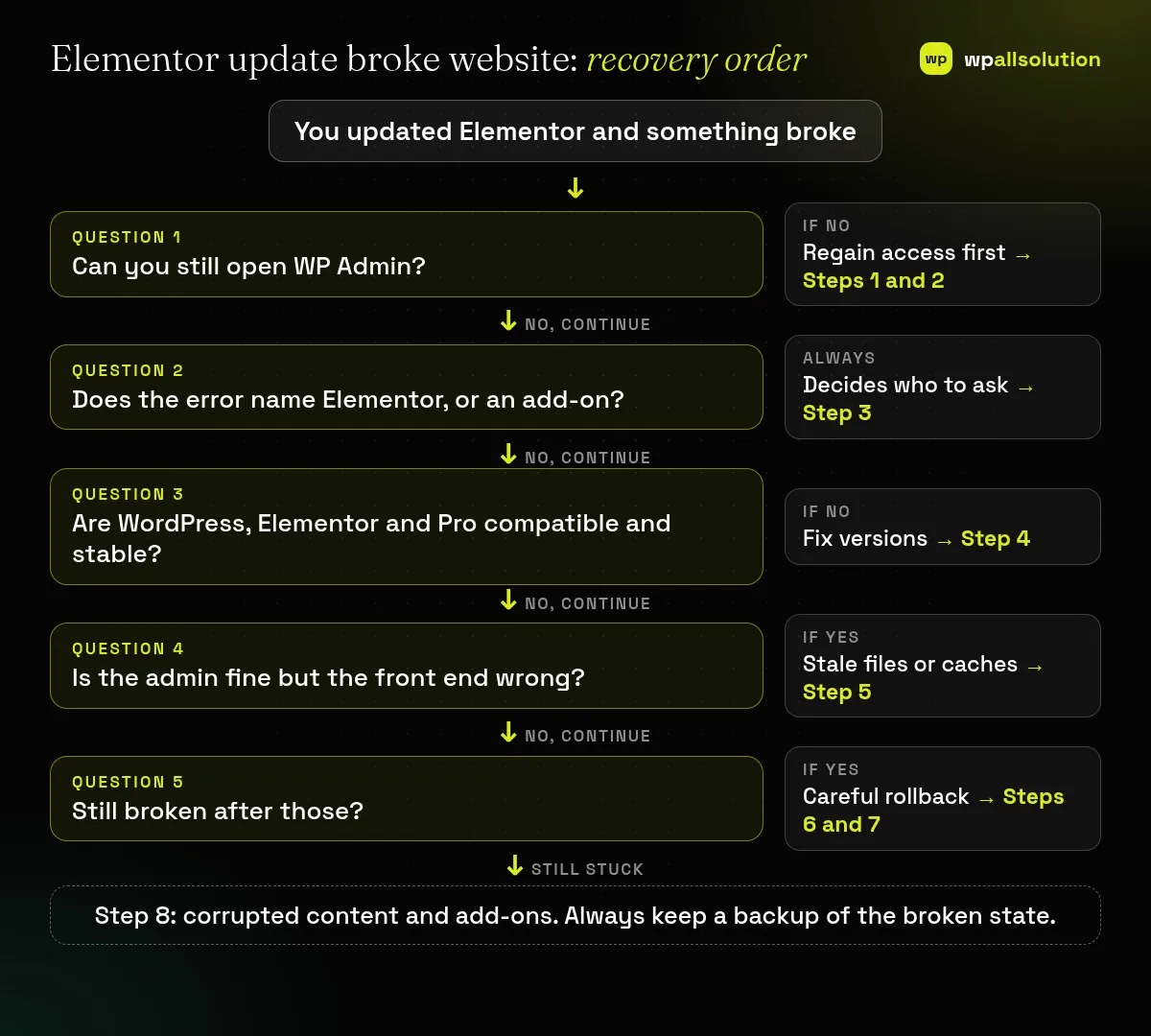
If an Elementor update broke your website, recover in a safe order: back up, regain access, check compatibility and logs, then roll back or restore carefully, especially on a store.
Elementor update broke website problems range from a layout that looks slightly off to a fatal error that locks you out of WP Admin. The urgent part is to avoid making things worse. This guide follows a safe recovery order: protect your data, regain access, check compatibility and logs, and only then consider a rollback or a full restore. That order matters most on stores and membership sites, where a careless restore can lose orders.
Take a backup of the broken site before you change anything. If you are locked out, use the recovery link WordPress emailed to the administrator, or rename the suspect plugin’s folder by FTP. Check that WordPress, Elementor and Elementor Pro versions are compatible and not beta. Read the error log to see whether the error names Elementor or an add-on. If only the front end looks wrong, clear Elementor’s files and your caches. Treat a rollback as a controlled step on a staging copy, not a reflex on a live store.
How this guide was prepared: the steps follow Elementor’s help articles and the WordPress documentation listed under Sources, read on October 19, 2026. We did not reproduce an update failure on a live Elementor site for this guide, so the steps are research-based. Hosting setups and Elementor versions differ, and no recovery path works in every case.
Elementor’s own advice is that most issues after an update come from specific environments (conflicting plugins or themes, or server settings) and that updates should be tested on a staging site before the live site.
| What you see | Likely cause | Start with |
|---|---|---|
| Site down, “critical error”, no WP Admin | Fatal PHP error after the update | Steps 1 to 3 |
| Error text contains the word Elementor | Version incompatibility, beta build or corrupted content | Steps 3 and 4 |
| Error names an add-on or other plugin | Add-on not compatible with the new version | Step 8 |
| “Allowed memory size exhausted” | Memory limit | Step 3 |
| Admin works, front end looks wrong | Stale generated files or cache | Step 5 |
| Editor will not open | Conflict or server limit | Step 4 and the editor guide |
If the site or the files are reachable, take a full backup (files and database) of the current state. Pause any automatic updates and scheduled tasks you can pause. Note which plugin or version you updated and when. If your site takes payments, note the time of the last order, so you can check orders after any restore.
/wp-login.php?action=enter_recovery_mode. Following it can give you access to WP Admin.wp-content/plugins, which deactivates them and can give you access. Rename only the suspected plugin first (and rename it back after testing). If you do not know how, ask your host.Ask your host for the PHP error log, or turn on private debug logging as shown in the WordPress documentation. Back up wp-config.php, then add:
define( 'WP_DEBUG', true );
define( 'WP_DEBUG_LOG', true );
define( 'WP_DEBUG_DISPLAY', false );
Reproduce the problem once, then read wp-content/debug.log and switch debugging off again. Elementor’s fatal error article classifies errors:
If the editor itself is the problem, see Elementor editor not opening and Elementor stuck on loading screen.
If the admin works but the front end looks old or wrong, go to Elementor → Tools and click Clear Files & Data (back up first, as Elementor says), then purge your plugin, host and CDN caches. Our guide Elementor changes not showing explains each layer.
Elementor describes two ways to go back to an earlier version of the plugin. It tells you to back up before you do.
Be careful on a live store. A rollback replaces plugin files. It may not undo changes the update already made to your data, so do not assume it is a full undo. Test it first on a staging copy made from the same backup, and only then decide whether to repeat it on the live site. Remember that a rollback leaves you on an older version, so plan to update again later, when you have found the cause.
Restoring an entire backup is the bluntest tool. Elementor’s article on restoring a site warns that the action cannot be undone, that visitors cannot use the site while it restores, and that for sites with a database, such as WooCommerce, everything added after the backup point is lost. It suggests exporting the database first so you can import the missing entries after the restore. Pick a quiet time, and check orders and form entries afterwards.
If the error persists, Elementor suggests checking templates, global widgets and custom code, one at a time, and deactivating corrupt elements through Element Manager. Disable custom code and third-party add-ons one by one until the problem stops. Our guide How to find the plugin that broke your site explains the one-at-a-time method.
Not on a live store. Take a backup, find out what the error says and test the rollback on staging first.
Elementor says current settings should not be affected by an update. Most problems come from conflicting plugins, themes or server settings.
Use FTP or your host’s File Manager to rename the plugin folder, or ask your host to restore a backup.
Elementor says to keep both up to date, and to update Pro first when updating both.
Follow the order above and stop at the first step that restores your site. If the Elementor update broke your website in a way you cannot resolve, send the redacted error log and your version numbers to Elementor support, the add-on’s author or your host. If you would like a person to look, wpallsolution offers independent plugin support and an emergency WordPress fix service. We cannot promise a fix, and we cannot work without seeing the site.
Last reviewed: October 19, 2026. Elementor is a trademark of its owner. wpallsolution is not affiliated with or endorsed by Elementor.
An Elementor popup needs conditions, a trigger and passing rules before it shows. Check each in order, plus the multiple-popup option and…
The free Elementor plugin covers more than many expect, but Pro adds the Theme Builder, popups, forms and WooCommerce tools. See which…
Moving from Elementor to a block theme is a rebuild, not a switch. Use this checklist to audit, test on staging and…
Black FridayCyber Monday sale
Before you go,
Our biggest discount of the year on the first payment of every maintenance plan.
BF2026 at checkout