
Elementor Popup Not Working? Check Conditions, Triggers and Advanced Rules
An Elementor popup needs conditions, a trigger and passing rules before it shows. Check each in order, plus the multiple-popup option and…
Moving from Elementor to a block theme is a rebuild, not a switch. Use this checklist to audit, test on staging and protect your URLs and rankings.
An Elementor to block theme migration means moving a site built with Elementor to the WordPress block editor and a block theme. It is a rebuild, not a switch you flip: Elementor stores its layouts in its own data, so pages do not simply turn into blocks when you deactivate the plugin. Done carefully, a move can reduce dependency on one plugin and make editing simpler. Done carelessly, it can break layouts, URLs and rankings. This checklist keeps the work staged and reversible.
Decide why you are moving, audit every page, template and widget, copy the site to a staging area, rebuild the layouts with blocks and patterns, keep the same URLs or set redirects, test forms and tracking, compare the pages side by side, and only then switch the live site, with a backup and a rollback ready. Expect the effort to depend on how much custom design and how many Elementor-specific features you use.
How this guide was prepared: it is research-based and general. We used the WordPress documentation listed under Sources, checked on October 23, 2026. We have not reviewed your site, and the right approach depends on your content, theme and plugins.
Elementor is a capable tool, and many sites run well on it. Migrating makes sense if you want fewer plugins, a lighter front end, a block theme with the Site Editor, or simpler editing for your team. It makes less sense if the only reason is a rumour that one is faster. Our comparison custom blocks vs page builders explains the trade-offs, and how to keep Elementor sites fast shows what to try first.
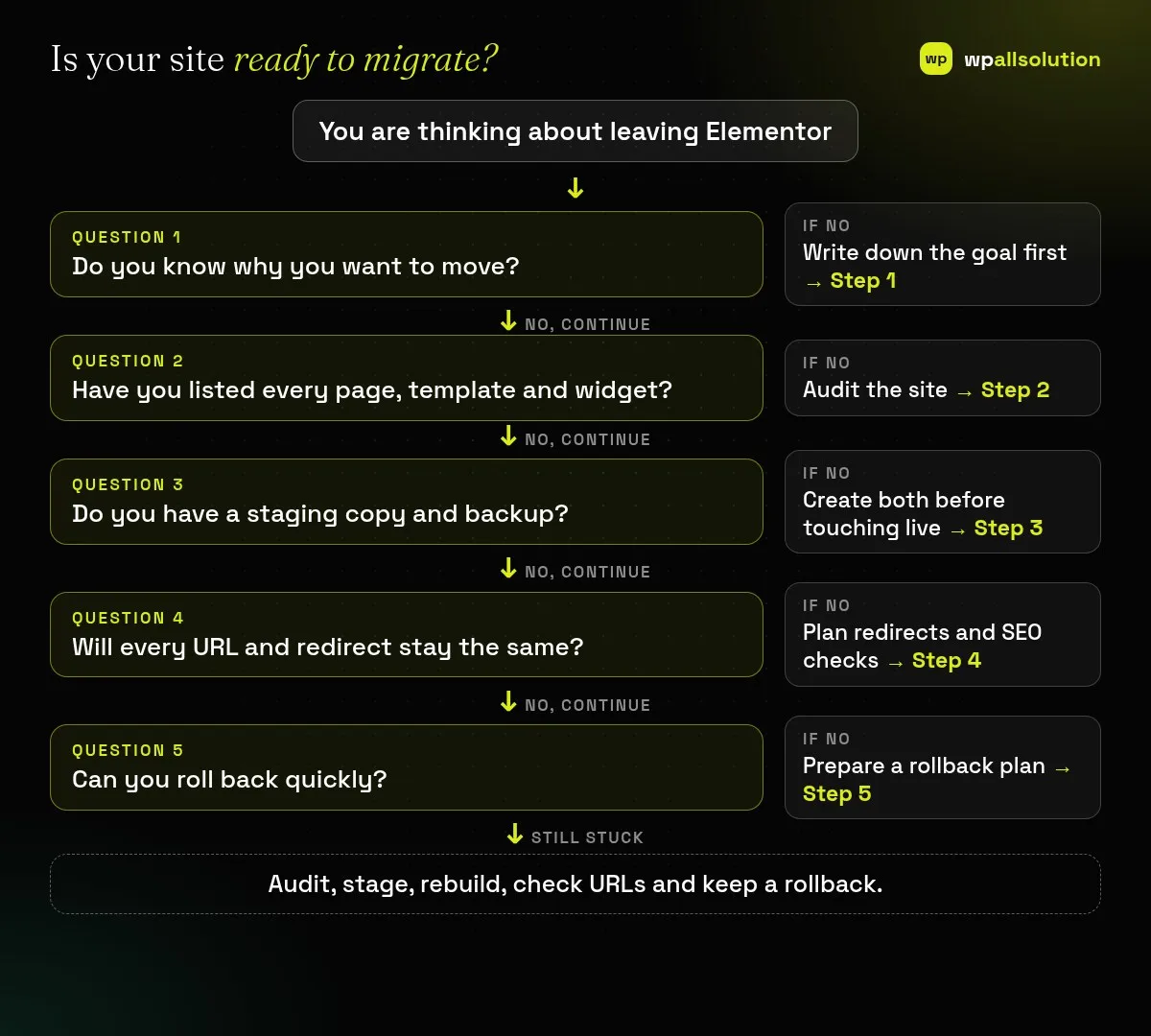
Decide what better looks like: fewer plugins, faster pages, easier editing, lower cost. Record a few baseline numbers, such as page speed results for key pages and your current organic traffic, so you can compare afterwards.
List every page, post type, Elementor template, popup, form, dynamic widget and third-party add-on. Mark which parts are simple text and images, which are custom designs, and which use Elementor-only features such as theme builder conditions or popups. This list drives the effort and cost.
Take a full backup of files and the database and confirm you can restore it; see backup and restore testing. Build the new version on a staging site, never on the live one; see WordPress staging site.
Choose or build a block theme, then recreate headers, footers and page layouts in the Site Editor. Use patterns for repeated sections. Plain text and images can often be pasted across, but complex layouts need rebuilding by hand. Keep Elementor installed but inactive on staging until you are sure nothing depends on it. See our Site Editor guide for the basics.
Keep each page’s URL, title, meta description and headings unless you have a reason to change them. If a URL must change, add a 301 redirect from the old address. Check that your sitemap, canonical tags and noindex settings carry over, and watch Search Console afterwards. Do not promise yourself a ranking outcome; layouts, speed and content all affect results.
Compare staging and live page by page on desktop and mobile. Test forms, checkout, tracking, popups, search and menus. Plan the switch for a quiet time, keep the backup and note exactly how to restore it. After launch, check for 404 errors, broken images and form delivery for a few weeks. Our page builder migration service covers this process if you prefer help.
Not reliably. Plan to rebuild layouts, and test any converter on staging before trusting it.
Layouts built in Elementor may stop displaying properly. That is why you test on staging first.
It can, but it depends on your design, images, plugins and hosting. Measure before and after.
It depends on page count and design complexity. A small brochure site is far quicker than a store with custom templates.
Start with the audit; it shows whether migration is practical. wpallsolution offers page builder migration and block theme development. Contact us with your page list for an honest view. We cannot guarantee rankings or speed scores.
An Elementor popup needs conditions, a trigger and passing rules before it shows. Check each in order, plus the multiple-popup option and…
The free Elementor plugin covers more than many expect, but Pro adds the Theme Builder, popups, forms and WooCommerce tools. See which…
A header or footer built in Elementor can vanish for five simple reasons. Check display conditions, page layout, publish status, device settings…
Black FridayCyber Monday sale
Before you go,
Our biggest discount of the year on the first payment of every maintenance plan.
BF2026 at checkout