
Elementor Popup Not Working? Check Conditions, Triggers and Advanced Rules
An Elementor popup needs conditions, a trigger and passing rules before it shows. Check each in order, plus the multiple-popup option and…
A header or footer built in Elementor can vanish for five simple reasons. Check display conditions, page layout, publish status, device settings and cache.
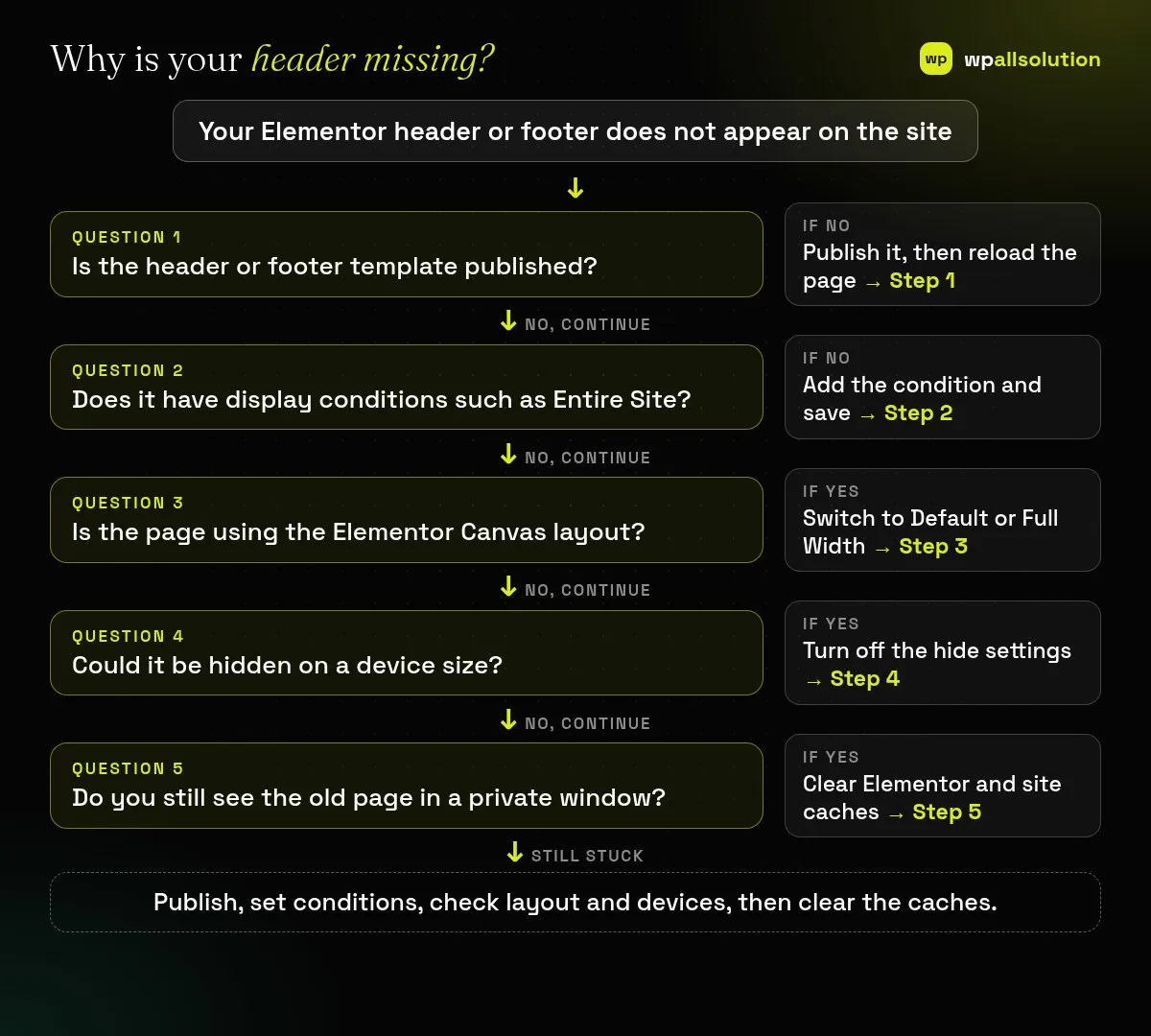
Elementor header or footer not showing is a common problem: the page loads, but the top or bottom of the site is empty, or your theme’s old header appears instead. Elementor’s Theme Builder decides where each header and footer appears using display conditions, and a missing header is usually caused by one of five simple things: the template is not published, it has no display condition, the page uses the Canvas layout, it is hidden on some screen sizes, or an old cached copy is showing. This guide checks them in order.
Open Elementor → Theme Builder, check that the header or footer is published, click Edit Conditions and choose Entire Site (or the area you want), and save. Then check whether the page uses the Elementor Canvas layout, which hides headers and footers on purpose, make sure the section is not hidden on desktop, tablet or mobile, and clear Elementor’s cache and your site caches. Test in a private window.
How this guide was prepared: it is research-based. We used Elementor’s official help article on missing headers and footers (last updated February 23, 2026, according to the page) and the sources listed below, checked on October 23, 2026. We did not test your site, and menu names can differ slightly between Elementor versions.
In Theme Builder you create a header or footer template and give it display conditions that say where it applies, for example the entire site or only certain pages. Without conditions, Elementor does not know where to show the template. A page can also override the global header and footer through its page layout setting, and a draft template never appears on the live site. Because several layers can hide it, check the cheap, common ones first.
| What you see | Likely cause | Start with |
|---|---|---|
| No header on any page | Template not published, or no display condition | Steps 1 and 2 |
| No header on one page only | That page uses the Canvas layout | Step 3 |
| Header shows on desktop but not on phone | The section is hidden on mobile | Step 4 |
| You fixed it in the editor but the live site is the same | A page, plugin or CDN cache | Step 5 |
| The theme’s own header shows instead | The Elementor template is not applied there | Steps 1, 2 and the theme check below |
Open the template from Elementor → Theme Builder. Look at the button at the top right of the editor: if it says Publish, click it, because drafts and private templates do not appear on the live site. If it says Update, or is greyed out, it is already live.
In Theme Builder, open the header or footer and choose Edit Conditions. For a site-wide part select Entire Site, then Save & Close. If you use several headers, review the conditions on each one so they do not overlap in a confusing way, and keep the setup as simple as you can.
The Canvas layout hides the header and footer on purpose. Open the page, click the Page Settings icon and change Page Layout from Elementor Canvas to Elementor Full Width or Default. See Elementor changes not showing if the page still does not change.
Select the container, open the Advanced tab, expand Responsive and make sure Hide on Desktop, Hide on Tablet and Hide on Mobile are all off. Then test at each screen size.
In Elementor’s Tools screen use Clear Files & Data under the Elementor cache, then clear any caching plugin, server cache and CDN, and load the page in a private window. If you build with a theme that has its own header builder, make sure it is not overriding Elementor, and if the problem started after an update, read Elementor update broke your website and how to find the plugin that broke your site.
The template may be a draft, have no display condition, or be hidden by a cache. Check Steps 1, 2 and 5.
A blank page layout that removes the header and footer, used for landing pages.
Theme Builder is part of Elementor Pro. If you do not see it in your menu, check your plan and the Elementor Help Center.
A cache is probably serving the old copy. Clear Elementor’s files and your site caches.
Related guide: Elementor Mobile View Broken? Fix Responsive Layout Problems
Publish the template, set the condition, check the layout and devices, then clear caches. If the header still will not appear, wpallsolution offers Elementor development and plugin support. We cannot promise a result without seeing your site.
An Elementor popup needs conditions, a trigger and passing rules before it shows. Check each in order, plus the multiple-popup option and…
The free Elementor plugin covers more than many expect, but Pro adds the Theme Builder, popups, forms and WooCommerce tools. See which…
Moving from Elementor to a block theme is a rebuild, not a switch. Use this checklist to audit, test on staging and…
Black FridayCyber Monday sale
Before you go,
Our biggest discount of the year on the first payment of every maintenance plan.
BF2026 at checkout