
Elementor Popup Not Working? Check Conditions, Triggers and Advanced Rules
An Elementor popup needs conditions, a trigger and passing rules before it shows. Check each in order, plus the multiple-popup option and…
Elementor changes not showing on the live site? Find out whether the cause is the wrong page, browser or page cache, a CDN, generated CSS or a device-specific setting.
Elementor changes not showing on the live website usually means one of three things: you edited a different page than the one visitors see, an old copy of the page is being served from a cache, or Elementor’s generated files and device settings are not what you expect. According to Elementor’s help centre, once you click Update and the page is published, your changes should appear on the live site straight away, so a delay is a clue that something sits in between. This guide helps you find which layer it is by changing one thing at a time.
First, make sure you are editing the exact page that visitors see. Then look at the live page in a private window on another device. If you still see the old version, purge caches in order (your caching plugin, your host, your CDN), then use Elementor’s Clear Files & Data tool. If a change shows on desktop but not on mobile, check the tablet and mobile values, because they can override desktop settings.
How this guide was prepared: the steps follow Elementor’s help articles and WordPress documentation listed under Sources, read on October 19, 2026. We did not reproduce the problem on a live Elementor site for this guide, so treat the steps as research-based. Menu names and options differ between Elementor versions, themes, caching plugins and hosts, and no single fix works everywhere.
Five questions, asked in order, narrow the cause quickly.
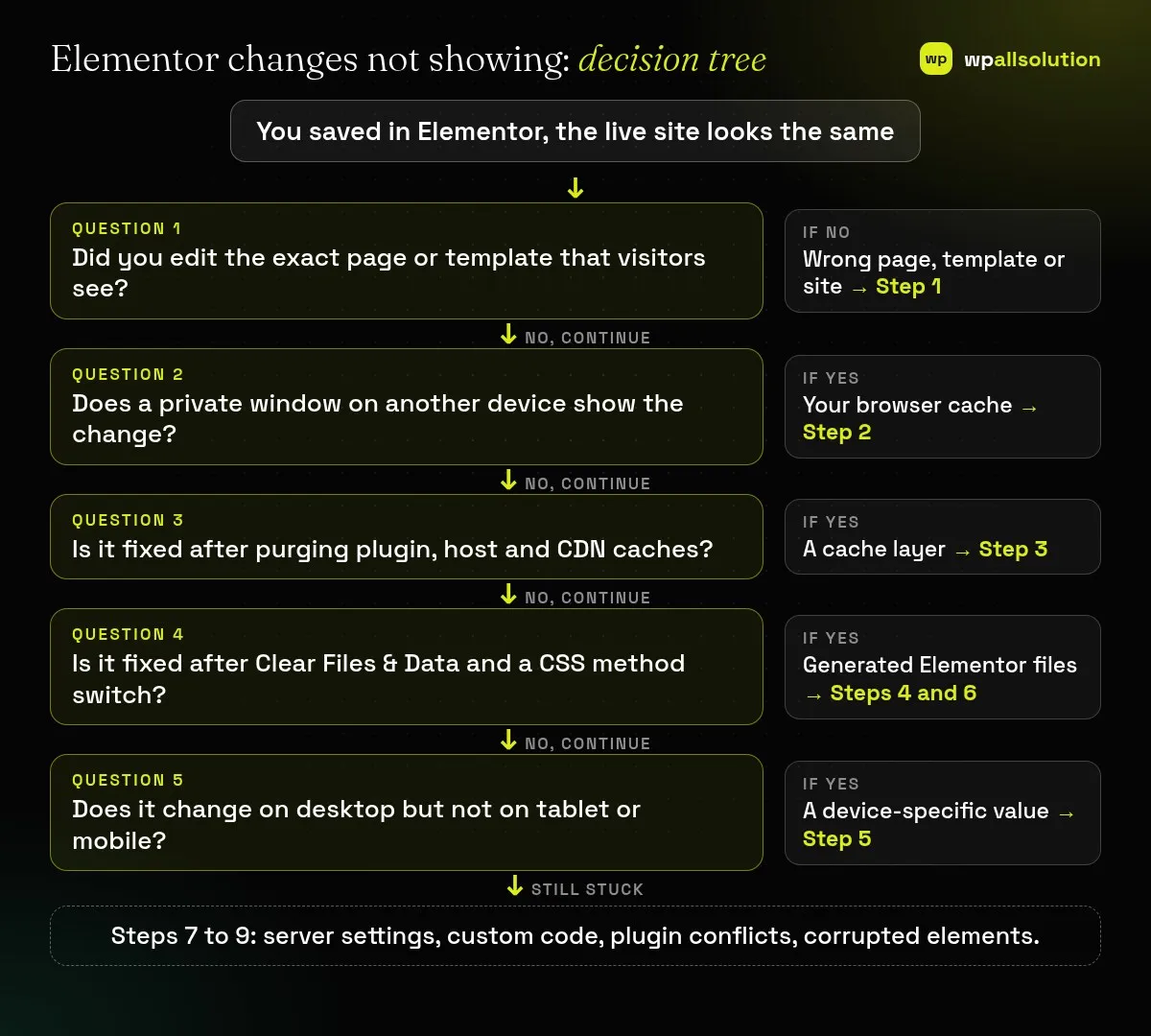
| What you see | Likely cause | Start with |
|---|---|---|
| Page looks the same, but the editor shows your change | Wrong page or template, or a cached copy | Steps 1 to 3 |
| You see it, a colleague on another device does not | Cache between the server and that device | Steps 2 and 3 |
| Design looks broken or old after a plugin or theme update | Stale Elementor files and data | Step 4 |
| Desktop changed, mobile or tablet did not | Device-specific value or a hide setting | Step 5 |
| Front end is blank, but the editor and text are fine | A layout feature switched off, or a cache not cleared after a feature change | Step 6 |
| Changes stop after adding custom code | Unclosed HTML or broken CSS | Step 8 |
| Changes appear in non-Elementor sections only | Elementor caching of its own elements | Step 9 |
This is the most common and cheapest check. Elementor’s quick checks include:
Open the page in a private window, and ideally on a second device or network. Elementor’s documentation says to clear the browser cache or test in incognito mode. If the private window shows your change, clear your browser’s cache and reload the normal window. If it does not, move on to the cache layers.
A page can be cached in several places, and each has its own purge button. Work from the site outwards:
Elementor’s article also suggests temporarily disabling third-party optimisation and cache plugins as a test. If your change appears, switch the plugin back on and re-enable its options one at a time to see which one holds on to old files. Settings that combine, minify or delay CSS and JavaScript are common suspects, but the names differ by plugin.
Elementor stores generated CSS and data. Elementor’s help says clearing it can fix mismatches after theme or plugin updates, and that you should back up first.
You can also use Clear Cache from the Edit with Elementor menu in the black admin toolbar on the front end.
If your change appears on desktop but not on a phone, the phone may have its own value. Elementor’s responsive editing article explains that settings are inherited from larger screens to smaller ones by default, but a value you set for tablet or mobile replaces the inherited one. Widescreen is the exception and does not affect other devices.
Elementor’s article on changes that do not appear online suggests two checks. Both are best tested on staging.
Elementor lists unclosed HTML tags and broken CSS as a reason changes do not appear. Check custom CSS in Global Settings and the Theme, and inline styles in Heading, Text Editor or HTML widgets. In the Structure window, highlighted elements indicate custom CSS, motion effects or absolute positioning. If you use HTML widgets with scripts, a security plugin can strip inline scripts, and Elementor notes the unfiltered_html capability matters here (administrators have it by default).
If the editor itself will not load, see Elementor stuck on loading screen.
Often a cache is serving an older copy to visitors. Test in a private window and on another device, then purge your plugin, host and CDN caches (Step 3).
No. Elementor describes it as a troubleshooting step for mismatches, for example after theme or plugin updates. Back up before you use it.
The mobile value may have been set separately, or the element may be hidden on that device. Check the device-specific controls (Step 5).
It can be, if it is active on an element that shows changing content. It is experimental, so treat it as a suspect only after the simpler steps.
Related guide: Elementor Mobile View Broken? Fix Responsive Layout Problems
Related guide: WordPress Caching Explained: Page Cache, Object Cache, Browser Cache and CDN
Work through the steps in order and stop at the first one that fixes it. If Elementor changes are still not showing, note the page URL, the Elementor and WordPress versions and which steps you tried, then ask your host or Elementor support. If you would like a person to look, wpallsolution offers independent plugin support, and our Elementor development page explains how we build and tidy Elementor sites. We cannot promise a fix without seeing your site.
Last reviewed: October 19, 2026. Elementor is a trademark of its owner. wpallsolution is not affiliated with or endorsed by Elementor.
An Elementor popup needs conditions, a trigger and passing rules before it shows. Check each in order, plus the multiple-popup option and…
The free Elementor plugin covers more than many expect, but Pro adds the Theme Builder, popups, forms and WooCommerce tools. See which…
Moving from Elementor to a block theme is a rebuild, not a switch. Use this checklist to audit, test on staging and…
Black FridayCyber Monday sale
Before you go,
Our biggest discount of the year on the first payment of every maintenance plan.
BF2026 at checkout