
Elementor Free vs Pro: What You Actually Need for a Business Site
The free Elementor plugin covers more than many expect, but Pro adds the Theme Builder, popups, forms and WooCommerce tools. See which…
An Elementor popup needs conditions, a trigger and passing rules before it shows. Check each in order, plus the multiple-popup option and caching.
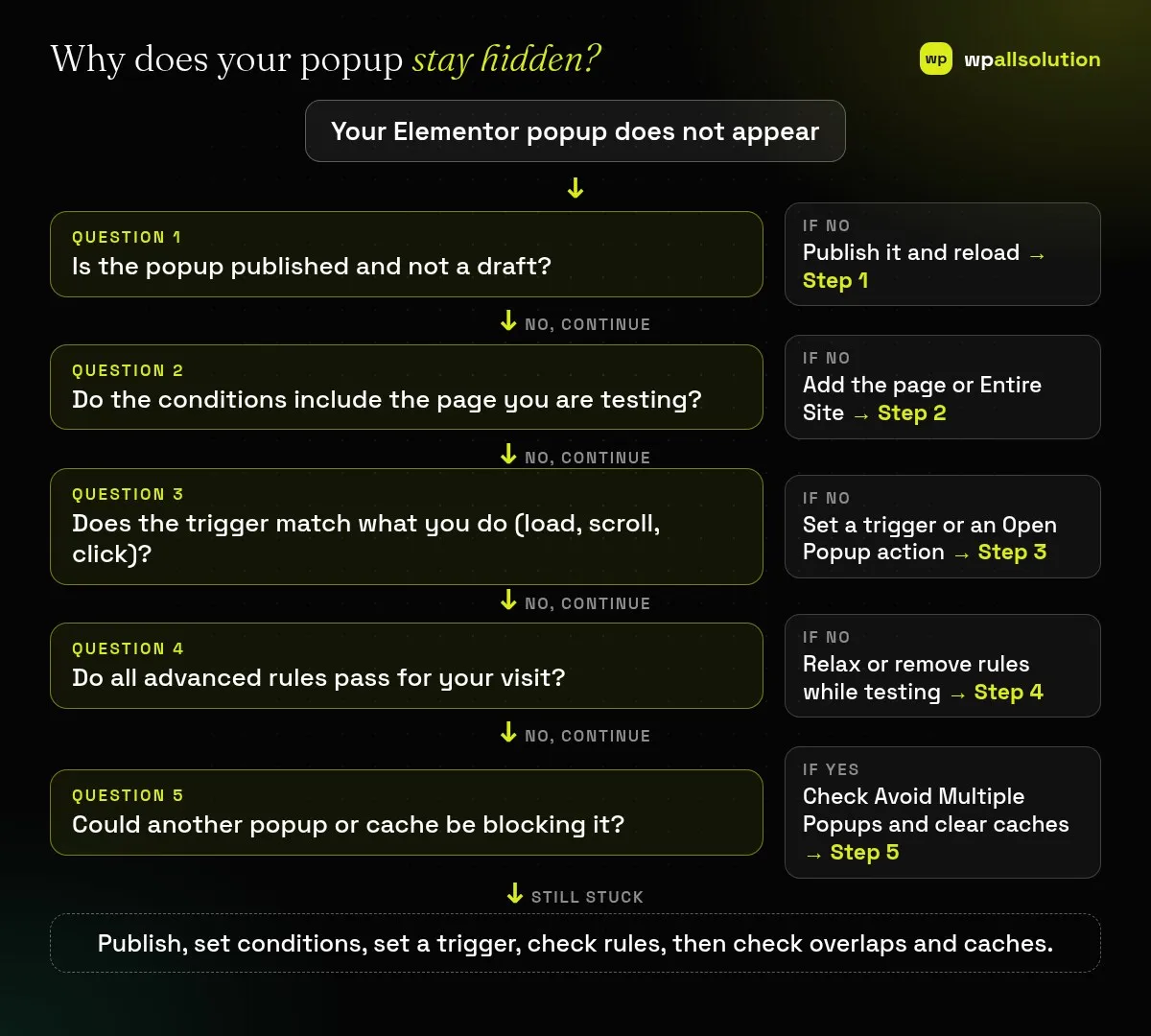
Elementor popup not working usually means one of its three display settings is missing or too strict. A popup needs conditions that say where it can appear, a trigger that says when it opens, and advanced rules that must all pass, and if any of these does not match your visit, the popup stays hidden even though it looks fine in the editor. This guide checks them in order, then looks at the option that blocks multiple popups, manual triggers and caching.
Make sure the popup is published. Then check its conditions (the pages where it may show), its triggers (the action that opens it, such as page load, scroll or exit intent) and its advanced rules (extra requirements such as logged-in status or the page the visitor came from). Elementor’s help article says that all of the criteria must be met for the popup to display. If you open the popup manually, it needs a trigger or an Open Popup action. Test in a private window, and clear caches.
How this guide was prepared: it is research-based. We used Elementor’s official help articles on popups and on conditions, triggers and advanced rules, linked under Sources and checked on October 23, 2026. We did not test your site. Menu names can differ slightly between Elementor versions, and popups need Elementor Pro.
Elementor separates three ideas. Conditions control where a popup can appear (for example the entire site or specific pages). Triggers control when it appears, based on a visitor action such as load, scroll, click or exit intent. Advanced rules add non-user-specific requirements, such as device, how many times the visitor has seen it or where they arrived from. A popup shows only when conditions, a trigger (or an Open Popup action) and every rule line up.
| What you see | Likely cause | Start with |
|---|---|---|
| Popup never shows on any page | Not published, or no conditions | Steps 1 and 2 |
| Shows on some pages only | Conditions list only those pages | Step 2 |
| Nothing happens when you click a button | No Open Popup action or a wrong selector | Step 3 |
| Showed once, then never again | A frequency or advanced rule limits it | Step 4 |
| Worked in the editor, not for visitors | A cache, or a rule such as logged-in status on a cached page | Step 5 |
Open the popup under Templates → Popups and confirm that it is published and not a draft or private item. If it shows an Update button instead of Publish in the editor, it is already live.
In the popup’s publish settings, open the display conditions and add where it should show, for example Entire Site or the specific page you are testing. Conditions that do not include your page are the most common reason a popup is missing.
Choose when it opens: on page load, on scroll, on click, on exit intent and so on. If you want a button or link to open it, give the element the Open Popup action from the Dynamic tags or link options, because a popup without a trigger or an Open Popup action is never shown. For manual triggers by selector, give the trigger a unique class, ID or data attribute, and confirm that it is assigned to the right element.
Review every advanced rule, such as showing only after a number of page views, for logged-in or logged-out users, from a given referrer or on certain devices. Remove them while you test, then add them back one at a time. The help article states that every rule must be met, so a single strict rule hides the popup.
In Popup Settings → Advanced there is an option to avoid multiple popups, which can stop one popup when another has already been shown. Turn it off to test. Caching can also interfere: Elementor notes that a Hide for Logged In Users rule may not work on cached sites, so clear Elementor’s files, your caching plugin, your host’s cache and your CDN, and test in a private window. The help article also mentions possible layout problems on very old devices. If something changed after an update, read Elementor update broke your website, and for the same kind of display problem on a header, see Elementor header or footer not showing.
Conditions, triggers, rules or a cache may differ on the live page. Check Steps 2 to 5.
Yes, or an Open Popup action on a button or link, otherwise nothing opens the popup.
It can stop a popup from showing when another one has already been shown, so turn it off when testing.
Popups are part of Elementor Pro. Check your plan if you do not see the Popups screen.
Publish, set conditions, set a trigger, check rules and then caches. If the popup still will not show, wpallsolution offers Elementor development and plugin support. We cannot promise a result without seeing your site.
The free Elementor plugin covers more than many expect, but Pro adds the Theme Builder, popups, forms and WooCommerce tools. See which…
Moving from Elementor to a block theme is a rebuild, not a switch. Use this checklist to audit, test on staging and…
A header or footer built in Elementor can vanish for five simple reasons. Check display conditions, page layout, publish status, device settings…
Black FridayCyber Monday sale
Before you go,
Our biggest discount of the year on the first payment of every maintenance plan.
BF2026 at checkout