
Elementor to Block Theme Migration: A Safe Checklist
Moving from Elementor to a block theme is a rebuild, not a switch. Use this checklist to audit, test on staging and…
The Site Editor and theme.json can confuse business owners. This plain guide explains templates, styles, patterns and what to leave to a developer.
WordPress full site editing is the way of designing your whole site, including header, footer and page templates, with blocks instead of fixed theme files. The tool for it is called the Site Editor, and a file called theme.json sets the rules behind it. If you run a business site, you do not need to know the code, but you do need to know what each part does so you can decide what to change yourself and what to hand to a developer. This is a plain-English guide.
The Site Editor is available only when you use a block theme. Open it from Appearance, then Editor. It has areas for Navigation, Styles, Pages, Patterns and Templates. Use Styles for colours, fonts and layout, template parts for headers and footers, templates for page layouts such as posts or the 404 page, and patterns for reusable sections. theme.json is a settings file in the theme that defines the default colours, fonts, spacing and which options editors see. A developer usually edits it.
How this guide was prepared: it is research-based. We used the WordPress Site Editor documentation listed under Sources, checked on October 23, 2026. The interface changes between versions, so your screens may differ slightly.
Changes to a header or footer apply to every page that uses it, not just the page you were on.
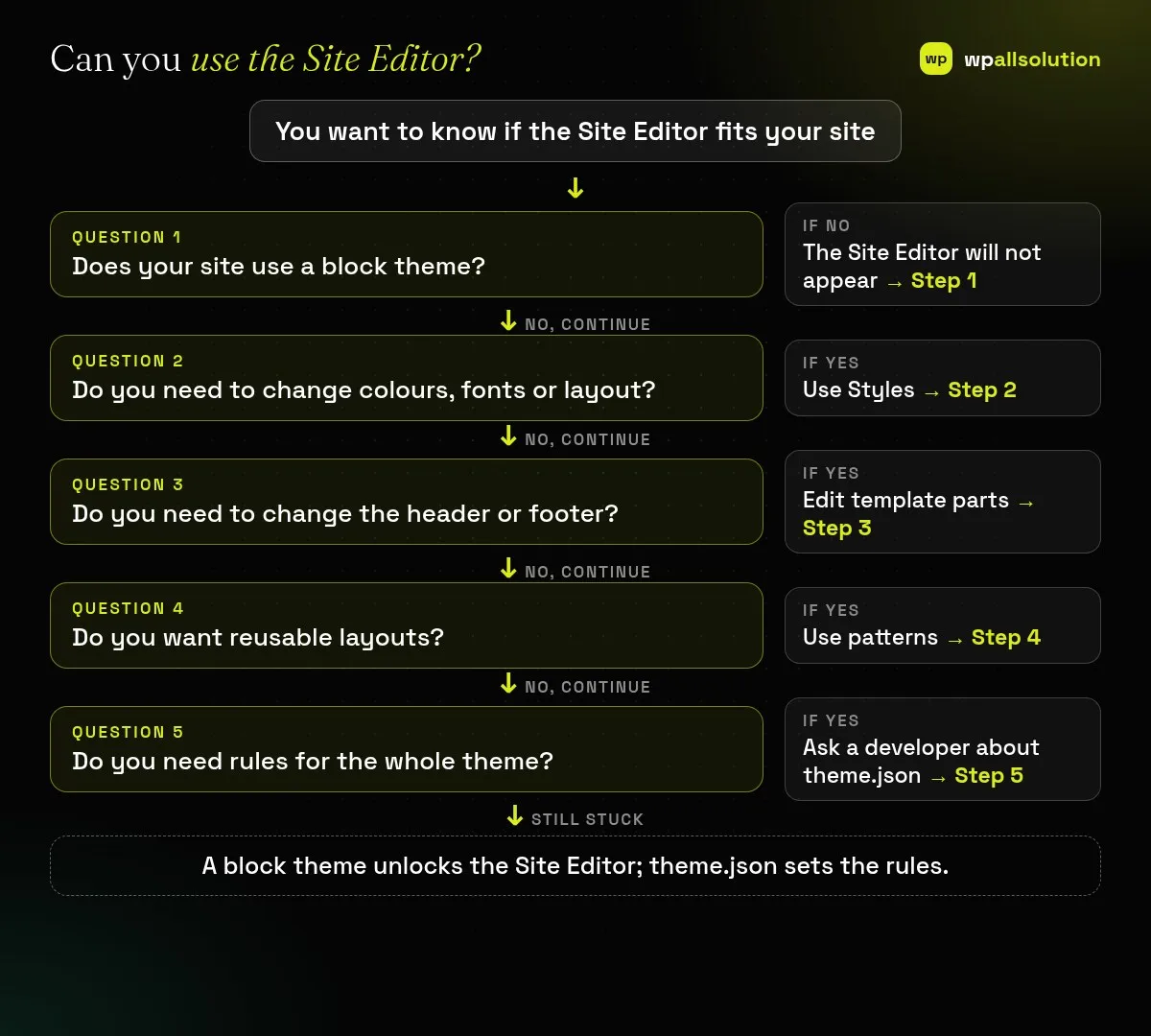
Go to Appearance. If you see Editor in the menu, your active theme supports the Site Editor. If you see Customize and Menus instead, you probably use a classic theme. Moving between the two is a project, not a toggle; see our migration checklist.
Open Appearance, Editor, then Styles. Try a style variation, or change the colour palette, typography and layout. The three-dot menu lets you review revisions or reset your changes. Because these changes apply site-wide, preview them before saving.
Go to Patterns, then template parts, choose Header or Footer and edit it with blocks. Add or remove logos, menus and links, then save. Check on a phone afterwards, because layouts that look fine on a desktop can wrap badly.
Templates define the layout of page types; patterns are ready-made groups of blocks you insert anywhere. Synced patterns update everywhere when you change them, which is useful for a call-to-action box used on many pages. Keep your own patterns named clearly.
theme.json is a configuration file in the theme folder. It sets default colours, font sizes, spacing, layout widths and which controls editors can use. Editing it by hand needs care, because a typo can break styles. Changes you make in Styles are stored separately as your customisations. If you want consistent brand rules for your team, a developer can set them in theme.json; see our block theme development service.
Gutenberg is the block editor project. Full site editing extends blocks to headers, footers and templates.
No. The Site Editor is available only with a block theme.
No. Most owners work in Styles and leave theme.json to a developer.
Your text stays the same, but the appearance of blocks across the site can change.
If you already have a block theme, open Appearance, Editor and explore Styles on a staging copy first. For help with custom block themes see block theme development, or contact us. Also see custom blocks vs page builders.
Moving from Elementor to a block theme is a rebuild, not a switch. Use this checklist to audit, test on staging and…
A WordPress REST API error can break the block editor and plugins. Test /wp-json/, inspect the status code and the failing request,…
Native WordPress blocks or a page builder like Elementor? An honest comparison of speed, editing, lock-in and maintenance, and how to choose.
Black FridayCyber Monday sale
Before you go,
Our biggest discount of the year on the first payment of every maintenance plan.
BF2026 at checkout