
Elementor Popup Not Working? Check Conditions, Triggers and Advanced Rules
An Elementor popup needs conditions, a trigger and passing rules before it shows. Check each in order, plus the multiple-popup option and…
The Elementor preview could not be loaded error has several causes. Read the status codes, test one layer at a time and fix permalinks, firewall, plugin or memory problems safely.
When the Elementor preview could not be loaded, the editor panel opens but the page canvas will not render. Elementor’s help centre says the error appears when the editor is blocked from rendering its live preview. Its causes include a low PHP memory limit, plugin or theme conflicts, broken permalinks or a damaged .htaccess file, server firewalls, Cloudflare Rocket Loader and even a leftover index.html file. Because the causes are so different, the quickest route is to read what the server is saying and then test one layer at a time.
Check whether you are trying to edit an archive page (such as the blog index or shop page), because those cannot be opened directly. Next, test in a private window, then read the HTTP status in the browser console: 401, 403 and 500 each point somewhere different. After that, use Safe Mode to separate plugin and theme conflicts from server problems, and only then look at permalinks, .htaccess, root files, Rocket Loader and the memory limit.
How this guide was prepared: the steps follow Elementor’s help articles and the WordPress documentation listed under Sources, read on October 19, 2026. We did not reproduce the error on a live Elementor site for this guide, so the steps are research-based. Menu names change between versions, and hosting setups differ, so no single fix works everywhere.
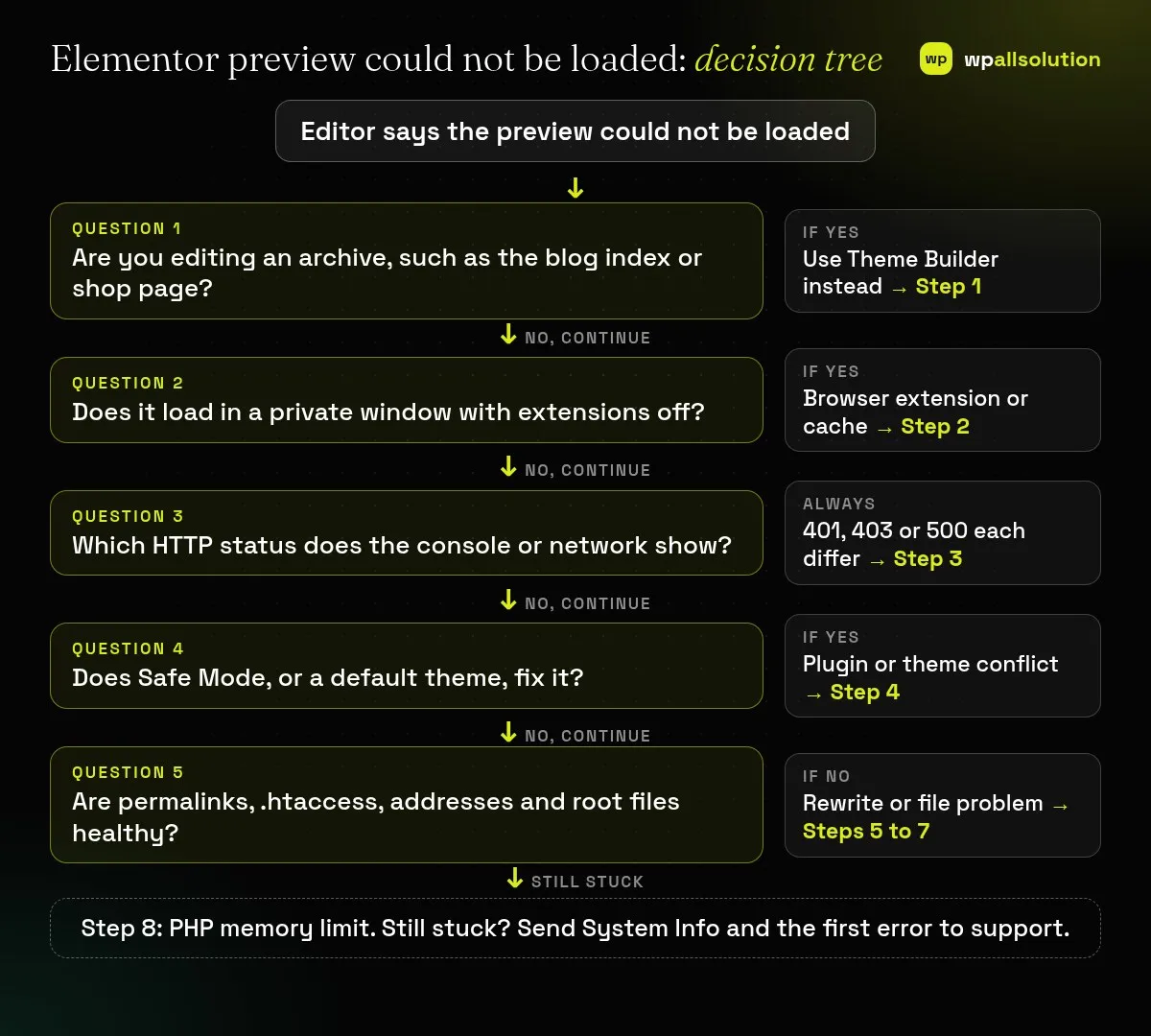
.htaccess, root files and Rocket Loader (Steps 5 to 7), then the memory limit (Step 8).| What you see | Likely cause | Start with |
|---|---|---|
| Error only on the blog index or the shop page | Archive pages cannot be edited directly | Step 1 |
| Works in a private window | Browser extension or cache | Step 2 |
| Status 401 | Password protection on an admin folder | Step 3 |
| Status 403 | Firewall rule or file permissions | Step 3 |
| Status 500 | PHP error or memory | Steps 3 and 8 |
| Works in Safe Mode | Plugin or theme conflict | Step 4 |
| Started after switching to https or changing the URL | Address mismatch | Step 5 |
| Admin pages work but the preview URL fails | Rewrite rules, .htaccess or a root index.html | Steps 6 and 7 |
Elementor’s article says that clicking Edit with Elementor directly on a dynamic archive, such as your main blog index or a WooCommerce shop page, triggers a preview loading error. Instead, go to Elementor → Theme Builder, choose the template type (for example Single Post, Products Archive or Single Product) and edit the assigned template there. Theme Builder is part of Elementor Pro, so on the free plugin you cannot design those templates with Elementor.
Ad blockers and privacy tools can block the scripts Elementor needs. Open a private window (Ctrl+Shift+N in Chrome), log in, and open the page in the editor. If it loads, disable extensions one by one in your normal browser, starting with ad blockers and privacy shields. If it does not load, continue.
Press F12 to open developer tools, choose the Console tab and look for red status codes. Elementor’s article gives this lookup, which we have summarised:
mod_security or incorrect file permissions can block the request. Elementor suggests asking your host to review the rule for Elementor requests, and setting directories to 755 and files to 644. Ask your host to look at the blocked request in their logs. Do not ask them to switch security off for the whole site.The WordPress debugging documentation shows how to log errors without displaying them to visitors, by adding these lines to wp-config.php (back the file up first):
define( 'WP_DEBUG', true );
define( 'WP_DEBUG_LOG', true );
define( 'WP_DEBUG_DISPLAY', false );
Reload the editor once, then read wp-content/debug.log. Redact private details before sharing it, and set debugging back to false when you finish.
Our guide How to find the plugin that broke your site explains the one-at-a-time method in more detail.
If you get locked out of WP Admin: Elementor’s article suggests connecting by FTP or your host’s File Manager and renaming the folder of the plugin you just deactivated under wp-content/plugins/. Rename only the suspect, and rename it back afterwards. Or restore the backup you took before you started.
If you recently added an SSL certificate or changed the URL, Elementor’s help says to update the site address. Under Settings → General, the WordPress Address (URL) and the Site Address (URL) should be identical, both on https:// or both on http://. Take a backup before changing them.
.htaccessOut-of-sync rewrite rules can stop the editor from reaching the page path.
.htaccess, Elementor suggests deleting it and saving permalinks again so WordPress writes a clean one. Safer: download a copy, or rename it to .htaccess-old, then save permalinks. Your host or security plugin may have added rules you need to keep.index.html and Cloudflare Rocket Loaderindex.html in your site’s root folder can override WordPress’s index.php. If you find one that is not part of your site, move it somewhere safe rather than deleting it, so the server falls back to WordPress.Elementor requires at least 256 MB of PHP memory and recommends 512 MB for complex sites. If your host allows it, back up wp-config.php and add this line directly above the comment that tells you to stop editing:
define( 'WP_MEMORY_LIMIT', '512M' );To undo, remove the line. Many hosts cap memory on the server, so it may not change anything. Then ask them. Reopen the editor to test.
Related, but different. Here the editor reports that the preview could not be loaded. A grey screen that never finishes loading has its own causes.
Those are dynamic archive pages. Elementor says to edit the assigned template in Theme Builder instead (Step 1).
It changes your page URLs, which can break links and hurt search visibility on a live site. Test it on staging and keep your normal structure.
No. Ask them to check the logs for the blocked request and allow that one, once you have evidence of a 403.
Work through the steps in order and stop at the first that works. If the Elementor preview could not be loaded after all eight, send your System Info (Elementor → Editor → System), the status code and the first console error to Elementor support or your host. If you would like a person to look, wpallsolution offers independent plugin support, and our Elementor development page explains how we build and tidy Elementor sites. We cannot promise a fix without seeing your site.
Last reviewed: October 19, 2026. Elementor is a trademark of its owner. wpallsolution is not affiliated with or endorsed by Elementor.
An Elementor popup needs conditions, a trigger and passing rules before it shows. Check each in order, plus the multiple-popup option and…
The free Elementor plugin covers more than many expect, but Pro adds the Theme Builder, popups, forms and WooCommerce tools. See which…
Moving from Elementor to a block theme is a rebuild, not a switch. Use this checklist to audit, test on staging and…
Black FridayCyber Monday sale
Before you go,
Our biggest discount of the year on the first payment of every maintenance plan.
BF2026 at checkout