
How to Set Up a WordPress Staging Site and Push Changes Live Safely
A staging site lets you test updates on a copy before customers see them. Learn how to create one, lock it down…
A WordPress critical error means a fatal PHP error stopped the page. Use the recovery email and recovery mode, read a redacted log, isolate the plugin or theme, or restore a known-good backup.
WordPress critical error is the message “There has been a critical error on this website” that WordPress shows when a fatal PHP error stops the page from loading. It usually comes from a plugin, a theme or custom code, often right after an update. The good news is that WordPress has a built-in recovery mode that is designed for this situation. This guide starts with recovery, so the site works again, and only then looks for the cause.
Check the inbox of the site’s administrator email for a message from WordPress about a technical issue. It contains a secret link to recovery mode, which pauses the plugin or theme that caused the fatal error so you can log in. In the admin area, deactivate or fix that extension. If you receive no email or cannot log in, deactivate plugins from the file manager or WP-CLI, switch to a default theme if a theme change caused it, or restore a known-good backup. Read the error details before you change anything, and never post an unredacted log publicly.
How this guide was prepared: the steps follow the WordPress documentation listed under Sources, read on October 19, 2026. We did not reproduce your exact error, so the steps are research-based. The right fix depends on the error message, your host and your plugins, and a host’s file manager and backup tools differ.
wp-config.php can contain database passwords, keys and personal data. Redact them before sharing.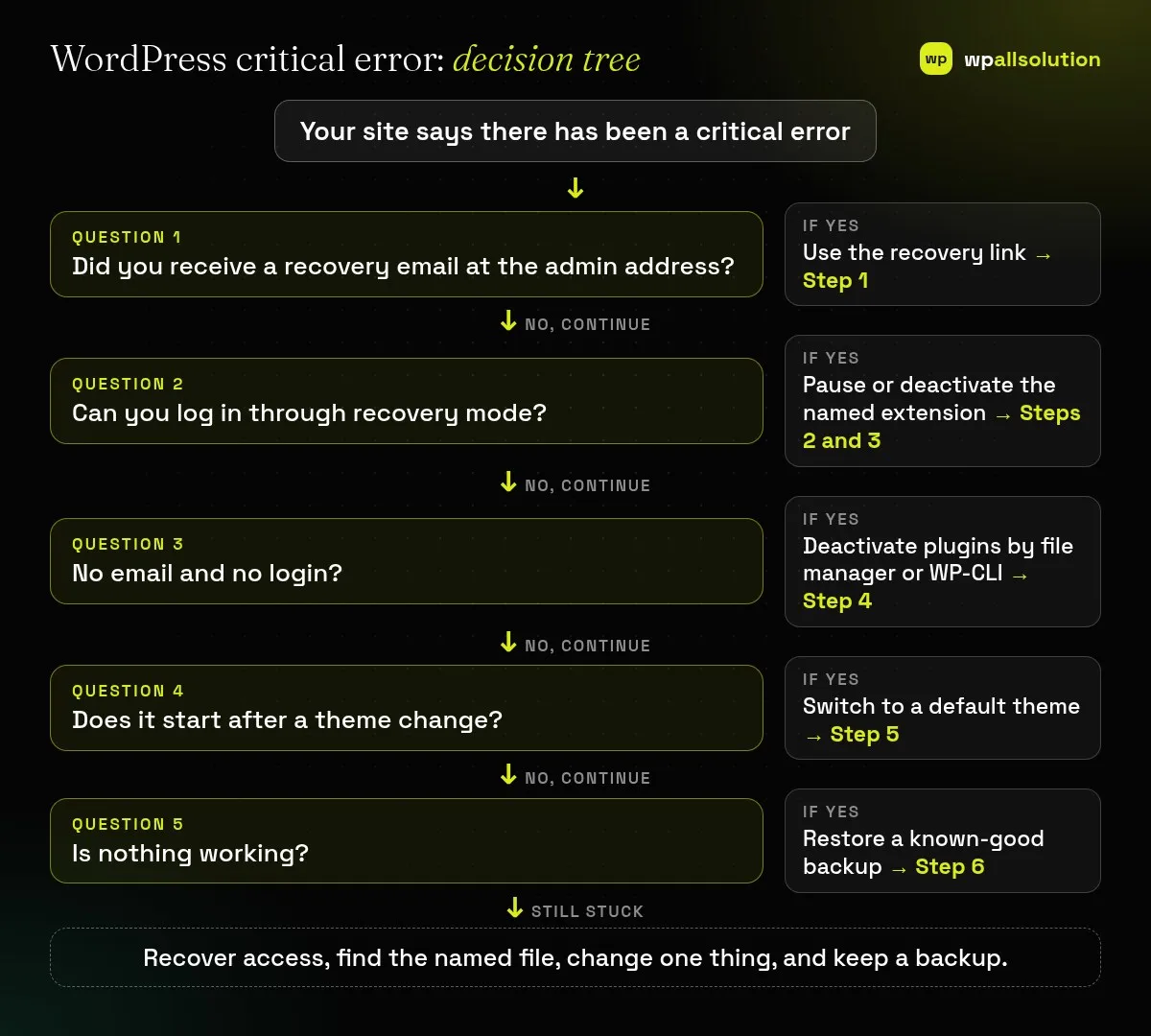
| What you see | Likely cause | Start with |
|---|---|---|
| “Critical error” message on the site | A fatal PHP error in a plugin, theme or code | Steps 1 and 2 |
| Blank white screen | A PHP or database error with no display | Steps 3 and 4 |
| Error right after a plugin update | Plugin incompatible with PHP or another plugin | Steps 3 and 4 |
| Error right after a theme change or edit | Theme or edited file with an error | Step 5 |
| No recovery email received | Email not delivered, or the admin address is wrong | Step 4 |
| Admin works, front end does not | Theme or a front-end plugin | Steps 3 and 5 |
The WordPress core team describes recovery mode, added in WordPress 5.2: when a fatal error occurs, a user-facing screen says the site is experiencing technical difficulties, and an email is sent to the administrator (and super admin) address with a secret link to recovery mode. Check the spam folder too. Open the link in the same browser you will use to log in, because recovery mode is tied to a cookie on that client, not to a specific user.
In recovery mode, WordPress pauses the plugins and themes that caused a fatal error for your browser session, so you can log in as usual. After login, an admin notice says recovery mode is on and lists the paused extensions and the exact errors. Write down the extension’s name, the file and the line from the message. That is the best clue you will get. You can also use the Site Health screen under Tools for a summary of your site’s status.
The core team lists the options: completely deactivate the extension (usually a temporary fix that restores service at once), fix the problem if you have the technical ability, or contact the extension’s author with the exact error. When you leave recovery mode with the exit button in the admin bar, all extensions run normally again, and if one is still broken, the fatal error returns. So deactivate or replace it before you exit. If the cause is a recent update, see WordPress 500 internal server error after a plugin update for rolling back safely.
If you cannot log in, the WordPress troubleshooting FAQ describes two methods. In a file manager or FTP, open wp-content and rename the plugins folder (for example to plugins.hold), log in, rename it back, and reactivate plugins one at a time. This keeps settings but disables everything. The second method edits the active_plugins option in the database to a:0:{}, which is best done with your host’s help. With WP-CLI, wp plugin deactivate can deactivate a named plugin or, with the --all flag, all plugins. Our guide How to find the plugin that broke your site explains how to find the culprit afterwards.
The WordPress handbook says a theme can cause the white screen, especially after you have just activated a new theme, and suggests activating a default WordPress theme. If you cannot reach the admin, rename the active theme’s folder in wp-content/themes so WordPress falls back to a default theme (one must be installed). If you edited functions.php or added a code snippet, undo that edit first.
The error message names a file and line. If it does not, WordPress documents debug logging: with WP_DEBUG and WP_DEBUG_LOG set to true and WP_DEBUG_DISPLAY set to false, errors go to wp-content/debug.log instead of the page. The handbook says debug tools are meant for local testing and staging, not live sites, so switch them off afterwards and delete the log, because it can contain sensitive paths and data. Never publish the log without redacting paths, usernames and keys. If you cannot find or fix the cause, restore the most recent backup that you know was good (files and database together), then reapply updates one at a time on staging.
Not necessarily. Most critical errors come from plugin, theme or PHP compatibility problems, but check for unexpected files and users if you see anything suspicious.
Check the spam folder and the administrator address, then deactivate plugins from the file manager (Step 4).
Debug mode only shows or logs errors. It does not fix them, and the handbook recommends it for staging.
Deactivate first. Delete only after you have a backup and know what depends on it.
Related guide: ERR_TOO_MANY_REDIRECTS in WordPress: Find the Redirect Loop
Related guide: “Error Establishing a Database Connection” in WordPress: Causes and Fixes
Related guide: “Plugin Could Not Be Activated Because It Triggered a Fatal Error”: Fixes
Related guide: WordPress Posts Showing 404 Errors: Fix Permalinks and Rewrite Rules
Related guide: WordPress Image Upload Errors: HTTP Error, “Upload Failed” and Size Limits
Recover access, note the extension named in the error and change one thing at a time. If the WordPress critical error is still there, send your host or the plugin author the exact error text, your PHP and WordPress versions and what changed, with secrets removed. If you would like a person to look, wpallsolution offers emergency WordPress fixes and independent plugin support. We cannot promise a fix without seeing your setup.
Last reviewed: October 19, 2026. WordPress is a trademark of the WordPress Foundation. wpallsolution is not affiliated with or endorsed by the WordPress Foundation or Automattic.
A staging site lets you test updates on a copy before customers see them. Learn how to create one, lock it down…
Most break-ins start at the login screen. Use this practical checklist for passwords, two-step login, admin accounts, attempt limits and HTTPS.
Care plans give agencies steady work after launch. See how white label WordPress maintenance works, what to include and what to agree…
Black FridayCyber Monday sale
Before you go,
Our biggest discount of the year on the first payment of every maintenance plan.
BF2026 at checkout