
How to Set Up a WordPress Staging Site and Push Changes Live Safely
A staging site lets you test updates on a copy before customers see them. Learn how to create one, lock it down…
When WordPress cannot reach its database, the whole site goes down. Learn what the message means and how to check credentials, the host and tables safely.
When a WordPress site shows only the words “Error establishing a database connection”, WordPress could not talk to the MySQL or MariaDB database that holds your posts, pages and settings. Without the database it cannot build a single page, so the whole site goes down, usually including the dashboard. The cause is nearly always one of three things: wrong connection details, a database server that is unavailable, or damaged tables. This guide checks them in that order.
First check the database details in wp-config.php (name, user, password and host) against what your hosting panel shows. If they are right, ask your host whether the database server is running or overloaded. If the front end loads but the admin says tables are unavailable, repair the tables with WordPress’s built-in repair screen, then remove the setting that enabled it. Keep a backup before you change anything.
How this guide was prepared: it is research-based. We read the WordPress source code and developer documentation listed under Sources, checked on October 23, 2026. We did not reproduce this error on a live host, so the steps are the documented order of checks, not a guarantee for every setup.
In WordPress’s code, this message appears when the database class cannot connect. The text that goes with it says the cause is either wrong username and password information in wp-config.php or that the database server at the host name could not be contacted, and it asks three questions: are the username and password correct, is the host name correct, and is the database server running? A related message, “Error reconnecting to the database”, appears when a connection that worked was lost, for example because the server is down or under heavy load.
WordPress also lets a site owner replace this page by adding a file named db-error.php to wp-content; WordPress then answers with HTTP status 500 and shows that file. If you see a branded error page instead of the plain message, this may be the reason.
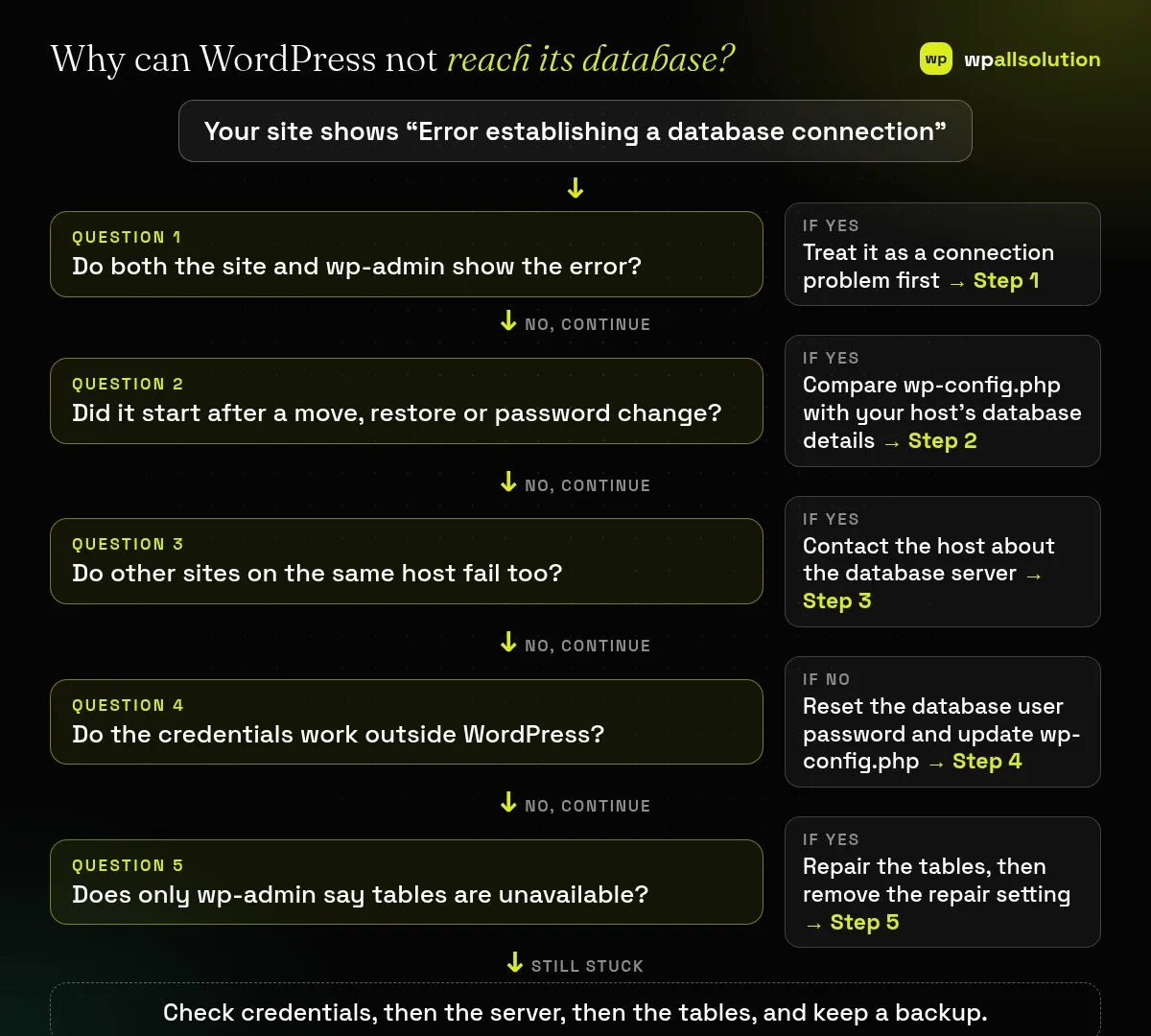
wp-config.php (Step 4).| What you see | Likely cause | Start with |
|---|---|---|
| Error on every page and in wp-admin | Wrong details, or the database server is not reachable | Steps 2 and 3 |
| Error right after moving hosts or restoring a backup | The new database name, user, password or host differs | Step 2 |
| Site works, then fails at busy times | The database server is overloaded or hits a limit | Step 3 |
| Front end works but wp-admin says tables may need repair | One or more damaged tables | Step 5 |
Open the home page, an inner page and /wp-admin/. If every one shows the connection error, the connection is broken. If only /wp-admin/ complains that tables are unavailable, skip to Step 5. Check your host’s status page or notices too, in case of a known database incident.
Open wp-config.php in your file manager or over SFTP and find DB_NAME, DB_USER, DB_PASSWORD and DB_HOST. Compare each with the database section of your hosting panel. Typical slips are a different database name after a migration, a password changed in the panel but not in the file, a host name that is not localhost on your host, or a stray space or quote. Do not paste the file or its passwords into public chats or tickets.
If the details match, the server may be down, restarted or limited. Ask your host to check the database service and your account limits. A host can also tell you whether the problem began at a specific time, which helps you decide whether a restore or a wait is right. If you recently moved hosts, see how to move WordPress to a new host for the checks that apply to the new database.
Log in to the database with the same user and password through your host’s database tool, such as phpMyAdmin. If it fails there, the credentials are wrong or the user lost its rights: reset the user’s password in the hosting panel, grant the user access to the database, and put the new password in wp-config.php. With WP-CLI available, wp db check also reports whether WordPress can reach and check the database.
If WordPress says that one or more database tables are unavailable and the database may need repair, add define( 'WP_ALLOW_REPAIR', true ); to wp-config.php and open /wp-admin/maint/repair.php. The WordPress documentation points out that this page works without logging in, because a damaged database often prevents login. That also means anyone who knows the address can use it, so remove the line as soon as you have finished. Take a backup first. If repairs do not help, restore a known good backup; see is your WordPress backup really safe.
localhost; the panel shows the right one.WP_ALLOW_REPAIR is no longer in wp-config.php.Not by itself. The content is still in the database. It just cannot be reached until the connection works again.
The dashboard also needs the database, so it shows the same error.
It is useful but not protected by login, so enable it only while you need it and remove the setting afterwards.
It can, indirectly, for example by overloading the database. Check the connection details and the server first.
Related guide: ERR_TOO_MANY_REDIRECTS in WordPress: Find the Redirect Loop
Related guide: WordPress Database Cleanup: Autoloaded Options, Transients and Revisions
Check the details, ask your host about the server, test the credentials and repair tables only if needed. If you cannot get the site back, wpallsolution offers an emergency WordPress fix and WordPress maintenance packages. We cannot promise a result without seeing your hosting setup.
A staging site lets you test updates on a copy before customers see them. Learn how to create one, lock it down…
Most break-ins start at the login screen. Use this practical checklist for passwords, two-step login, admin accounts, attempt limits and HTTPS.
Care plans give agencies steady work after launch. See how white label WordPress maintenance works, what to include and what to agree…
Black FridayCyber Monday sale
Before you go,
Our biggest discount of the year on the first payment of every maintenance plan.
BF2026 at checkout