
WordPress Login Redirect Loop: Fix Being Sent Back to wp-login
You type the right password and WordPress sends you back to the login page. The cause is usually cookies, address settings, caching…
WordPress tests a plugin before activating it and stops if it fails. Learn how to read the error, check PHP and WordPress requirements and fix the cause.
When WordPress says “Plugin could not be activated because it triggered a fatal error”, it ran the plugin’s code in a safe test, hit a PHP fatal error and stopped before the plugin could take down your site. That is good news: the plugin is not active, so your site should still work. The message usually carries the real PHP error underneath, which tells you what is wrong. This guide shows how to read it and how to fix the usual causes: version requirements, a conflict with another plugin, a damaged copy of the plugin, or server limits.
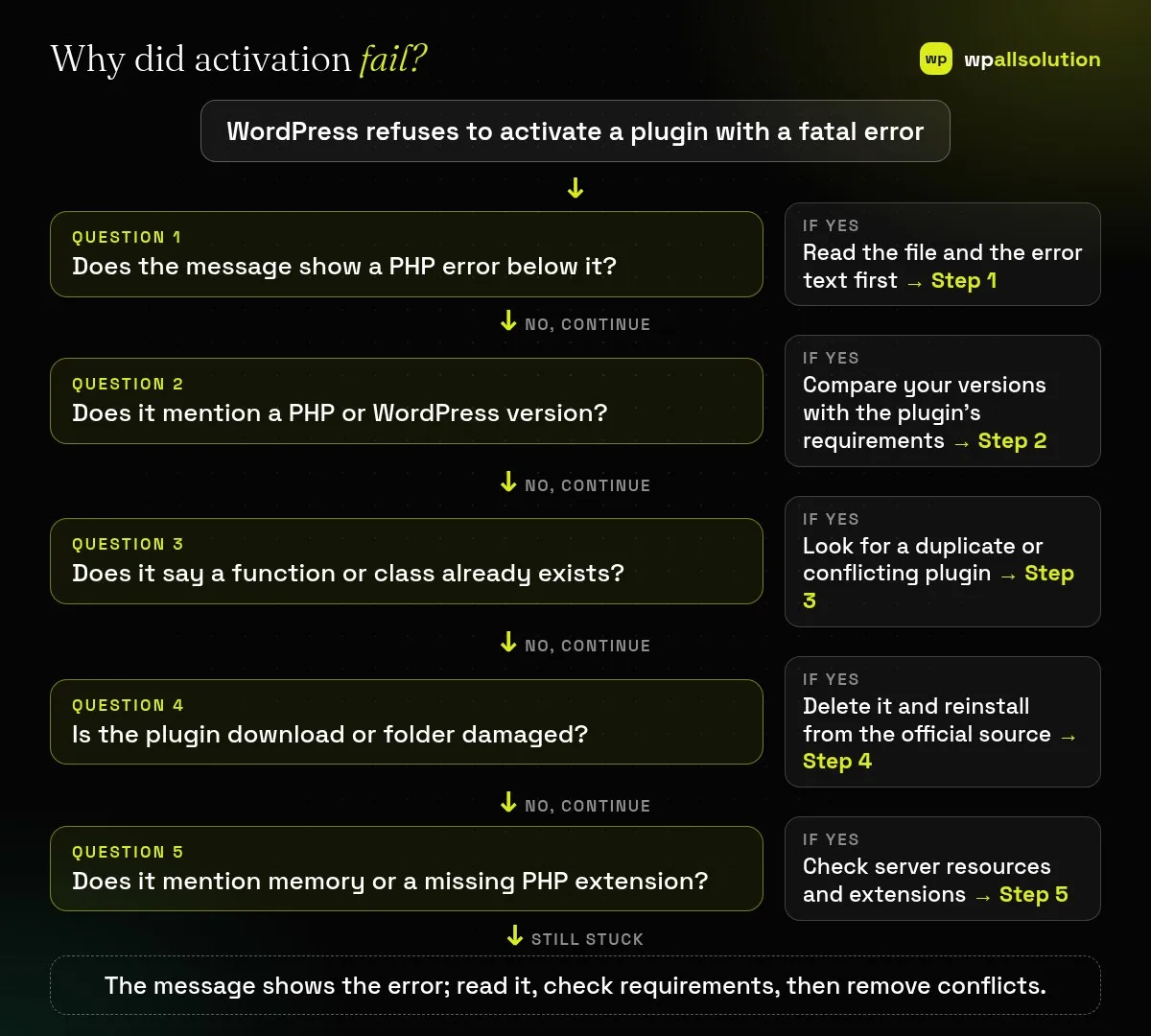
Read the error text shown below the message: it names a file, a line and what failed. If it says your PHP or WordPress version is too old, update them or choose a compatible plugin version. If it says a function or class already exists, another plugin (or a second copy of the same one) is in conflict. If the file looks damaged, delete the plugin folder and reinstall it from the official source. If it mentions memory or a missing function from a PHP extension, check your server. Keep a backup before you change anything.
How this guide was prepared: it is research-based. We read the WordPress source code listed under Sources, checked on October 23, 2026. We did not test your plugin or host, and the exact fix depends on the error text shown on your site.
When you activate a plugin, WordPress loads it in a sandbox so that a fatal error does not break the whole site. In the WordPress code, a failed test produces the message “Plugin could not be activated because it triggered a fatal error.”, followed by the error output. Before that, WordPress can also check the plugin’s declared requirements: its code produces messages such as “Current PHP version (…) does not meet minimum requirements for … The plugin requires PHP …” or the same for the WordPress version, when your versions are lower than the plugin says it needs. These are different messages with different fixes, so read which one you have.
| What you see | Likely cause | Start with |
|---|---|---|
| “The plugin requires PHP …” or “requires WordPress …” | Your versions are older than the plugin allows | Step 2 |
| “Cannot redeclare function …” or “Cannot declare class …” | Two plugins (or two copies) define the same name | Step 3 |
| “Call to undefined function …” for a PHP extension function | A required PHP extension is missing | Step 5 |
| “Allowed memory size … exhausted” | Not enough memory for the plugin to load | Step 5 |
| Parse error or unexpected end of file | A damaged or incomplete plugin file | Step 4 |
Copy the whole message. The error line usually has a type (Parse error, Fatal error), a text, a file path and a line number. The folder name in the path tells you which plugin or theme file caused it, which may be a different plugin from the one you were activating. If no detail appears, turn on logging and read the file; see how to read the WordPress debug log safely.
Compare your PHP and WordPress versions (Tools → Site Health → Info) with what the plugin’s page and readme say it needs. If your PHP is too old, ask your host to upgrade it after checking that your other plugins and theme support the newer version; if the plugin is too new for your WordPress, update WordPress safely or use an older plugin release that your versions support. Our guide to updating WordPress plugins safely describes a careful routine.
If the error says a function or class already exists, another active plugin or the theme declares the same name. A common case is a free and a pro version of the same plugin, or a plugin installed twice under different folder names. Deactivate the older copy first. If you cannot tell which plugins conflict, follow how to find the plugin that broke your site and WordPress plugin conflict.
A broken download, an interrupted update or a zip that unpacked into a folder inside a folder can leave files incomplete. Delete the plugin folder in wp-content/plugins (over SFTP or your host’s file manager if the dashboard cannot), then download the plugin again from its official source and install it. Keep your settings in mind: deleting a plugin’s folder does not remove its settings from the database, but take a backup first.
If the error mentions memory, see Allowed memory size exhausted. If it says a function does not exist and the function belongs to a PHP extension (such as image, string or XML handling), ask your host to enable the extension for your PHP version. Also check that the plugin supports the PHP version you run, since a plugin written for an older PHP can break on a newer one.
Usually not. WordPress stopped the activation so the plugin would not take the site down.
Often yes, once you fix the cause, for example by updating PHP, removing a conflicting plugin or reinstalling.
The error may be in a file from a different plugin or the theme that the new plugin interacts with.
Yes, with the exact message, your PHP and WordPress versions and your other active plugins.
Read the error, check the requirements and remove conflicts. If the plugin is business-critical and still fails, wpallsolution offers plugin support and an emergency WordPress fix. We cannot promise a result without seeing the error on your site.
You type the right password and WordPress sends you back to the login page. The cause is usually cookies, address settings, caching…
Most break-ins start at the login screen. Use this practical checklist for passwords, two-step login, admin accounts, attempt limits and HTTPS.
A staging site lets you test updates on a copy before customers see them. Learn how to create one, lock it down…
Black FridayCyber Monday sale
Before you go,
Our biggest discount of the year on the first payment of every maintenance plan.
BF2026 at checkout