
How to Set Up a WordPress Staging Site and Push Changes Live Safely
A staging site lets you test updates on a copy before customers see them. Learn how to create one, lock it down…
A WordPress plugin conflict happens when two pieces of code interfere. Use staging, change one variable at a time, and record the exact conflict and the versions that work together.
WordPress plugin conflict is what you have when two pieces of code interfere with each other: two plugins, a plugin and the theme, or a plugin and a new WordPress or PHP version. The symptoms vary widely, from a broken layout to a fatal error. The reliable way to find the cause is a controlled test, and the important part is doing it safely and writing down the result. Our shorter guide How to find the plugin that broke your site gives the quick method; this guide adds the safety and documentation steps.
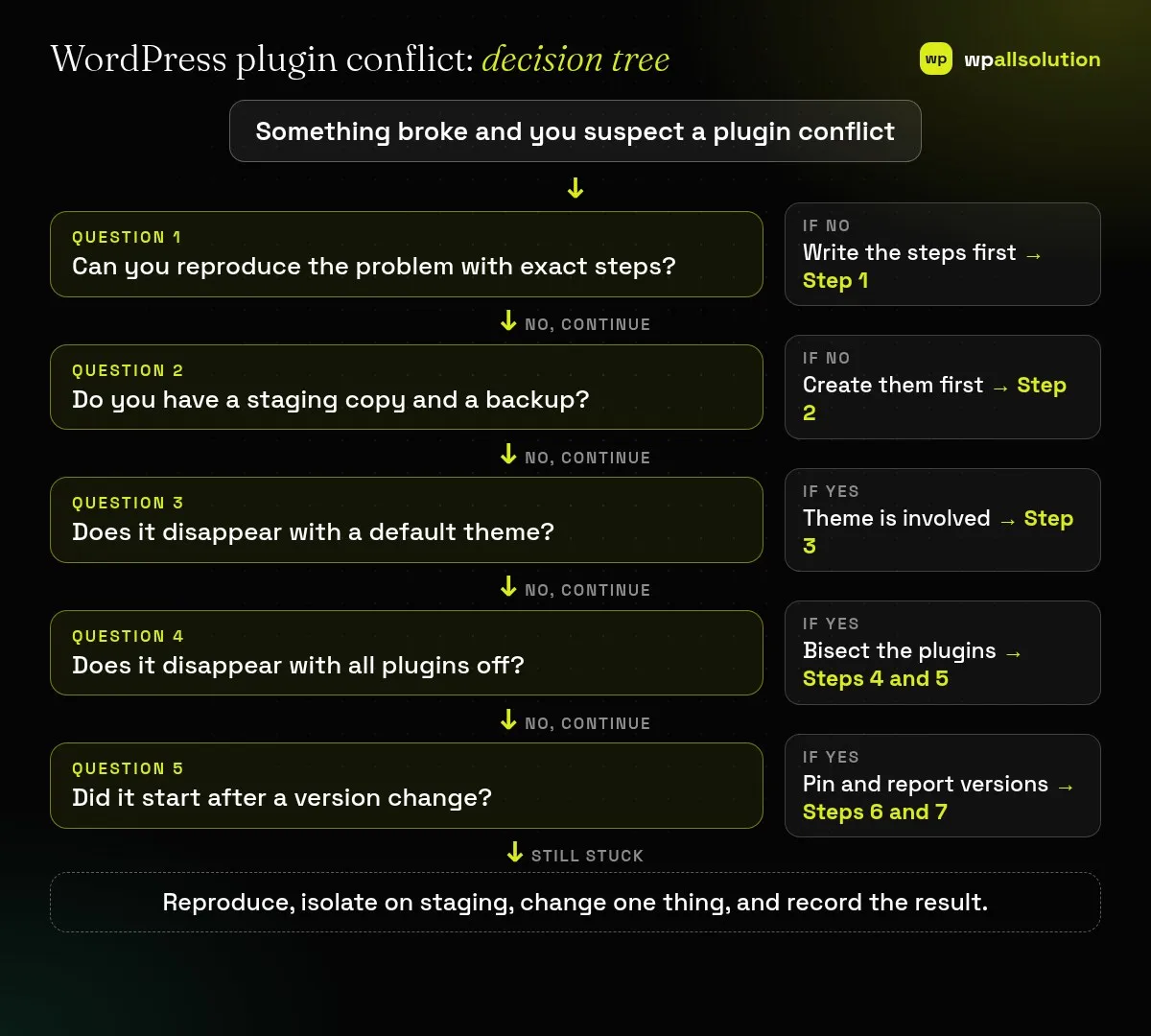
Write down exactly how to reproduce the problem. Make a backup and, if possible, a staging copy. On staging, switch to a default theme and deactivate all plugins; if the problem disappears, reactivate plugins in halves, then one by one, testing after each change. When the problem returns, you have found the pair or the single plugin. Record the plugin names and versions, WordPress and PHP versions, and what you saw. Then update, replace, or report the conflict to the plugin authors.
How this guide was prepared: the steps follow the WordPress and WooCommerce documentation listed under Sources, read on October 19, 2026. We did not reproduce your conflict, so the steps are research-based. Staging tools and plugin screens differ between hosts, and a conflict can involve your host’s own code too.
| What you see | Likely cause | Start with |
|---|---|---|
| Layout or buttons broken after an update | Script or style clash | Steps 3 to 5 |
| “Critical error” or a 500 error | Fatal PHP error | See WordPress critical error |
| Feature works alone but fails with another plugin | Two plugins hooking the same thing | Steps 4 and 5 |
| Editor or block editor fails to save | Script error or REST problem | See WordPress REST API error |
| Site slow after adding a plugin | Heavy plugin, not a clash | See WordPress slow after installing a plugin |
| Started after a PHP or WordPress update | Plugin not compatible with that version | Steps 6 and 7 |
WooCommerce’s conflict-test guide says to recreate the same process each time for process-related problems. Write the exact steps, the page, the browser, whether you were logged in, and what you expect. Open the browser console and note any red errors, because the file name in an error often points at the plugin. A problem you cannot reproduce cannot be tested.
WooCommerce recommends a backup and, ideally, a staging site: a clone of production where you can test without affecting visitors or revenue. Many hosts provide staging. Check that the staging copy shows the same problem before you start.
On staging, activate a default WordPress theme such as Twenty Twenty-Five (WooCommerce also suggests its Storefront theme for shops) and repeat the steps. If the problem disappears, the theme is part of the conflict, and you can continue with the theme and plugins together. If it stays, keep the default theme active for the next steps. Never use a design change on the live site as a test.
Deactivate all plugins on staging and test. If the problem is gone, reactivate half of them and test again. If the problem returns, the cause is in that half, otherwise it is in the other half. Repeat until you find one plugin, or a pair that causes it only together. This is a bisect, and it needs far fewer tests than activating one at a time on a site with many plugins. If you cannot log in, the WordPress FAQ shows how to deactivate plugins by renaming the plugins folder, and WP-CLI has wp plugin deactivate.
WooCommerce points out that some sites have a Must-Use or Drop-ins section in the plugins list. You cannot deactivate those from the list, but they can cause conflicts, and many hosts pre-install them, for example caching drop-ins. Some plugins also install helper plugins, so deactivating the parent deactivates them too. If the problem persists with everything off, ask your host about drop-ins.
WooCommerce recommends updating all plugins and themes first, since new releases include bug and security fixes and may already solve it. Then compare versions: which plugin, WordPress and PHP versions work and which break? Check each plugin’s page for the “tested up to” version and its changelog. Tools such as WP Rollback can restore previous plugin or theme versions, and Query Monitor can show PHP errors, database queries and HTTP API calls. Both are third-party plugins, so install them on staging, and judge their reliability yourself.
Write a short record: plugin A and B with versions, WordPress and PHP versions, the symptom, the exact steps, any error text, and what fixed it. Then choose: update or roll back one plugin, replace one with an alternative, adjust a setting that separates them, or report it to the plugin authors with your record (with secrets removed). Keep the record for the next update, and test again on staging whenever either plugin changes.
If it disappears when another plugin or the theme is off, it is a conflict. If it persists with only one plugin and a default theme, it is a bug or setting in that plugin.
You can, but it is risky. Use staging, especially for shops and membership sites.
Often, but not always. Test it first and keep a way to roll back.
Contact the author of the plugin that breaks, and include your record. If two plugins are involved, contact both.
Reproduce, isolate on staging, change one thing and write down the result. If the WordPress plugin conflict remains unexplained, bring your record to the plugin authors or your host. If you would like a person to look, wpallsolution offers independent plugin support and emergency WordPress fixes. We cannot promise a fix without seeing your setup.
Last reviewed: October 19, 2026. WordPress is a trademark of the WordPress Foundation. wpallsolution is not affiliated with or endorsed by the WordPress Foundation or Automattic.
A staging site lets you test updates on a copy before customers see them. Learn how to create one, lock it down…
Most break-ins start at the login screen. Use this practical checklist for passwords, two-step login, admin accounts, attempt limits and HTTPS.
Care plans give agencies steady work after launch. See how white label WordPress maintenance works, what to include and what to agree…
Black FridayCyber Monday sale
Before you go,
Our biggest discount of the year on the first payment of every maintenance plan.
BF2026 at checkout