
How to Set Up a WordPress Staging Site and Push Changes Live Safely
A staging site lets you test updates on a copy before customers see them. Learn how to create one, lock it down…
When a page jumps while it loads, visitors misclick and Google notices. Learn what CLS is and how to fix the images, fonts, embeds and banners behind it.
Cumulative layout shift in WordPress is what you notice when a page jumps while it loads: you start to tap a button and the text moves, because an image, an ad or a banner appeared above it. Google measures this as CLS, one of the Core Web Vitals, and it is also a real usability problem, since people click the wrong thing. This guide explains what CLS measures, what a good score is, and how to find and fix the usual causes on a WordPress site.
According to web.dev, CLS measures how much visible content moves unexpectedly, and a good score is 0.1 or less at the 75th percentile of page loads. The common causes are images and videos without set dimensions, late-loading ads and embeds, web fonts that change the text size, and banners or popups inserted above existing content. Fix them by reserving space: set image dimensions, give embeds a fixed area, load fonts carefully, and overlay notices instead of pushing content down.
How this guide was prepared: it is research-based. We used the web.dev articles on CLS and on optimising it, and the WordPress source, listed under Sources and checked on October 23, 2026. We did not test your site, and a lab score from one test can differ from what real visitors experience.
A layout shift happens when a visible element changes its start position between two frames. web.dev defines CLS as the largest burst of layout shift scores during a visit. Each shift score is the impact fraction (how much of the viewport the unstable elements affect) multiplied by the distance fraction (how far they moved). The thresholds, measured at the 75th percentile of page loads and split by mobile and desktop, are: good at 0.1 or less, needs improvement above 0.1 up to 0.25, and poor above 0.25. Field data (real visitors) matters most, while lab tests help you find causes.
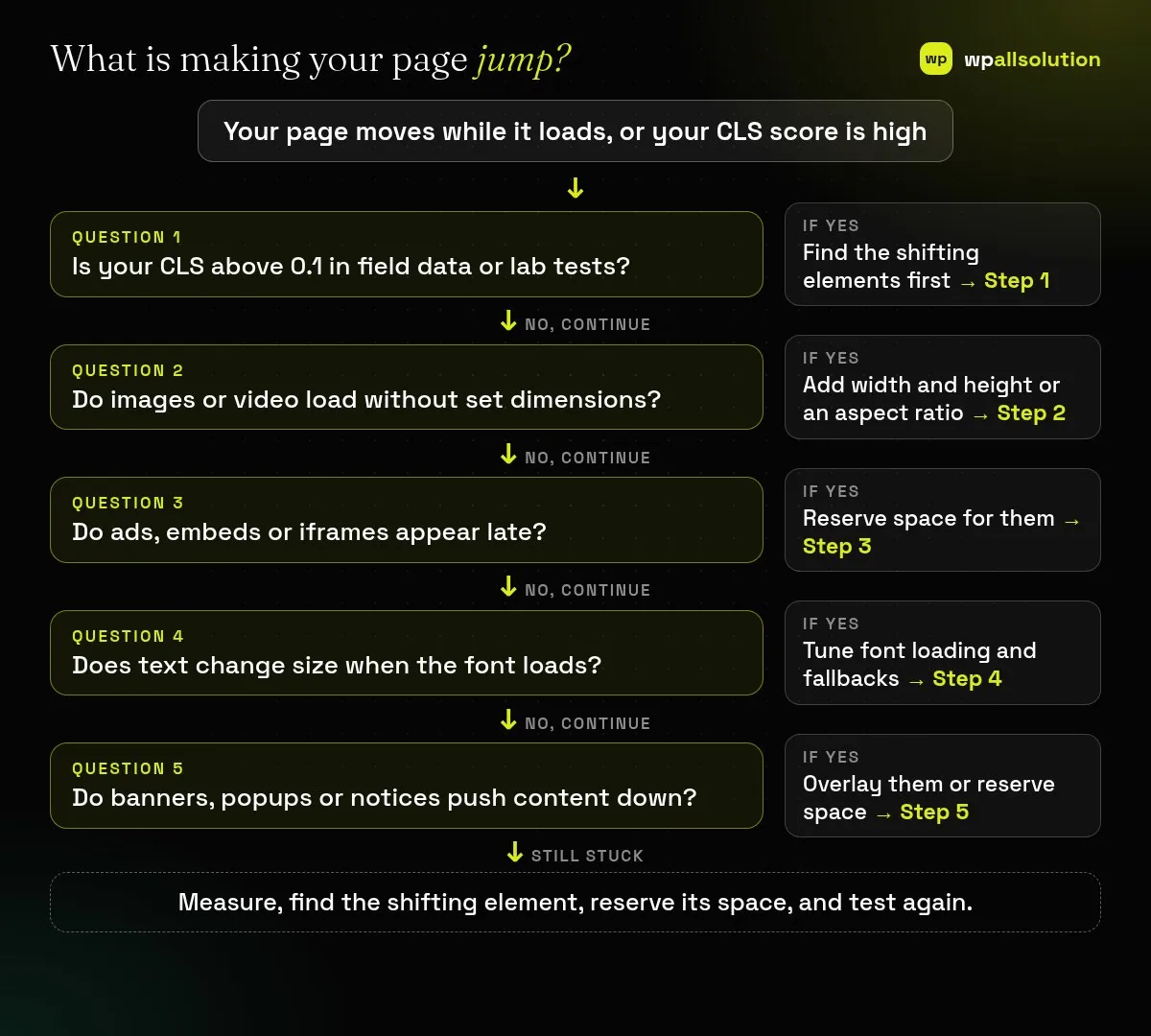
| What you see | Likely cause | Start with |
|---|---|---|
| Content jumps down when an image loads | The image has no width, height or aspect ratio | Step 2 |
| A video or map pushes text down late | An embed has no reserved space | Step 3 |
| Headings change size or wrap differently after a moment | A web font replaces a fallback with different metrics | Step 4 |
| A cookie notice or promo bar shoves the page down | It is inserted into the flow instead of overlaid | Step 5 |
| Elements move during an animation | The animation changes layout properties | Step 5 and the animation note below |
Run PageSpeed Insights and read the field data for CLS if your site has enough visitors, then the lab diagnostics for “avoid large layout shifts”, which name the elements that moved. Chrome DevTools can also highlight layout shifts in the Performance panel. Fix one cause at a time and test again. If your slowest part is the main content, see our guide to Largest Contentful Paint in WordPress.
web.dev recommends width and height attributes on images and video, or a CSS aspect-ratio when attributes are not practical, so the browser can reserve the space before the file loads. WordPress core adds dimension attributes to images it outputs, and in its code images need those attributes before it adds loading and priority hints, so the common problems come from theme templates, page builder widgets, CSS backgrounds and custom HTML that leave them out. Check the images that shift and add dimensions or an aspect ratio. Our guide on keeping Elementor sites fast covers builder-specific points.
Give maps, videos, social embeds, ad slots and forms a fixed height with min-height or aspect-ratio, sized for the smallest expected content. web.dev also notes that keeping a placeholder when no ad is returned avoids a shift from collapsing the space, and that content which arrives late should sit lower on the page.
When a custom font replaces a fallback, text can change size and move other content. web.dev suggests choosing a suitable font-display value (for example optional), specifying a generic fallback, matching the fallback’s metrics with properties such as size-adjust, and preloading important fonts. Self-hosting only the weights you use also reduces loading work.
Cookie notices, promo bars and popups inserted above content shift everything below them. Either overlay them with fixed positioning, which takes them out of the page flow so they do not push anything, or reserve their space from the start, which also works for a sticky bar because a sticky element keeps its place in the flow. For animations, web.dev advises using transform rather than changing properties such as top or left. If the problem started after an update, check Elementor update broke your website or look for a plugin change with how to find the plugin that broke your site.
web.dev says 0.1 or less at the 75th percentile of page loads is good, above 0.25 is poor.
CLS is part of the Core Web Vitals, which Google uses as signals, but it is one factor among many. We cannot promise ranking changes.
Lab tests run once under fixed conditions; field data comes from real visitors, devices and networks.
Some optimisation plugins help, but reserving space for each element is usually a design and template task.
Related guide: Optimize Images in WordPress: WebP, AVIF, Sizes and Lazy Loading
Related guide: Interaction to Next Paint (INP) in WordPress: What It Is and How to Improve It
Find the moving element, reserve its space and test again. If your theme or builder makes this hard, wpallsolution offers WordPress development and WordPress maintenance packages. We cannot promise a score or ranking.
A staging site lets you test updates on a copy before customers see them. Learn how to create one, lock it down…
Most break-ins start at the login screen. Use this practical checklist for passwords, two-step login, admin accounts, attempt limits and HTTPS.
Care plans give agencies steady work after launch. See how white label WordPress maintenance works, what to include and what to agree…
Black FridayCyber Monday sale
Before you go,
Our biggest discount of the year on the first payment of every maintenance plan.
BF2026 at checkout