
WordPress Login Redirect Loop: Fix Being Sent Back to wp-login
You type the right password and WordPress sends you back to the login page. The cause is usually cookies, address settings, caching…
INP measures how quickly your pages react to clicks, taps and key presses. Learn the thresholds and how to cut the scripts that make WordPress feel slow.
Interaction to Next Paint in WordPress, or INP, measures how quickly a page reacts when a visitor clicks, taps or presses a key. If a menu opens late, a button seems dead for a moment or typing lags, INP is poor. It is one of Google’s Core Web Vitals and it replaced First Input Delay as the responsiveness metric. This guide explains what INP measures, what a good score is, and the practical steps to improve it on a WordPress site, which usually mean running less JavaScript at the wrong time.
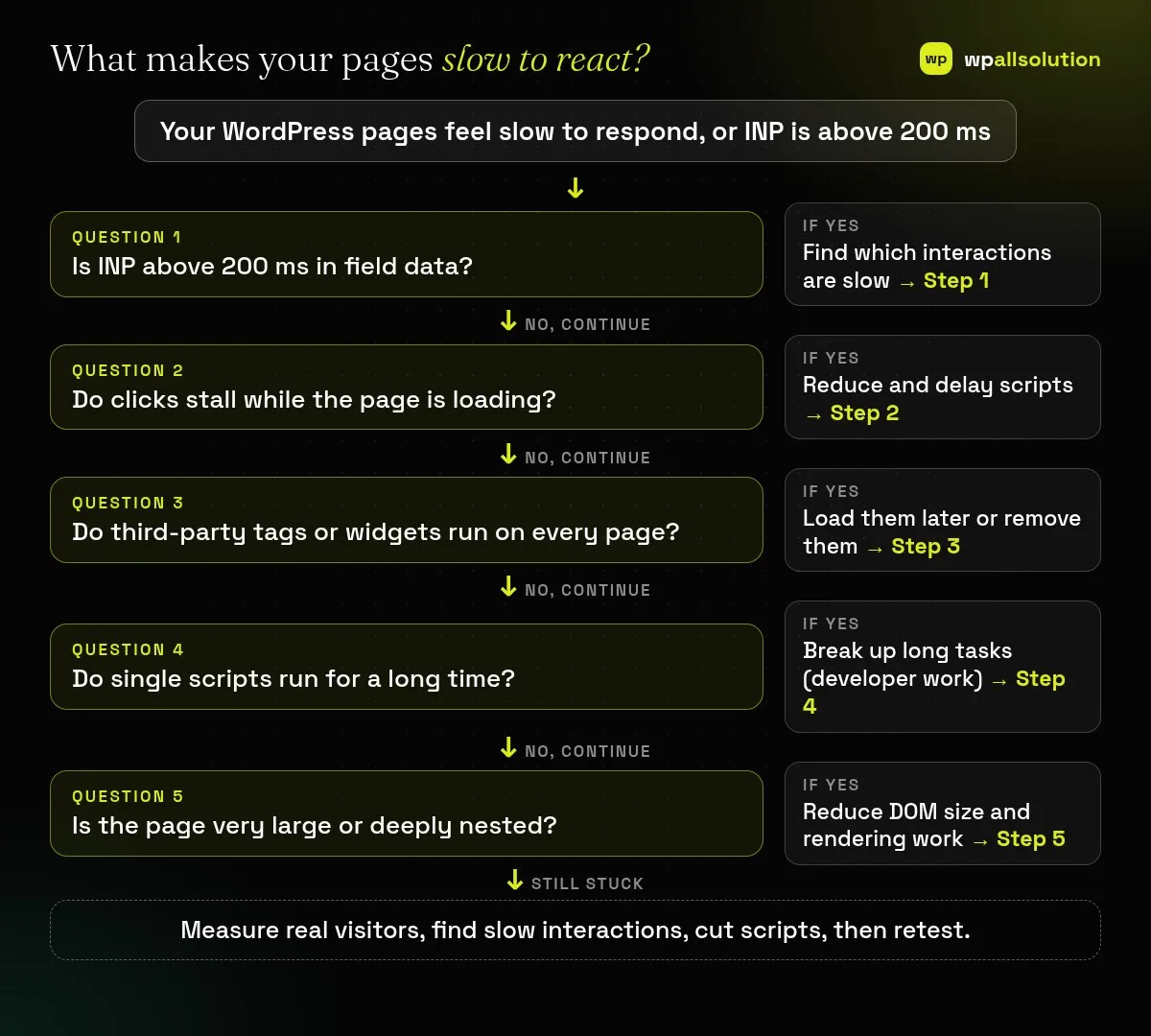
According to web.dev, INP is good at 200 milliseconds or less, needs improvement up to 500 milliseconds and is poor above that, measured at the 75th percentile of real page loads. To improve it on WordPress, measure with field data first, find the slow interactions, then cut or delay scripts (page builder widgets, third-party tags, chat and analytics tools), break up long tasks and keep the page lean. Most of the gain comes from removing or delaying code, not from a speed plugin alone.
How this guide was prepared: it is research-based. We used the web.dev articles on INP and on optimising it, listed under Sources, checked on October 23, 2026, plus our own experience delaying third-party scripts on this site. Results vary by site, so we make no promise about scores.
web.dev explains that INP tracks the latency of clicks, taps and key presses across a visit and reports a single value, usually the worst interaction (on pages with many interactions, the highest one is ignored for every 50). Scrolling, hovering and zooming are not counted. The score splits an interaction into three parts: the input delay before your code starts, the time your event handlers take to run, and the presentation delay until the next frame is painted. First Input Delay measured only the delay of the first interaction, while INP covers all interactions, which is why it often reveals problems that FID hid.
| What you see | Likely cause | Start with |
|---|---|---|
| Menus or buttons react late right after the page loads | The main thread is busy running scripts | Steps 2 and 3 |
| A click triggers a long freeze | One heavy event handler or a long task | Step 4 |
| Typing in a field lags | Heavy scripts running on every key press | Steps 3 and 4 |
| Interactions slow only on long, complex pages | A large DOM and costly rendering | Step 5 |
Read the INP value in PageSpeed Insights field data if your site has enough traffic, then use Chrome DevTools’ Performance panel to record a slow click and see which part dominates: input delay, event handling or painting. Test on a mid-range phone setting, not only a fast desktop. Fix one cause at a time and retest.
Every script competes for the main thread. Remove plugins and widgets you do not use, avoid loading a heavy script on pages that do not need it, and use defer or async for non-critical scripts. WordPress core lets scripts declare a loading strategy when they are registered, which is how some plugins load scripts asynchronously. Our guides on keeping Elementor sites fast and Elementor website slow cover builder-specific causes.
Analytics, tag managers, chat widgets, social embeds and ad scripts often do the most work. If you can, load them after the page has finished loading or on the first interaction. On our own website we load Google Tag Manager after the page has loaded or on the first interaction for exactly this reason, which cut the main-thread work during loading in our lab tests; test any change like this to be sure tracking still works. See WordPress slow after installing a plugin for a way to find the plugin responsible.
web.dev explains that long tasks block the browser from responding, and that you can break work into smaller pieces by yielding to the main thread, for example with setTimeout or an async yield helper, doing the visible update first and deferring other work until after the next frame. Avoid forced synchronous layout, which happens when code reads layout values right after changing styles in the same task, and move heavy work to web workers where possible. This is for your developer or the plugin author; if a plugin causes a long task, report it with a recording.
The presentation delay grows with the amount of page the browser must lay out and paint. web.dev suggests keeping the DOM flat, adding elements as they are needed rather than loading everything at once, and using content-visibility to skip rendering off-screen content. Heavy page builder layouts with many nested containers are a common cause on WordPress. Compare with our guide to cumulative layout shift and Largest Contentful Paint, which are related Core Web Vitals.
200 milliseconds or less, according to web.dev. Above 500 milliseconds is poor.
Yes. web.dev describes INP as the successor metric to First Input Delay.
Any plugin that runs heavy scripts can. Check page builders, sliders, chat tools and tracking scripts first.
It helps loading, but INP depends on how much script runs when people interact.
Measure, find the slow interaction and remove or delay the script behind it. If you would like help, wpallsolution offers WordPress development and WordPress maintenance packages. We cannot promise scores or rankings.
You type the right password and WordPress sends you back to the login page. The cause is usually cookies, address settings, caching…
Most break-ins start at the login screen. Use this practical checklist for passwords, two-step login, admin accounts, attempt limits and HTTPS.
A staging site lets you test updates on a copy before customers see them. Learn how to create one, lock it down…
Black FridayCyber Monday sale
Before you go,
Our biggest discount of the year on the first payment of every maintenance plan.
BF2026 at checkout