
How to Set Up a WordPress Staging Site and Push Changes Live Safely
A staging site lets you test updates on a copy before customers see them. Learn how to create one, lock it down…
A failed update can leave WordPress showing a maintenance message. Learn how the .maintenance file works, how long it lasts and how to end it safely.
When a WordPress site suddenly shows only “Briefly unavailable for scheduled maintenance. Check back in a minute.”, it is in maintenance mode, almost always because an update started and did not finish cleanly. The site is not necessarily broken. This guide explains how that message is produced, when WordPress ends it on its own, and how to remove it safely when it stays.
During an update, WordPress creates a small file named .maintenance in the main WordPress folder. While that file is recent, visitors get the maintenance message and an HTTP 503 response. WordPress treats the file as expired after 10 minutes, so a leftover file normally stops blocking the site by itself. If the message is still there, check that no update is running, take a backup, delete the .maintenance file, then clear your caches.
How this guide was prepared: it is research-based. We read the WordPress source code and developer reference listed under Sources, checked on October 23, 2026. We did not interrupt an update on a client site to reproduce the problem, so treat the steps as the documented behaviour plus careful practice, not a guarantee for every host.
When WordPress updates core, a plugin or a theme, it writes the .maintenance file, a one line PHP file that stores the time the update began. WordPress deletes the file when the update finishes. If the process is interrupted (a timeout, a closed browser, a crash), the file can stay behind.
Retry-After header of 600 seconds. Because the request ends early, this applies to the dashboard as well.maintenance.php exists in wp-content, WordPress shows that instead of the default message.The .maintenance file name starts with a dot, so many file managers hide it. Turn on “show hidden files” to see it.
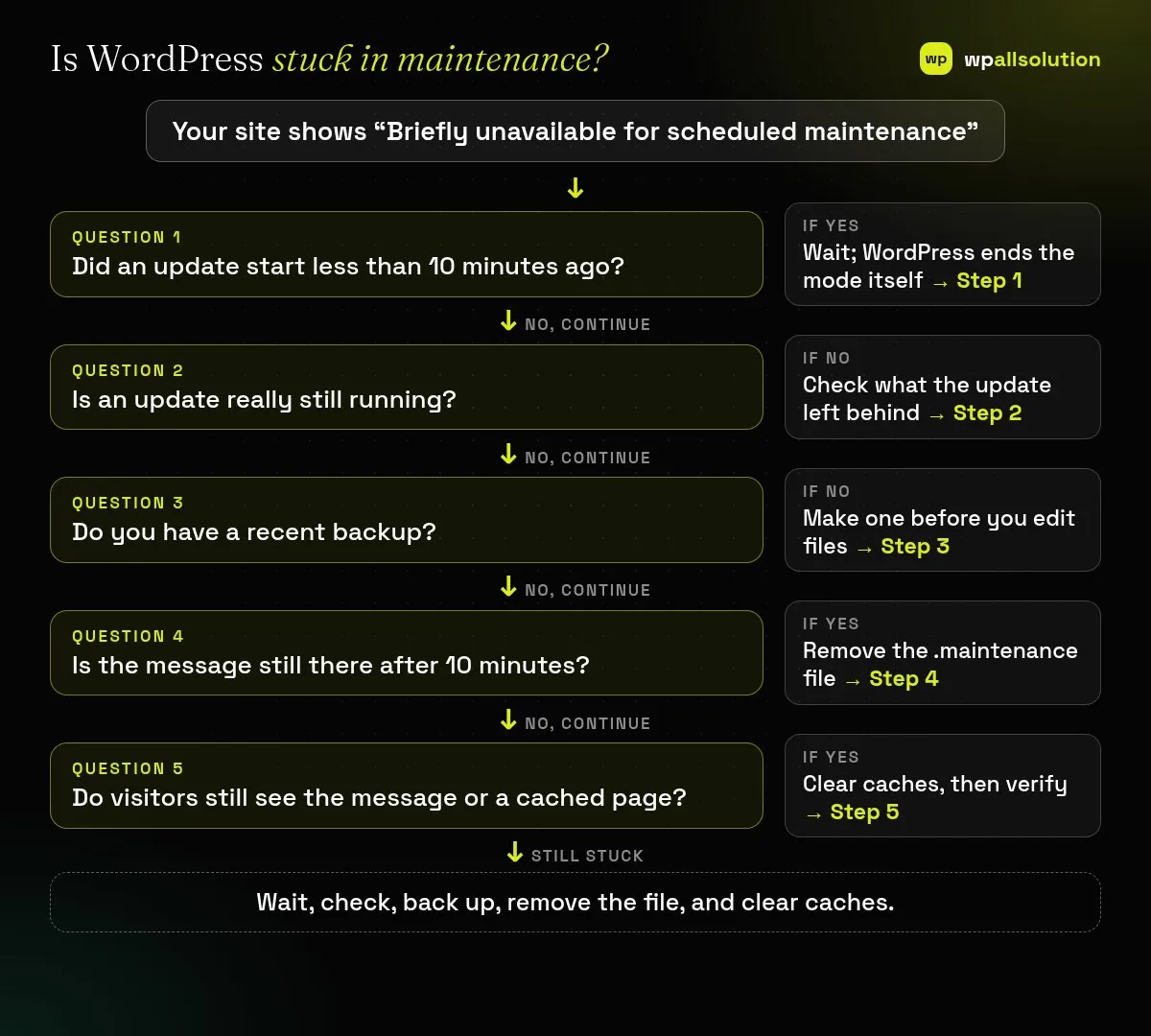
.maintenance file (Step 4).| What you see | Likely cause | Start with |
|---|---|---|
| Message right after you clicked Update | The update is still running | Step 1 |
| Message stays for more than 10 minutes | A leftover .maintenance file or a cached 503 page | Steps 4 and 5 |
| Message says something different, such as “Coming soon” | A maintenance or coming soon plugin, not WordPress core | Step 2 |
| Site loads but the update screen says another update is running | The update lock is still active | See the lock guide below |
Do not start another update. WordPress itself stops treating the file as active once it is 10 minutes old, so waiting is often enough. Note the clock time and try the site again after 10 minutes.
Find out which update ran: core, a plugin or a theme. Open your hosting file manager or SFTP, turn on hidden files and look in the WordPress folder for .maintenance. Also look inside wp-content for an upgrade folder with leftover files. If the message does not match WordPress’s wording, you may be using a maintenance plugin, which you would switch off from its own settings instead. If you also see “Another update is currently in progress”, read our guide to the update lock.
Back up the files and the database before you delete or change anything, and be sure you can restore them. See is your WordPress backup really safe.
If the message remains after 10 minutes and no update is running, delete the .maintenance file from the main WordPress folder (the same place as wp-config.php). Make sure you remove only that file. Reload the site in a private window.
A page cache, a server cache or a CDN may have stored the 503 page. Clear your caching plugin, your host’s cache and your CDN, then test again. Finally, go back to Dashboard → Updates and finish the update that was interrupted. Plugins and themes that were halfway updated may need to be updated again, and our guide to finding the plugin that broke your site helps if something now misbehaves.
.maintenance file is left in the WordPress folder.No. It is the normal WordPress maintenance message. A failed or interrupted update is the usual reason.
WordPress ends the request early in maintenance mode, so the dashboard shows the same message until the mode ends.
Usually yes, after about 10 minutes, because WordPress ignores an older .maintenance file. A cached page can still make it look stuck.
Yes when no update is running and you have a backup. It only signals that an update is happening, and WordPress recreates it during the next update.
Wait 10 minutes, check the update state, back up, then remove the file and clear your caches. If the site is still down or the update left things broken, wpallsolution offers an emergency WordPress fix and WordPress maintenance packages. We cannot promise a result without seeing your setup.
A staging site lets you test updates on a copy before customers see them. Learn how to create one, lock it down…
Most break-ins start at the login screen. Use this practical checklist for passwords, two-step login, admin accounts, attempt limits and HTTPS.
Care plans give agencies steady work after launch. See how white label WordPress maintenance works, what to include and what to agree…
Black FridayCyber Monday sale
Before you go,
Our biggest discount of the year on the first payment of every maintenance plan.
BF2026 at checkout