
How to Set Up a WordPress Staging Site and Push Changes Live Safely
A staging site lets you test updates on a copy before customers see them. Learn how to create one, lock it down…
WordPress locks core updates so two of them cannot run at once. Learn why the lock gets stuck, how long it lasts and the safe order to clear it.
“Another update is currently in progress” is a message WordPress shows when you try to update the core software and it believes an earlier update has not finished. It looks alarming, but it is a safety lock, not a hack and not data loss. This guide explains what the lock is, how long it normally lasts, and the order in which to check things so you only remove it when it is really stuck.
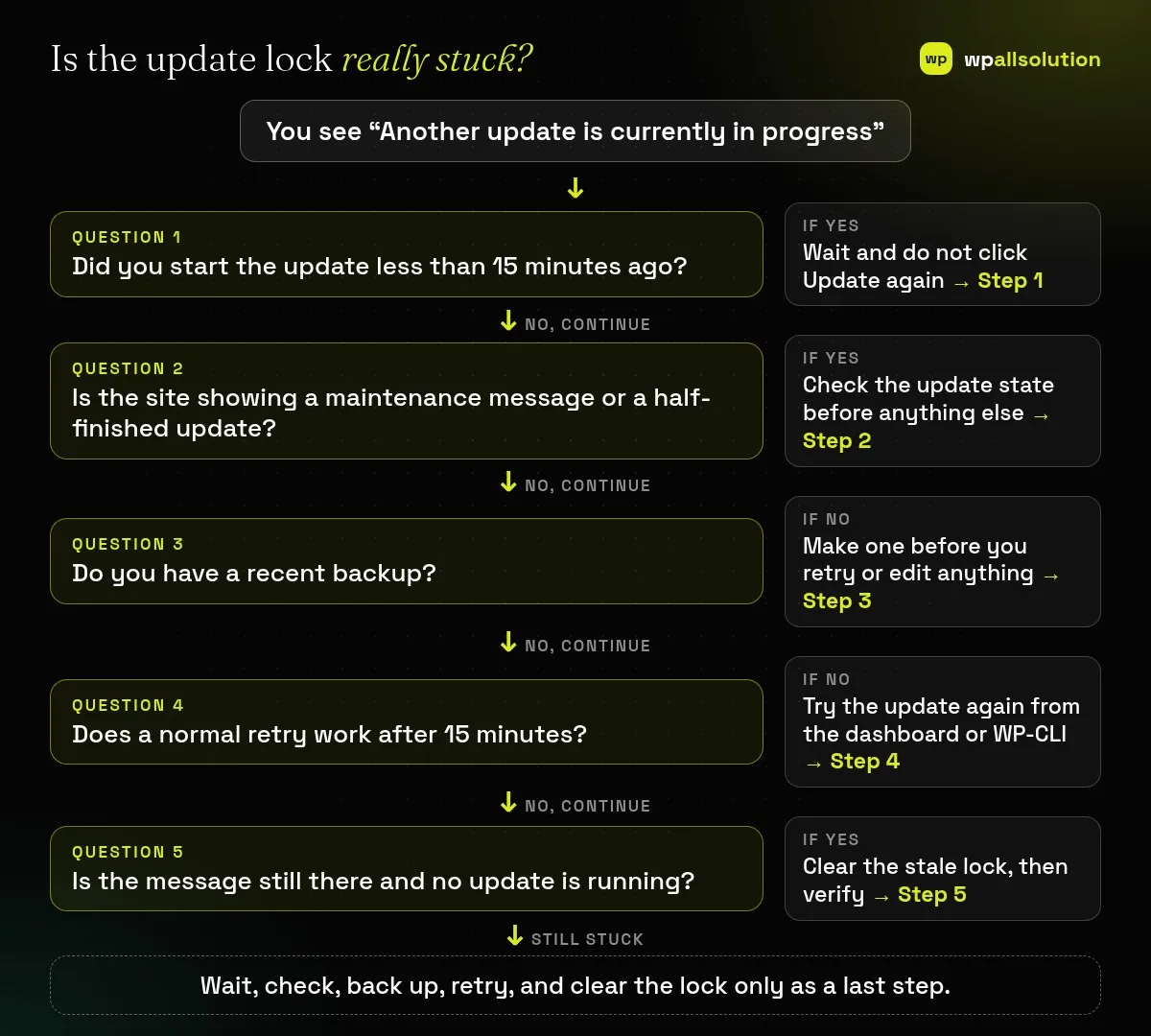
Before WordPress starts a core update it records a lock in the database, and in the current WordPress source code that lock is respected for 15 minutes. While the lock is fresh, a second core update attempt is refused with this message. In most cases the right move is to stop clicking, wait 15 minutes and try once more. If the message stays and you are sure no update is running, you can clear the stale lock, but only after a backup.
How this guide was prepared: it is research-based. We read the WordPress source code and developer reference listed under Sources, checked on October 23, 2026. We did not reproduce this error on a client site, and the fixes below are the documented, low-risk order of steps, not a guarantee for every host.
A core update replaces WordPress files and changes the database. Running two of those at the same time could leave the site half updated. To prevent that, WordPress writes a small record into its options table before the update begins. The record is named core_updater.lock and holds the time the lock was created. If another core update starts while that record is newer than the timeout, WordPress stops and shows the message.
In the WordPress core updater, the lock is created with a 15 minute timeout. WordPress documents that an expired lock is released automatically the next time something asks for it, so a lock that is older than 15 minutes should not block a new attempt by itself. The message itself is defined in the core updater class (the same place where the lock is requested).
| What you see | Likely cause | Start with |
|---|---|---|
| Message appears right after you pressed Update | A double click or a still running update | Step 1 |
| Site shows “Briefly unavailable for scheduled maintenance” | An update is running or was interrupted | Step 2 |
| Message appears every time for more than 15 minutes | A stale lock or a repeated automatic update | Steps 4 and 5 |
| Update fails and the version number did not change | The earlier update did not finish | Steps 2 to 4 |
Do not press Update again. Each new attempt only checks the lock and fails. Because the lock is respected for 15 minutes, the simplest fix is time. Close the Updates screen, make a note of the clock time, and come back after 15 minutes.
Open Dashboard → Updates and look at the WordPress version. Then open the home page in a private window. If you see “Briefly unavailable for scheduled maintenance”, an update started and did not clean up, which our guide on getting WordPress out of maintenance mode explains. If the site loads normally, the lock is most likely only waiting to expire. Also ask whether anyone else, or an automatic update, may have started an update.
Before you retry or edit anything, make a full backup of the files and the database, and check that you can restore it. If you are not sure your backups would work, read is your WordPress backup really safe first.
After 15 minutes, open Dashboard → Updates and run the core update once. If you have command line access, WP-CLI offers wp core update, which is the supported way to update core from the terminal. For a safer routine in general, see how to update WordPress safely.
If the message persists, you have waited well past 15 minutes and you are sure nothing is updating, remove the lock record. With WP-CLI you can read it with wp option get core_updater.lock and delete it with wp option delete core_updater.lock. Without WP-CLI, open the options table in your database tool (the table name starts with your prefix, such as wp_options) and delete the row whose option_name is core_updater.lock. The row only stores a time stamp. If you use a persistent object cache, clear it afterwards. Then run Step 4 again. If you are unsure at any point, ask your host or a developer to do this, because a wrong database edit is hard to undo.
No. It is a protective lock from the WordPress updater. It can still appear on a hacked site, so check for other warning signs if something else looks wrong.
In the current WordPress core updater it is respected for 15 minutes, and an expired lock is released the next time it is requested.
Only when you are sure no update is running and you have a backup. The row stores a time stamp, but a mistake in the database can cause bigger problems.
The lock itself does not delete content. A badly interrupted update can leave files half replaced, which is why a backup matters.
Wait, check the update state, back up and retry. If the update keeps failing or the site is stuck in maintenance mode, wpallsolution offers WordPress maintenance packages and an emergency WordPress fix. We cannot promise a result without seeing your hosting setup.
A staging site lets you test updates on a copy before customers see them. Learn how to create one, lock it down…
Most break-ins start at the login screen. Use this practical checklist for passwords, two-step login, admin accounts, attempt limits and HTTPS.
Care plans give agencies steady work after launch. See how white label WordPress maintenance works, what to include and what to agree…
Black FridayCyber Monday sale
Before you go,
Our biggest discount of the year on the first payment of every maintenance plan.
BF2026 at checkout