
How to Set Up a WordPress Staging Site and Push Changes Live Safely
A staging site lets you test updates on a copy before customers see them. Learn how to create one, lock it down…
Your site broke right after updating to WordPress 7.1? Follow a safe order: read the error, use recovery mode, test plugins and theme, then restore if needed.
A WordPress 7.1 fatal error after updating usually means one plugin, theme or custom snippet cannot run on the new version, so WordPress stops and shows “There has been a critical error on this website” or a blank page. The update itself is rarely the culprit alone. Something that worked before now clashes with it. This guide gives you a calm order of checks, so you find the cause without guessing and without making the damage bigger.
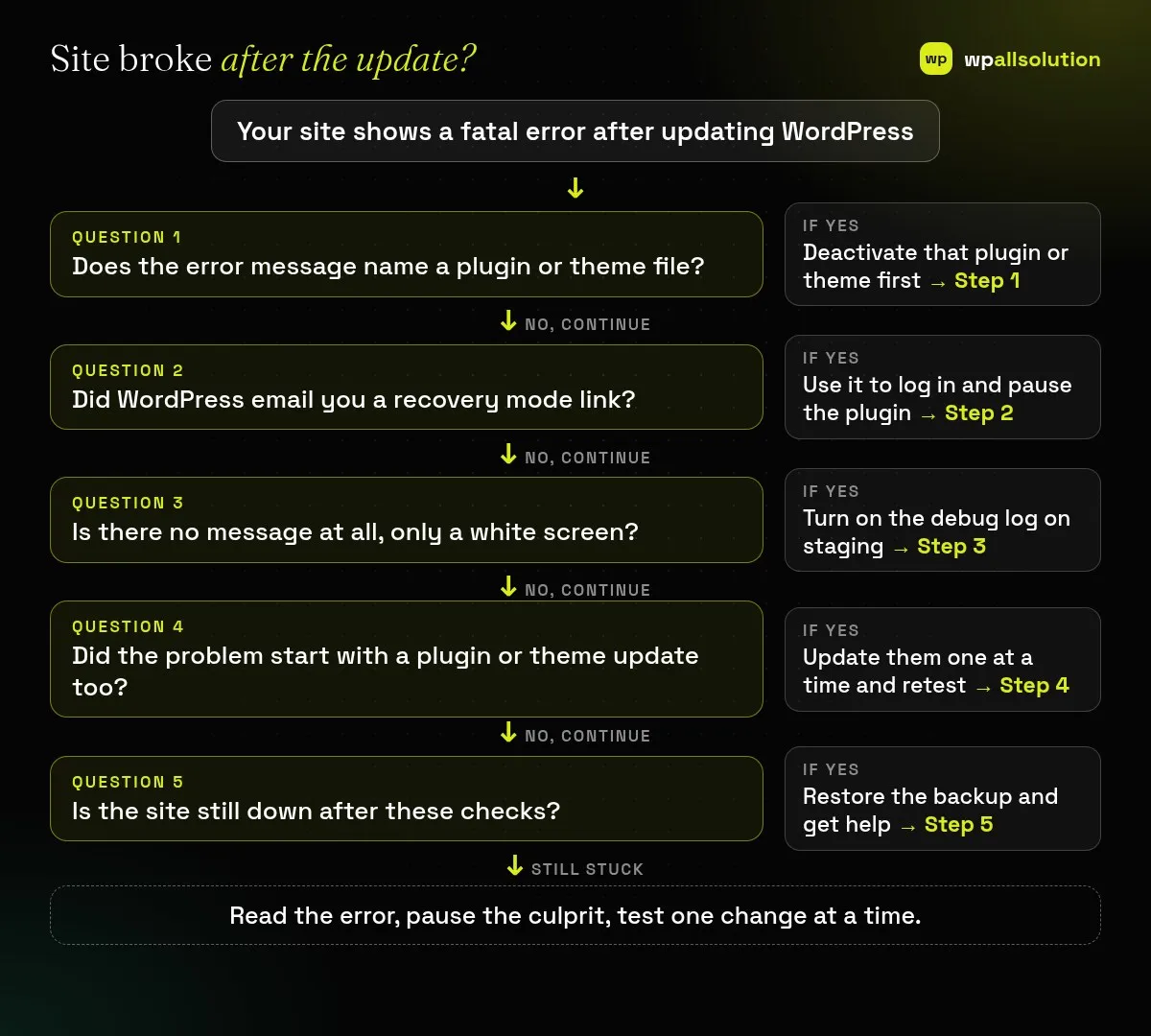
For any WordPress 7.1 fatal error, first read the exact error message, because it often names the plugin or theme file. Check the inbox of the site administrator for a recovery mode email from WordPress and use that link to log in and pause the failing plugin. If you cannot log in, rename the named plugin folder in wp-content/plugins using your host’s file manager. Test other plugins and the theme one at a time, turn on the debug log only on a staging copy, and restore your backup if the site stays down. Do not delete files you do not recognise.
How this guide was prepared: it is research-based. We used the WordPress documentation and release announcement listed under Sources, checked on October 25, 2026. We have not seen your site, and every fatal error has its own cause, so treat the steps as a safe order of checks, not a guaranteed fix.
WordPress 7.1 was released on August 19, 2026. According to the official announcement it includes responsive styling in the Site Editor, an admin bar that stays visible in all editors, a combined media editor, and a post editor that is now fully iframed for all themes, along with new blocks and developer changes. A change in the editor canvas or in a developer function can expose old code in a plugin or theme, which is why a site can break after an update even though it worked yesterday. Only the most recent version of WordPress is actively supported, so staying on an old version is not a long-term fix.
| What you see | Likely meaning | First move |
|---|---|---|
| “There has been a critical error on this website” | A PHP fatal error in a plugin, theme or snippet | Check the recovery mode email |
| Blank white screen | A fatal error with errors hidden | Read the host error log |
| Admin works, front end fails | The theme or a front-end plugin | Switch to a default theme |
| Front end works, editor fails | An editor-related plugin or block | Pause editor add-ons |
| Stuck on “maintenance mode” | An update did not finish | See the linked guide below |
Every WordPress 7.1 fatal error starts with a message, so read it before touching anything. If the message includes a path such as wp-content/plugins/some-plugin/…, that plugin is your first suspect. Using the file manager or SFTP, rename that plugin’s folder, for example by adding -off, so WordPress cannot load it. Reload the site. If it comes back, you found the cause. See also our critical error guide and how to find the plugin that broke your site.
WordPress can send an email to the administrator address with a special login link when it detects a fatal error. Open it, log in, and WordPress will show which plugin or theme failed and let you pause it. Check spam, and note that the email goes to the address in Settings, General, which may not be yours.
The WordPress documentation says debugging is meant for local development or staging, not a live site. On a staging copy you can add define( 'WP_DEBUG', true );, define( 'WP_DEBUG_LOG', true ); and define( 'WP_DEBUG_DISPLAY', false ); to wp-config.php, reproduce the error and read wp-content/debug.log. Your host’s PHP error log is another safe place to look.
If the error does not name a file, deactivate all plugins from the dashboard if you can, or by renaming the plugins folder, then switch to a default theme. Re-enable plugins one by one, reloading after each. Update plugins and the theme to their latest versions first, since a vendor may have already released a compatibility fix. If you use caching, clear it after each change.
If the site is still down, restore the backup you took before the update, then plan the update again on a staging copy. A backup is only useful if it restores, so see is your WordPress backup really safe. For a live shop or membership site, use our emergency WordPress fix service rather than experimenting.
Most cases of a WordPress 7.1 fatal error are avoidable. Update on a copy first when the site makes money, update one thing at a time, and keep a recent restorable backup. Our WordPress update checklist covers the full routine.
No. Most fatal errors after a major release come from a plugin, theme or snippet that no longer works. Check the error message before blaming the core update.
You can restore a backup or install the previous version from the release archive, but older versions miss security fixes. Fix the cause and update again when you can.
It is sent to the administrator email in Settings, and it may be in spam or go to an old address. You can still rename the plugin folder.
A fatal error does not normally delete posts, which live in the database. Take a backup before you change files.
Related guide: “Plugin Could Not Be Activated Because It Triggered a Fatal Error”: Fixes
If you are facing a WordPress 7.1 fatal error right now, work through steps 1 and 2. If you are stuck, send us the exact error message through our contact page, or see WordPress maintenance for ongoing care. We cannot promise a fix without seeing the error.
A staging site lets you test updates on a copy before customers see them. Learn how to create one, lock it down…
Most break-ins start at the login screen. Use this practical checklist for passwords, two-step login, admin accounts, attempt limits and HTTPS.
Care plans give agencies steady work after launch. See how white label WordPress maintenance works, what to include and what to agree…
Black FridayCyber Monday sale
Before you go,
Our biggest discount of the year on the first payment of every maintenance plan.
BF2026 at checkout