
How to Set Up a WordPress Staging Site and Push Changes Live Safely
A staging site lets you test updates on a copy before customers see them. Learn how to create one, lock it down…
When Contact Form 7 says it sent a message but nothing arrives, the cause is usually the sender address, mail transport or filtering. Test them in order.
Contact Form 7 not sending email is one of the most common WordPress form problems, and one of the most confusing, because the form often says the message was sent while nothing reaches your inbox. The email can fail at several separate points: the form, the sender address, the way WordPress hands the message to a mail server, the domain’s authentication records, or a spam filter. This guide shows how to test each point in order, one change at a time.
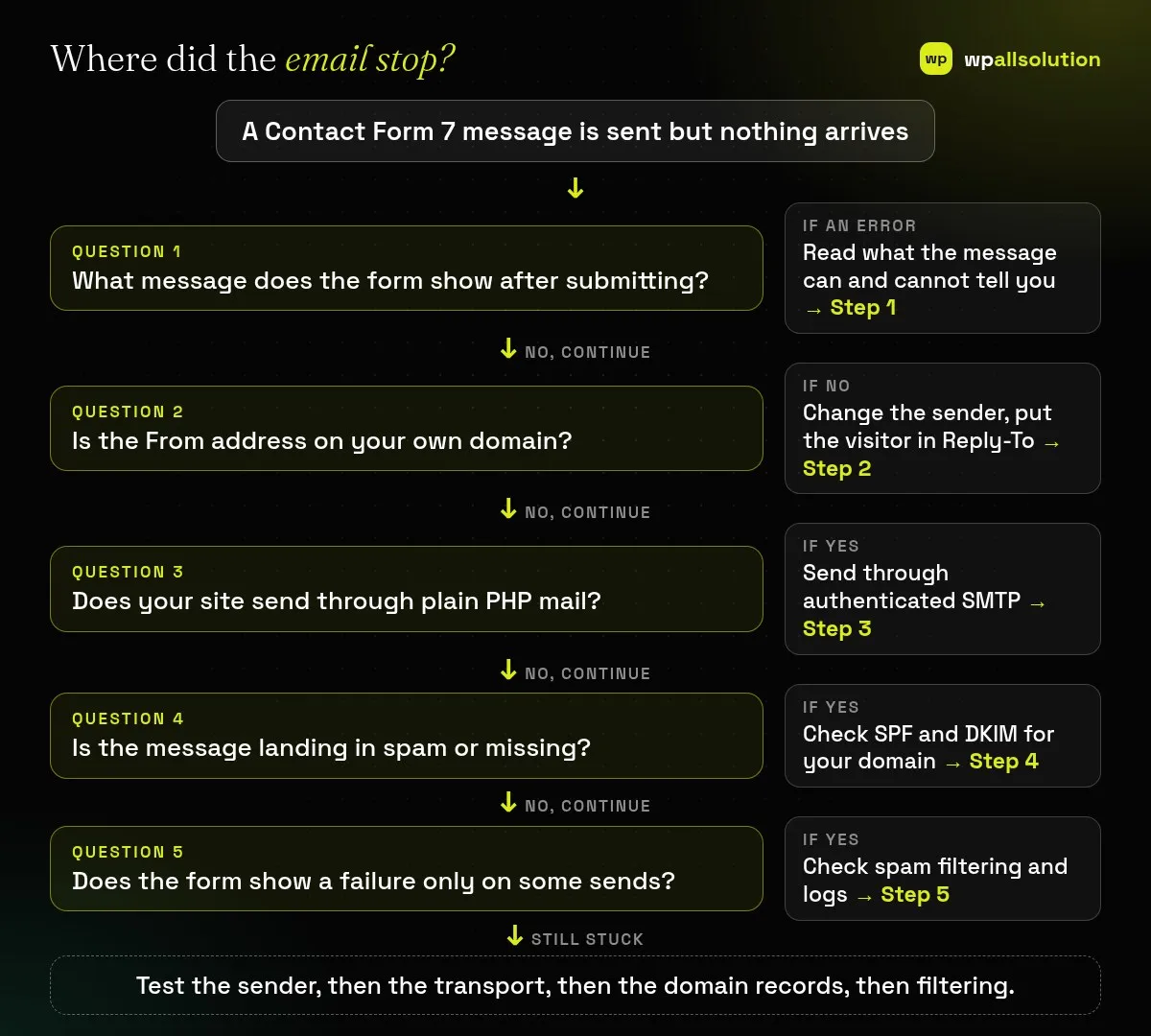
Start with the sender: in the form’s Mail tab, the From address should belong to your own domain, and the visitor’s address should go into Reply-To. Then check how the site sends mail: plain PHP mail is the least reliable choice, and sending through authenticated SMTP is usually safer. Finally, check your domain’s SPF and DKIM records and look in spam. Test after every change.
How this guide was prepared: it is research-based. We read the Contact Form 7 plugin source (version 6.2.2, which runs on our own website) and the standards linked under Sources, checked on October 23, 2026. The Contact Form 7 documentation site blocked our automated access, so we did not rely on it. We did not test your hosting or mail setup.
When someone submits the form, Contact Form 7 checks the fields, runs spam checks, and then asks WordPress to send the email. If WordPress reports success, the form shows the “sent” message. If sending fails, it shows the failure message and triggers a hook named wpcf7_mail_failed for developers. “WordPress reported success” does not mean the message reached an inbox. After that point, your host’s mail system and the receiving mail provider decide what happens.
One detail in the plugin’s source is worth knowing: by default, the message shown when sending fails and the message shown when a submission is treated as spam are the same sentence: “There was an error trying to send your message. Please try again later.” So the text alone cannot tell you whether the problem is delivery or spam filtering. The plugin’s default stylesheet does mark them differently: the response box gets a red border when sending failed or was aborted, and an orange border when the submission was treated as spam. If your theme restyles that box, open the browser inspector and look at the form’s status class (failed or spam). You can also change either message in the form’s Messages tab to tell them apart while you test.
| What you see | Likely cause | Start with |
|---|---|---|
| Form says sent, nothing arrives | Delivery or filtering after WordPress handed the mail over | Steps 2 to 4 |
| Form shows the error message every time | Mail could not be sent, or every submission is treated as spam | Steps 1 and 3 |
| Mail arrives in spam | Missing or wrong SPF or DKIM, or a sender that does not match your domain | Steps 2 and 4 |
| Works for some visitors, not others | Spam protection or the visitor’s address in the From field | Steps 2 and 5 |
Submit the form once and note the exact message. Success means WordPress accepted the email, so look at delivery (Steps 2 to 4). The failure message means either a send failure or a spam decision, because they share one default sentence. Check the colour of the response box (red for a send failure, orange for spam, in the default styling), or open the form’s Messages tab and give “Sender’s message failed to send” and “Submission was referred to as spam” different texts so you can see which one appears. Also check the form’s Mail tab for warnings: Contact Form 7 has a configuration validator that flags problems with mail settings.
In the Mail tab, the From field should be an address at your own domain, such as wordpress@yourdomain.com or support@yourdomain.com. The plugin’s own validator shows the warning “Sender email address does not belong to the site domain.” when it is not. A visitor’s address in the From field looks like forged mail to many mail systems, which is a common cause of spam folder delivery. Put the visitor’s address in Additional headers as Reply-To: [your-email] instead, so you can still reply directly. Mail that comes from a mailbox that does not exist can also be rejected, so use a real address.
By default WordPress uses the server’s PHP mail function, which many hosts limit and which often arrives without proper authentication. A mail plugin or your host’s mail service can send through SMTP with a username and password for a real mailbox. After you connect it, Contact Form 7 uses it automatically, because it sends through WordPress. Use the host or provider’s settings for the server name, port and security type, and keep the password out of chat and email. Send a test message from the mail plugin before you test the form.
Receivers decide whether to trust a message partly by checking that your domain authorised the server that sent it. In short, SPF lists the servers allowed to send for your domain, DKIM signs each message so the receiver can verify it, and DMARC says what to do when those checks fail. If you send through your host or an email provider, they usually show the exact DNS records to add. Add or correct them, wait for DNS to update, and test again. Our guide to WordPress emails going to spam explains all three records and the order to set them up, and the WooCommerce emails guide covers the same delivery ideas for orders.
If your form uses spam protection such as Turnstile, reCAPTCHA or Akismet, an invalid key or a failed check can make Contact Form 7 treat valid submissions as spam. Look at the protection settings and, if you have an email log or a form entries plugin, compare what was submitted with what was sent. If a plugin or caching layer is interfering with the form’s request, test with other plugins paused on a staging copy; see how to find the plugin that broke your site. For a similar issue in a page builder form, read Elementor forms not sending emails.
The message was accepted by WordPress, but your host or the receiving provider may have rejected, delayed or filtered it. Check the sender, SMTP and SPF and DKIM.
It is better not to. Put your own domain address in From and the visitor’s address in Reply-To.
Not always, but plain PHP mail is the least reliable route, so authenticated SMTP is the usual fix when mail goes missing.
In the plugin’s default messages they share one sentence. Change one of them while you test.
Related guide: Stop WordPress Form Spam: Honeypot vs Turnstile vs reCAPTCHA
Fix the sender, send through SMTP, check SPF and DKIM, then review spam protection, testing after each change. If it still fails or you would rather not edit DNS yourself, wpallsolution offers plugin support and WordPress maintenance packages. We cannot promise a result without seeing your hosting setup.
A staging site lets you test updates on a copy before customers see them. Learn how to create one, lock it down…
Most break-ins start at the login screen. Use this practical checklist for passwords, two-step login, admin accounts, attempt limits and HTTPS.
Care plans give agencies steady work after launch. See how white label WordPress maintenance works, what to include and what to agree…
Black FridayCyber Monday sale
Before you go,
Our biggest discount of the year on the first payment of every maintenance plan.
BF2026 at checkout