
How to Set Up a WordPress Staging Site and Push Changes Live Safely
A staging site lets you test updates on a copy before customers see them. Learn how to create one, lock it down…
When WordPress emails land in spam, the cause is usually sender identity. Learn what SPF, DKIM and DMARC check and how to set them up in order.
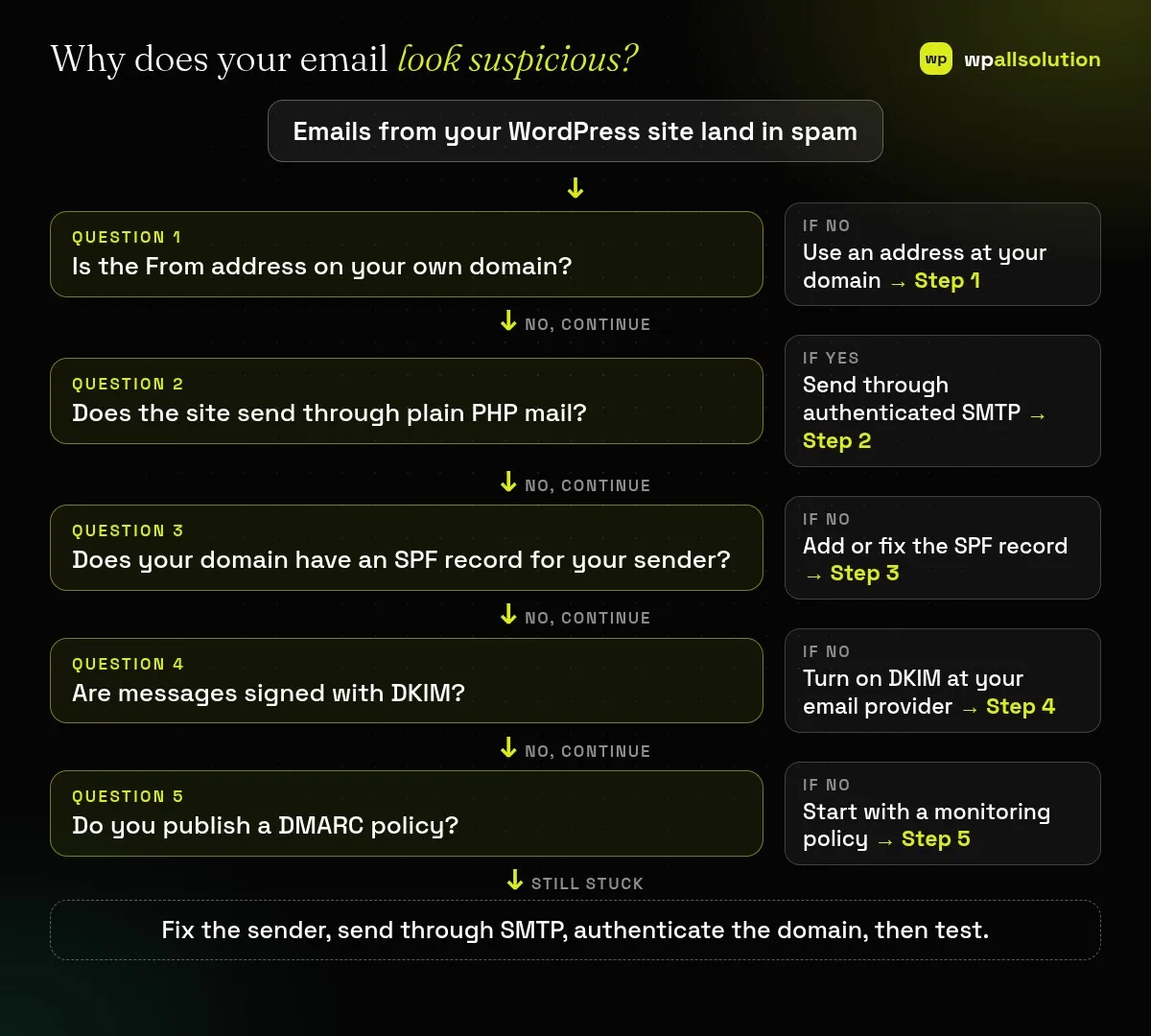
When WordPress emails going to spam is your problem, the messages are sent, but the receiving provider does not trust them. Order emails, password resets and form notifications that land in a junk folder cost you customers and leads. The cause is usually sender identity: the From address, how the message leaves your server, and whether your domain proves that the message is really yours. This guide explains what SPF, DKIM and DMARC check in plain terms and the order in which to fix them.
Use a From address on your own domain, send through authenticated SMTP rather than plain PHP mail, and publish SPF, DKIM and DMARC records for your domain. Google’s sender guidelines say that all senders to Gmail must set up SPF or DKIM, and that bulk senders (5,000 or more messages a day) need SPF, DKIM and DMARC. Most small sites are not bulk senders, but the same authentication improves trust. These steps lower the chance of spam placement; they cannot guarantee inbox delivery.
How this guide was prepared: it is research-based. We used Google’s email sender guidelines and the IETF standards listed under Sources, checked on October 23, 2026. We did not test your domain, and each mail provider decides for itself what to do with a message.
Plain PHP mail from a web server often passes none of these for your domain, which is why it lands in spam so often.
| What you see | Likely cause | Start with |
|---|---|---|
| Form or order emails always in spam | Sender address or transport not trusted | Steps 1 and 2 |
| Spam only at some providers | Missing SPF or DKIM for your domain | Steps 3 and 4 |
| Messages rejected with an authentication message | SPF or DKIM failing, or a strict DMARC policy | Steps 3 to 5 |
| Email worked, then stopped after you changed provider | Old SPF or DKIM records do not match the new sender | Steps 3 and 4 |
Set the sender (the From name and email) of your WordPress emails, forms and shop to an address on your domain, such as support@yourdomain.com. A visitor’s address or a free mailbox as the From address looks forged to receivers. Put the visitor’s address in Reply-To instead. Our guide on Contact Form 7 not sending email shows this for forms, and WooCommerce emails not sending covers store emails.
Connect WordPress to a mail service with a plugin or your host’s SMTP settings, so messages leave through a mail server that is set up to send for your domain. Use a real mailbox or a sending service, and keep passwords out of chat and email. Send a test message from the mail plugin and read the headers to see the results of SPF, DKIM and DMARC checks; most mail clients can show the original message.
Your email provider or SMTP service shows the exact SPF value to add as a DNS TXT record for your domain. A domain should have one SPF record, so merge the entries instead of adding a second one. Wait for DNS to update and test again. Remove services you no longer use, and avoid copying records from random posts.
In your email or SMTP provider, enable DKIM for your domain and add the DNS records it gives you. Once the records are in place, messages are signed and receivers can verify them. Google’s guidelines list SPF or DKIM as a requirement for all senders and say bulk senders need both.
Add a DMARC record for your domain, starting with a monitoring policy (p=none) and a report address, so you can see who is sending mail as your domain before you enforce anything. Google notes that for bulk senders the policy may be set to none. Move to a stricter policy later only after the reports show that all your legitimate mail passes.
Often because they are sent from a server not authorised for your domain, with a sender address that does not match. Fix the sender, send through SMTP and authenticate the domain.
Google requires SPF or DKIM from all senders and all three from bulk senders. Setting up all three is good practice for any domain that sends email.
No. They improve trust, but providers also look at content, reputation and user behaviour.
A mail plugin handles the sending, but SPF, DKIM and DMARC are DNS records that you or your provider must publish.
Fix the sender, connect SMTP and publish the three records. If you would rather not edit DNS yourself, wpallsolution offers plugin support and WordPress maintenance packages. We cannot promise inbox placement.
A staging site lets you test updates on a copy before customers see them. Learn how to create one, lock it down…
Most break-ins start at the login screen. Use this practical checklist for passwords, two-step login, admin accounts, attempt limits and HTTPS.
Care plans give agencies steady work after launch. See how white label WordPress maintenance works, what to include and what to agree…
Black FridayCyber Monday sale
Before you go,
Our biggest discount of the year on the first payment of every maintenance plan.
BF2026 at checkout