
WordPress Login Redirect Loop: Fix Being Sent Back to wp-login
You type the right password and WordPress sends you back to the login page. The cause is usually cookies, address settings, caching…
After moving to HTTPS, some pages still load images or scripts over HTTP. Learn how to find mixed content and fix the URLs safely.
WordPress mixed content is what happens when a page loaded over HTTPS still asks for something over plain HTTP, such as an image, a script or a stylesheet. Browsers then show “Not secure”, a warning in the console, or quietly block part of the page so the layout breaks. It usually appears right after you install an SSL certificate or switch the site to HTTPS, because old addresses are still stored in posts, settings and theme files. This guide shows how to find each insecure URL and fix it at its source.
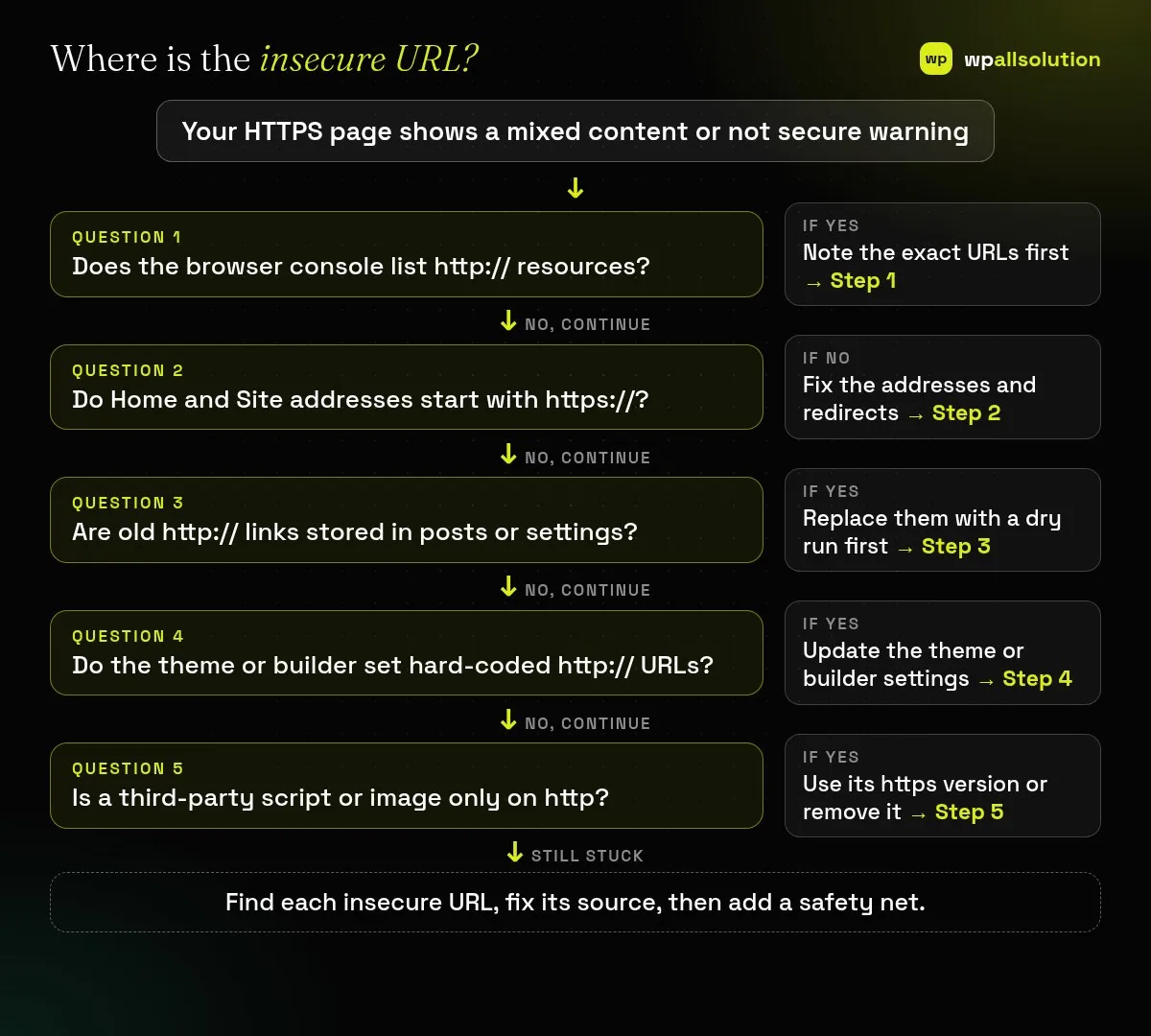
Open the browser’s developer console and list the http:// resources. Make sure the WordPress and Site addresses start with https://. Replace old http:// links in your content with https:// using a safe search and replace (with a dry run first), then fix hard-coded URLs in the theme, builder and plugin settings, and switch third-party resources to their HTTPS versions. A Content Security Policy header can upgrade leftover requests, but it is a safety net, not a substitute for fixing the URLs.
How this guide was prepared: it is research-based. We used MDN’s mixed content guide, the WordPress documentation and the WP-CLI documentation listed under Sources, checked on October 23, 2026. We did not scan your site, and the fix depends on where your insecure URLs are stored.
MDN defines mixed content as a page loaded securely over HTTPS that fetches resources over HTTP or another insecure protocol, which an attacker could view or modify. Browsers treat two kinds differently. “Upgradable” content, such as images, audio and video, is automatically upgraded to HTTPS by modern browsers. “Blockable” content, such as scripts, stylesheets, iframes, fetch requests and web fonts, is blocked. That is why mixed content can break a layout or a feature even when the page looks mostly fine: the blocked stylesheet or script is simply missing. Blocking also applies when the host is an IP address.
| What you see | Likely cause | Start with |
|---|---|---|
| Padlock shows a warning, page looks normal | Images or media loaded over http | Steps 1 and 3 |
| Layout or fonts broken on HTTPS | A blocked http stylesheet, script or font | Steps 1, 4 and 5 |
| Warnings on every page | Addresses still use http, or a theme or global setting | Steps 2 and 4 |
| Only older posts affected | Old http:// links stored in post content | Step 3 |
| Only pages with an embed or widget affected | A third-party resource served over http | Step 5 |
Open the page in your browser, open the developer console (usually F12) and read the mixed content messages. MDN suggests checking the console, testing with mixed content disabled, or crawling the site with a mixed content checker. Write down each URL and the page where it appears, so you can tell whether it comes from content, the theme or a third party.
Check Settings → General: both addresses should start with https:// and have no trailing slash, according to the WordPress documentation. Also check that your server or host redirects HTTP to HTTPS, and look at Site Health, whose Info tab shows whether the site is using HTTPS. If a redirect loop appears, read ERR_TOO_MANY_REDIRECTS in WordPress.
Posts, pages, widgets and settings may contain absolute http:// links. After a backup, WP-CLI’s wp search-replace 'http://yourdomain.com' 'https://yourdomain.com' --dry-run shows what would change; run it again without --dry-run when the report looks right. WP-CLI handles serialised data safely, whereas a plain text replace in the database can corrupt it. See is your WordPress backup really safe before you edit the database.
Hard-coded URLs also live in theme files, customiser settings, page builder templates and plugin options, and a database replace may not catch values generated at run time. Search your theme and builder settings for http://, update the logo, background images and custom CSS, and regenerate any builder CSS cache. If your page builder is Elementor, see Elementor changes not showing for clearing generated files.
Embeds, fonts, scripts and images from other sites should use their https:// versions. If a provider only supports HTTP, replace it, host the file yourself where the licence allows, or remove it. Test pages with embeds and widgets individually.
MDN describes the Content Security Policy directive upgrade-insecure-requests, which tells the browser to upgrade requests to HTTPS, including blockable content. Your host or a security plugin may offer it. Treat it as a net under the fixes above, since it cannot repair a resource that does not exist on HTTPS. Then test again in a private window and clear caches.
It weakens the security of an HTTPS page, since an insecure resource can be read or changed. Browsers warn or block for that reason.
Browsers block insecure stylesheets, scripts and fonts, so the page loses them.
Some plugins rewrite URLs on the fly, but fixing the stored URLs at their source is cleaner.
Yes. Modern browsers often upgrade them automatically, but you should not rely on that.
List the insecure URLs, fix their sources and test again. If you would like help with an SSL or migration clean-up, wpallsolution offers an emergency WordPress fix and WordPress maintenance packages. We cannot promise a result without seeing your site.
You type the right password and WordPress sends you back to the login page. The cause is usually cookies, address settings, caching…
Most break-ins start at the login screen. Use this practical checklist for passwords, two-step login, admin accounts, attempt limits and HTTPS.
A staging site lets you test updates on a copy before customers see them. Learn how to create one, lock it down…
Black FridayCyber Monday sale
Before you go,
Our biggest discount of the year on the first payment of every maintenance plan.
BF2026 at checkout