
WordPress Uptime Monitoring: Set Up Alerts and Respond to Downtime
Do you find out your site is down from a customer? Set up uptime checks and alerts, choose what to monitor and…
WordPress 7.1.3 is a security and maintenance release. Here is what it fixes, who should update, and how to update and verify your site safely.
The WordPress 7.1.3 security update was published on October 6, 2026 as a security and maintenance release. According to the official announcement, it includes 7 security fixes and 4 bug fixes, and the WordPress team recommends updating your sites immediately. This guide explains in plain language what was fixed, who needs to act, how to update safely and how to confirm that your site is on the right version. It does not give details that would help an attacker.
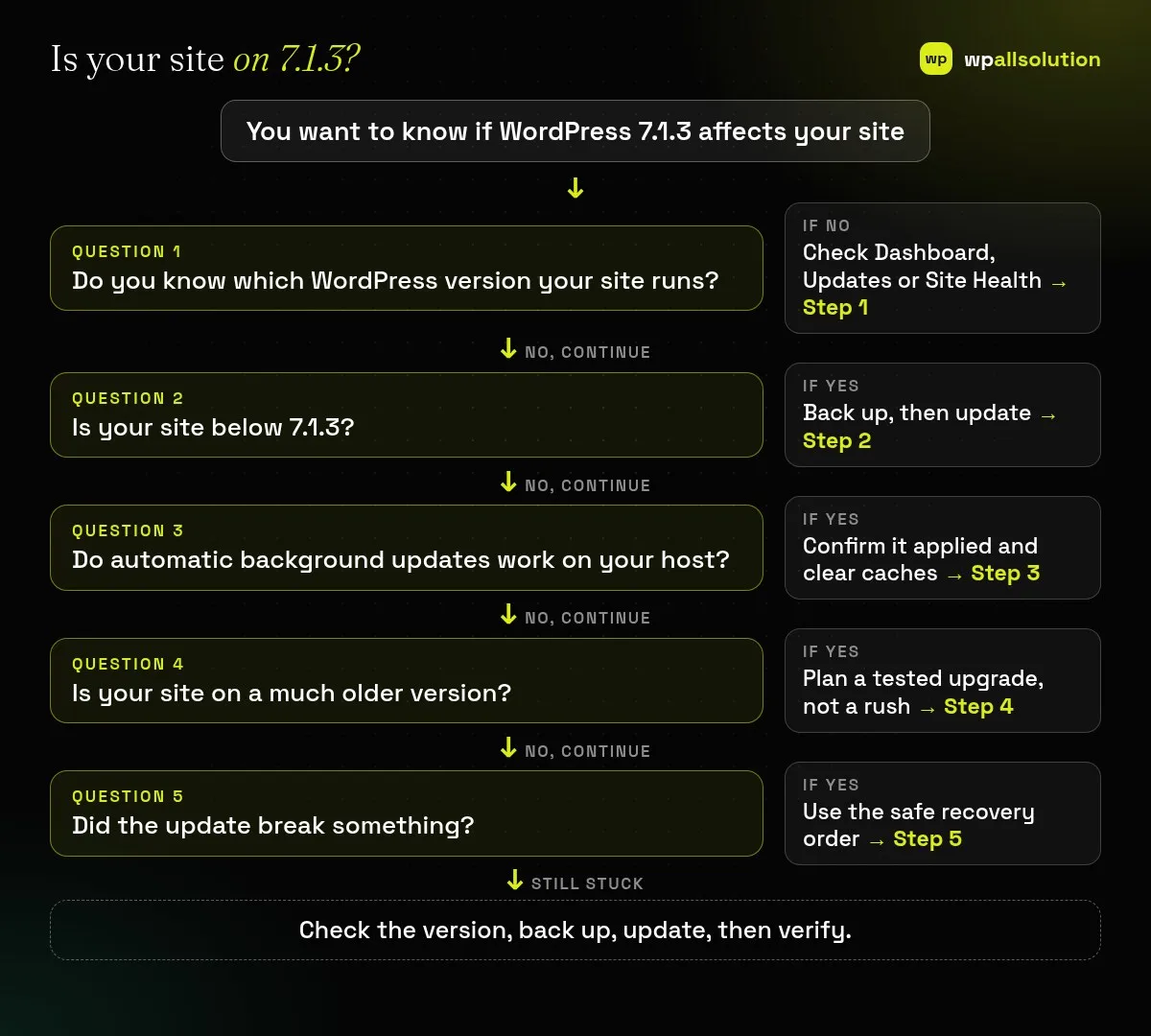
For the WordPress 7.1.3 security update, check your version under Dashboard, Updates. If it is lower than 7.1.3, take a backup, then click Update Now, or let automatic background updates do it if your site supports them. After the update, clear your caches and test your forms, login and checkout. If your site runs a much older WordPress version, plan a tested upgrade rather than a rushed one, because only the most recent version of WordPress is actively supported. If the update breaks something, use the safe recovery order in our fatal error guide.
How this guide was prepared: it is research-based. We used the official WordPress.org release announcement and documentation listed under Sources, checked on October 25, 2026. We do not run a security lab and have not tested these fixes, so follow the official post for the technical record.
The announcement lists these 7 security fixes:
WP_Http::make_absolute_url() method.It also includes 4 bug fixes. The announcement says security fixes are being backported to older branches, going back to 4.7, although those backports were still rolling out when it was written.
| Your site | Why it matters | Priority |
|---|---|---|
| Allows public comments or has many authors | Some fixes involve comments and the Author role | Update soon |
| Uses private or unpublished posts | One fix concerns comment disclosure on them | Update soon |
| Single owner, no comments | Lower exposure, but the release is still labelled security | Update this week |
| Old WordPress version | Needs a careful, tested jump | Plan it now |
Open Dashboard, Updates, which shows the installed version, or open Tools, Site Health, Info. If you manage several sites, list their versions in one place.
Take a backup you can restore, then use Dashboard, Updates and click Update Now, or update manually as described in the official documentation. For the full routine, see our WordPress update checklist. If the update stalls on a maintenance message, see another update is currently in progress.
The announcement says sites that support automatic background updates will start the update on their own, but that depends on your host and settings. Do not assume it happened: look at the version. To control what updates automatically, read WordPress auto updates.
If your site is several major versions behind, do not click through in a hurry. Test on a copy, check that your theme and plugins support the newer version, and upgrade in a planned window. The WordPress documentation points to extended upgrade instructions for jumps across versions.
Clear caches, test the contact form, login and checkout, and check Site Health. If something fails, read what to check first after an update and roll back only the last change. For a wider look at hardening, see our PHP2Shell article, which explains why security is ongoing maintenance.
No. It is a minor maintenance and security release within the 7.1 branch, so it should not change features.
The release is labelled a security release and WordPress recommends updating all sites. Exposure differs, but updating is still the safe choice.
Minor releases rarely break plugins, but it can happen. Back up first and test your key pages afterwards.
Ask your host whether and when they apply core security updates, and check the version yourself afterwards.
Related guide: WordPress Redirecting to Spam Sites: First Steps for a Redirect Hack
Check your version today. If you want someone to handle tested updates and monitoring, see WordPress maintenance, or use our emergency fix if an update broke your site. We are a WordPress maintenance company, not a security lab, and cannot promise your site will never be attacked.
Do you find out your site is down from a customer? Set up uptime checks and alerts, choose what to monitor and…
Updates fix security issues but can break a site. Use this checklist to back up, update in a safe order, test your…
Moving hosts is where sites lose orders, emails and rankings by accident. Copy first, test on the new server, lower DNS TTL,…
Black FridayCyber Monday sale
Before you go,
Our biggest discount of the year on the first payment of every maintenance plan.
BF2026 at checkout