
WordPress Login Redirect Loop: Fix Being Sent Back to wp-login
You type the right password and WordPress sends you back to the login page. The cause is usually cookies, address settings, caching…
This 403 message means WordPress does not think your account may open that screen. Check your role, a changed table prefix, plugins and security rules.
The message “Sorry, you are not allowed to access this page” appears when WordPress decides that the account you are using may not open the admin screen you asked for. It comes with an HTTP 403 status and is a permission check, not a hack. The cause is usually simple: you are logged in as the wrong user, your role was changed, or WordPress cannot read your role after a migration because of a database table prefix mismatch. This guide checks those causes in order, starting with the safest.
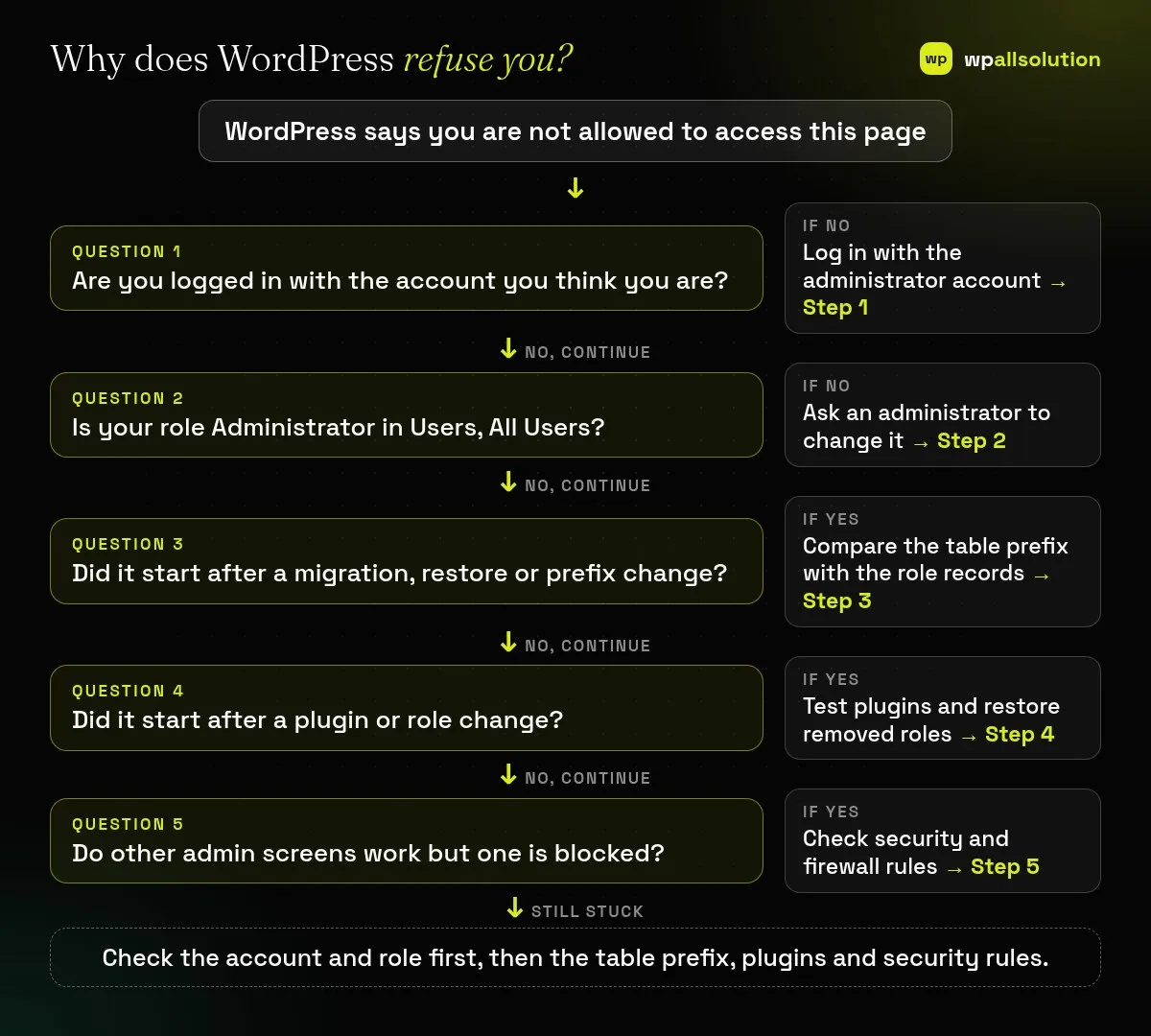
First make sure you are logged in with the administrator account. Then check your role under Users. If you are an administrator and still locked out after moving or restoring the site, compare the table prefix in wp-config.php with the prefix of the database tables, because WordPress stores roles and capabilities under that prefix. Finally test plugins and security rules. Back up before you change database records.
How this guide was prepared: it is research-based. We read the WordPress source code listed under Sources, checked on October 23, 2026. We did not test your site, and editing user and role data is risky, so ask a developer if you are unsure.
In WordPress’s admin code, the message “Sorry, you are not allowed to access this page.” is sent with a 403 status when the current user’s capabilities do not allow the requested admin page. WordPress keeps capabilities in two places that depend on your database table prefix: a user’s capabilities are stored in user meta under a key made of the prefix plus capabilities (for example wp_capabilities), and the list of roles is stored in the options table under the prefix plus user_roles. If the prefix in wp-config.php does not match the prefix used in those records, WordPress cannot find the role and treats the user as having no permissions.
| What you see | Likely cause | Start with |
|---|---|---|
| Message after logging in as a staff or client user | That user’s role does not include the capability | Steps 1 and 2 |
| Message for the original administrator after a move | Table prefix mismatch, so the role record is not found | Step 3 |
| Message right after a plugin was removed or updated | A plugin that added roles or capabilities changed them | Step 4 |
| Only one plugin’s page is blocked | That plugin’s own access setting or a security rule | Steps 4 and 5 |
| The dashboard and settings are blocked for everyone | Role data lost or a firewall rule | Steps 3 and 5 |
Log out, then log in again with the administrator username and password. It is easy to be logged in as an editor or a client account in another browser tab. Also test in a private window, which rules out confusion with another saved session.
If you can reach Users → All Users, check the role of the account. Another administrator can change it from the user’s profile. With WP-CLI, wp user list --fields=ID,user_login,roles shows roles and wp user set-role <user> administrator sets one, after a backup. Only give the administrator role to people who need it; our guide on PHP2Shell and website security lists access control as a core habit.
If the original administrator is blocked after a migration, a restore or a prefix change, open wp-config.php and note $table_prefix. Then open the database in your host’s database tool and compare it with the real table names (for example wp_users, abc_users). If you renamed the tables, the keys in the user meta table and the roles option also need the new prefix, so a record named wp_capabilities must become abc_capabilities, and the option wp_user_roles must become abc_user_roles. This is a delicate edit: take a backup first, or restore a backup taken before the change, or ask your host or a developer. See how to move WordPress to a new host for what a migration should include.
Plugins that manage roles, memberships, shops or user access can change capabilities, and removing one can leave users without the capability they relied on. Deactivate the likely plugin (or rename the plugins folder if you are locked out) and test; see how to find the plugin that broke your site. If a role was deleted by a plugin, restore it from a backup or recreate it with the plugin’s own tools.
Security plugins, host firewalls and rules that restrict admin screens by IP can block access and show similar messages. Check their logs or settings, and ask your host whether a rule blocks the page. If you also see redirect problems on login, read WordPress login redirect loop.
Not by itself. It is a permission check. If you see it together with unknown admin users or changed files, investigate further.
A changed table prefix can make WordPress unable to find your role records.
Yes, especially plugins that manage roles or restrict access.
Only with a backup and care. A wrong edit can lock out more users, so ask for help if unsure.
Check the account, the role and the prefix, then plugins and security rules. If you are locked out of your own site, wpallsolution offers an emergency WordPress fix and WordPress maintenance packages. We cannot promise a result without seeing your setup.
You type the right password and WordPress sends you back to the login page. The cause is usually cookies, address settings, caching…
Most break-ins start at the login screen. Use this practical checklist for passwords, two-step login, admin accounts, attempt limits and HTTPS.
A staging site lets you test updates on a copy before customers see them. Learn how to create one, lock it down…
Black FridayCyber Monday sale
Before you go,
Our biggest discount of the year on the first payment of every maintenance plan.
BF2026 at checkout